
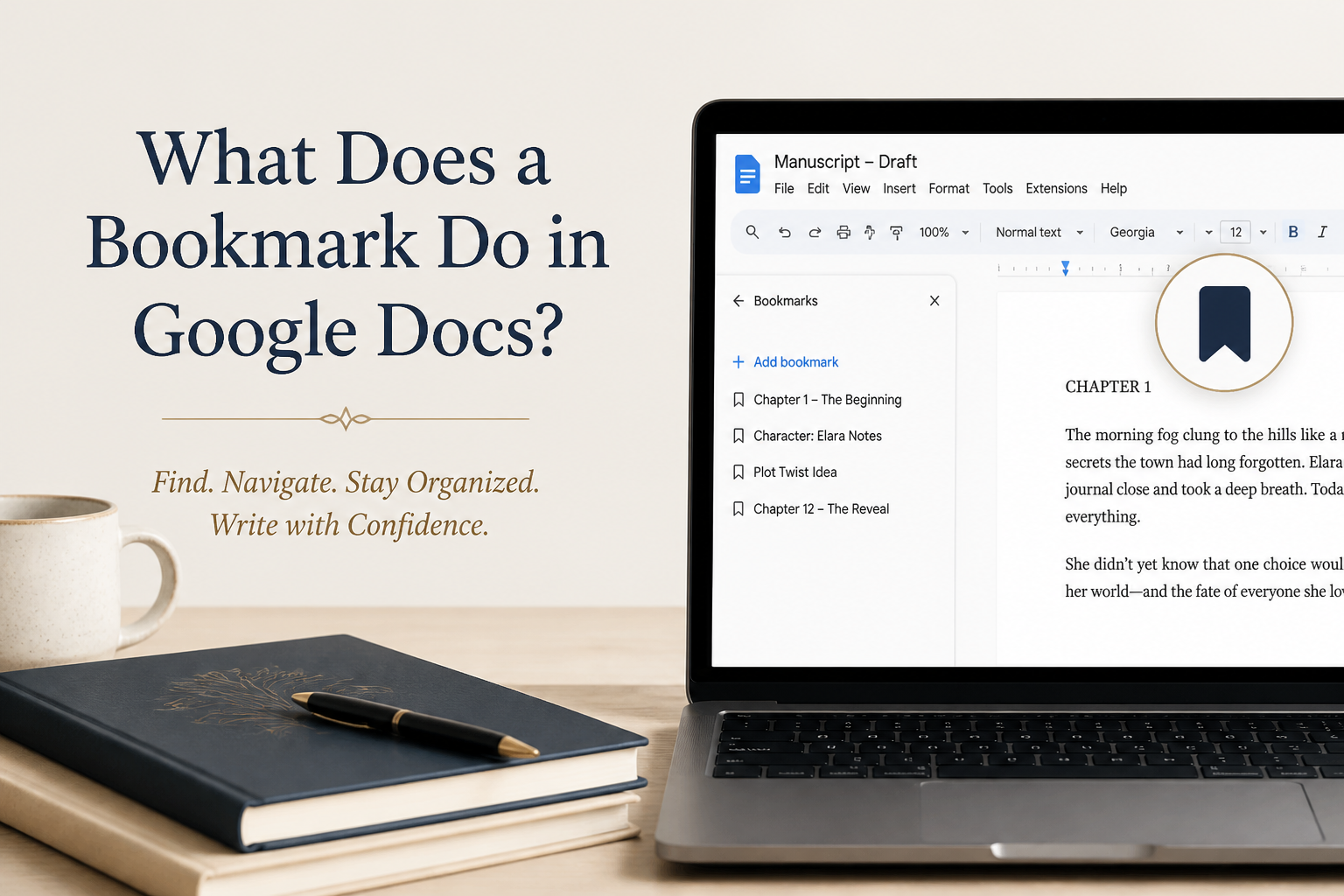
Manuscripts stop being easy to move around once they run past a few chapters. That raises a practical question: what does a bookmark do in Google Docs? It saves a precise location in your document and gives you a link that takes you back to that location. For a writer, it turns a 90,000-word manuscript from a long scroll into a document with usable reference points.
You can bookmark a character’s first appearance, a scene that needs revision, a research note, or the spot where your developmental editor left a question. Copying a bookmark link and sending it to a collaborator lands them on the exact passage you mean. The feature takes seconds to use. Its value comes from applying it to the places you revisit repeatedly.
I recommend bookmarks for manuscript navigation, editorial feedback, and project handoffs. They won’t replace chapter headings, the document outline, or a proper revision plan. The payoff is a fast set of private signposts inside the working file.
Table of Contents
What A Google Docs Bookmark Does
A bookmark marks a specific position in a Google Docs file. After you create one, Google Docs generates a link connected to that location. Clicking the link brings the reader to the bookmarked spot, provided they have permission to open the document.
Think of a bookmark as a permanent address for a passage. Page numbers shift after you add paragraphs, and a search term may appear dozens of times. A bookmark stays attached to the selected location as you continue drafting, which makes it more useful for an evolving manuscript.
Google Docs treats bookmarks as navigation tools. They don’t create a visible note, highlight your prose, or change the formatting of the selected text. The bookmark appears as a small blue icon beside the location, and you can open its menu to copy the link or remove it.
Bookmarks And Document Outline
The document outline organizes headings such as Chapter One, Scene Two, or Research Notes. A bookmark handles a finer point inside that structure. Your outline might take you to the beginning of Chapter Twelve. A bookmark can take you directly to the paragraph where your antagonist reveals the lie.
Use headings to lay out the book’s shape. Use bookmarks for the places that require attention, discussion, or repeated access during the current stage of the project.
Bookmarks And Comments
A comment belongs to a discussion. Bookmarks belong to a location. You might leave a comment asking, “Does this motivation make sense?” Then you can bookmark the scene if you expect to revisit it during the next revision pass.
Google’s official Google Docs collaboration documentation explains how comments, suggestions, and document permissions work together. Bookmarks fit into the same editorial workflow as location markers, so they prove especially useful when several people work on one manuscript.
How To Add A Bookmark In Google Docs
Adding a bookmark is simple, though you need to place the cursor carefully. A bookmark marks a position rather than a broad section of text, so click where you want the link to open. For a scene, I usually place the cursor at the scene heading or the first sentence.
- Open your Google Docs manuscript.
- Place your cursor at the exact location you want to save.
- Open the Insert menu.
- Select Bookmark.
- Look for the blue bookmark icon beside the selected location.
- Click the icon to open the bookmark menu.
- Choose Copy link if you need to share or save the location.
Google may display a link option that lets you copy the bookmark URL. You can paste that link into an editorial email, a revision checklist, or another section of your project document. Anyone who opens it with the right document access should jump to the bookmarked location.
The current Google Docs interface can change slightly across browsers and accounts. Google’s instructions for adding and editing bookmarks provide the current menu path, so consult them if your Insert menu looks different.
Choosing The Right Bookmark Location
Place the bookmark at a stable, meaningful point. Chapter headings, scene headings, the first line of an important exchange, or a research question usually work well. Dropping one at a random position halfway through a paragraph creates confusion when you return to it weeks later.
For example, in a novel, I might create bookmarks called “Mara meets the archivist,” “Reveal the missing letter,” and “Check timeline after storm.” In nonfiction, I might mark “Add source for adoption statistics,” “Clarify definition,” and “Move case study to Chapter Four.” The name should tell you why the location matters.
Naming Bookmarks For Revision
Google Docs may display a default bookmark label or a simple location marker, depending on the interface you use. Keep your own naming system in a separate revision log if the bookmark menu offers you too little say over labels. Pair a short description with the chapter and task, such as “Ch 7, cut repeated explanation.”
That small habit prevents a familiar problem in long manuscripts: opening six links called “Bookmark 1” and trying to remember which one contains the pacing issue.
How Authors Use Bookmarks During A Manuscript
Bookmarks earn their place by removing repeated searches. I use them for questions that need an answer later, passages that connect across chapters, and material that another person needs to review. The best bookmarks support a specific stage of the book rather than decorating the document.
Tracking Revision Problems
Create a bookmark at every passage that needs a later decision. Examples include a weak opening, an unearned emotional turn, a timeline conflict, or a chapter that needs a stronger ending. Add the task to your revision log and keep drafting without breaking concentration.
Create a bookmark at every passage that needs a later decision. Examples include a weak opening, an unearned emotional turn, a timeline conflict, or a chapter that needs a stronger ending. Add the task to your revision log and keep drafting without breaking concentration.
This method separates discovery from repair. During a read-through, you can mark problems in seconds. The revision pass then lets you visit those locations in an order that fits your process. I often work from structural issues toward line edits because polishing a scene that may be cut wastes time.
Managing Research And Sources
Nonfiction writers can bookmark claims that need a source check. Place the cursor beside the claim, then record the source and question in a comment or research log. A bookmark makes it easy to find the claim when you reread a book, an academic paper, or a government report.
Fiction writers can use the same system for continuity. Bookmark the first description of a character’s scar, the moment a weapon appears, or the chapter where a fictional town is introduced. During copyediting, those locations give you reference points for checking repeated details.
Sharing Precise Editorial Feedback
Suppose your editor asks you to revisit the argument in Chapter Three. The chapter title alone may leave you hunting through eight pages. A bookmark link takes you to the exact paragraph, which saves both people time and reduces the chance of discussing different passages.
When I share a manuscript with a proofreader, I use bookmarks for questions that require context. I might send a link to the first use of a specialized term, then ask the proofreader to check every later use for consistency. A bookmark cannot perform that check for you. Its job is to get the conversation to the right place.
How To Link To A Bookmark
A bookmark becomes especially useful when you connect it to navigation text. You can create a small contents page at the top of a manuscript, add links such as “Go to Chapter Seven opening” or “Review unresolved questions,” and connect each phrase to a bookmark.
To create the link, highlight the words that should be clickable. Open Insert, choose Link, and select the relevant bookmark from the link panel. You can also use the keyboard shortcut for inserting a link, then choose the bookmark from the available options. Google documents the process in its Google Docs help page for links and bookmarks.
For a manuscript, I prefer descriptive link text over bare URLs. “Return to the midpoint reversal” tells you what you will find. Strings of raw characters tell you nothing and look like debris in your project file.
A Useful Manuscript Navigation Page
Create a navigation page above your draft only if you will maintain it. A simple version might include these entries:
- Open revision questions
- Scenes requiring new research
- Continuity checks
- Chapters awaiting outside feedback
- Passages approved for final copyedit
Link each entry to a bookmark, then remove entries when the work is finished. An abandoned navigation page becomes another form of clutter. Your manuscript already contains enough clutter without adding a museum of completed tasks.
Sharing Links With Editors And Readers
Check the document’s sharing permissions before sending a bookmark link. A precise link cannot grant access to someone who lacks permission to view the file. Use the sharing controls in Google Docs to decide whether a collaborator can view, comment, or edit.
For example, an editor may need a comment or suggestion-access link for the assignment. An early reader works better with a view-only copy that protects the working manuscript. I recommend keeping your master draft private and creating a separate review copy before sending links outside your immediate project.
Limits And Common Bookmark Problems
Bookmarks are useful within Google Docs. However, they also come with limits. They depend on the document remaining accessible, and their behavior can become confusing when you move large blocks of text, duplicate content, or share a file without the right permissions.
Bookmarks Depend On Access
A bookmark link doesn’t bypass Google Drive permissions. If your editor sees an access request, change the sharing setting or add that person directly. Review the permission level before the deadline, as a link that works for you may fail for a collaborator signed in to another account.
Links also work best inside the Google Docs environment. A reader who downloads your manuscript as a PDF or Word file may lose the same bookmark behavior, depending on the export format and the receiving application. Treat Google Docs bookmarks as working-file tools rather than guaranteed features of your final ebook or print interior.
Bookmarks Need Maintenance
A bookmark can outlive the reason you created it. Delete completed bookmarks during each major revision pass. Review the remaining links after restructuring chapters, moving scenes, or splitting a single document into several files.
I keep a short review at the end of every developmental edit. I click each active bookmark, confirm that it opens at the intended passage, and remove anything tied to a finished question. Five minutes of maintenance saves a frustrating search later.
Bookmarks Don’t Replace A Revision System
A bookmark records location. It doesn’t tell you the order of work, the size of the problem, or the decision you need to make. Pair it with a revision log that includes the chapter, the issue, the proposed fix, and the status.
For larger projects, a spreadsheet or project board may handle those details better. Adazing’s writing tools can help you generate names, words, or quick drafting material when you hit a creative stall. However, your bookmark system should remain focused on finding and managing existing manuscript material.
FAQs for What Does a Bookmark Do in Google Docs?
Can A Google Docs Bookmark Mark A Whole Paragraph?
A bookmark marks a location in the document rather than highlighting a full paragraph. Place the cursor at the beginning of the paragraph or beside its heading, then use a comment or text highlight when you need the entire passage to stand out.
Can I Share A Google Docs Bookmark With An Editor?
Yes. Copy the bookmark link and send it to your editor, then check the document permissions. The editor needs suitable access to the Google Docs file, and the link will open at the bookmarked location after access is granted.
Do Google Docs Bookmarks Appear In A Published Ebook?
Usually not, so treat them as drafting and collaboration tools. Exporting a Google Docs file to EPUB, PDF, or another format may change or remove bookmark behavior. Build ebook navigation through the publishing tool or conversion workflow you use for the final book.
Use Bookmarks As Manuscript Signposts
A Google Docs bookmark gives you a reliable link to a precise place in a changing manuscript. Use it for revision questions, continuity checks, research gaps, and editorial handoffs. Give each marker a clear purpose, connect it to descriptive text when navigation helps, and remove it when the work is finished.
Your manuscript deserves a navigation system that matches its size. Headings provide the structure, comments hold the conversation, and bookmarks get you back to the exact sentence that needs your attention.
