
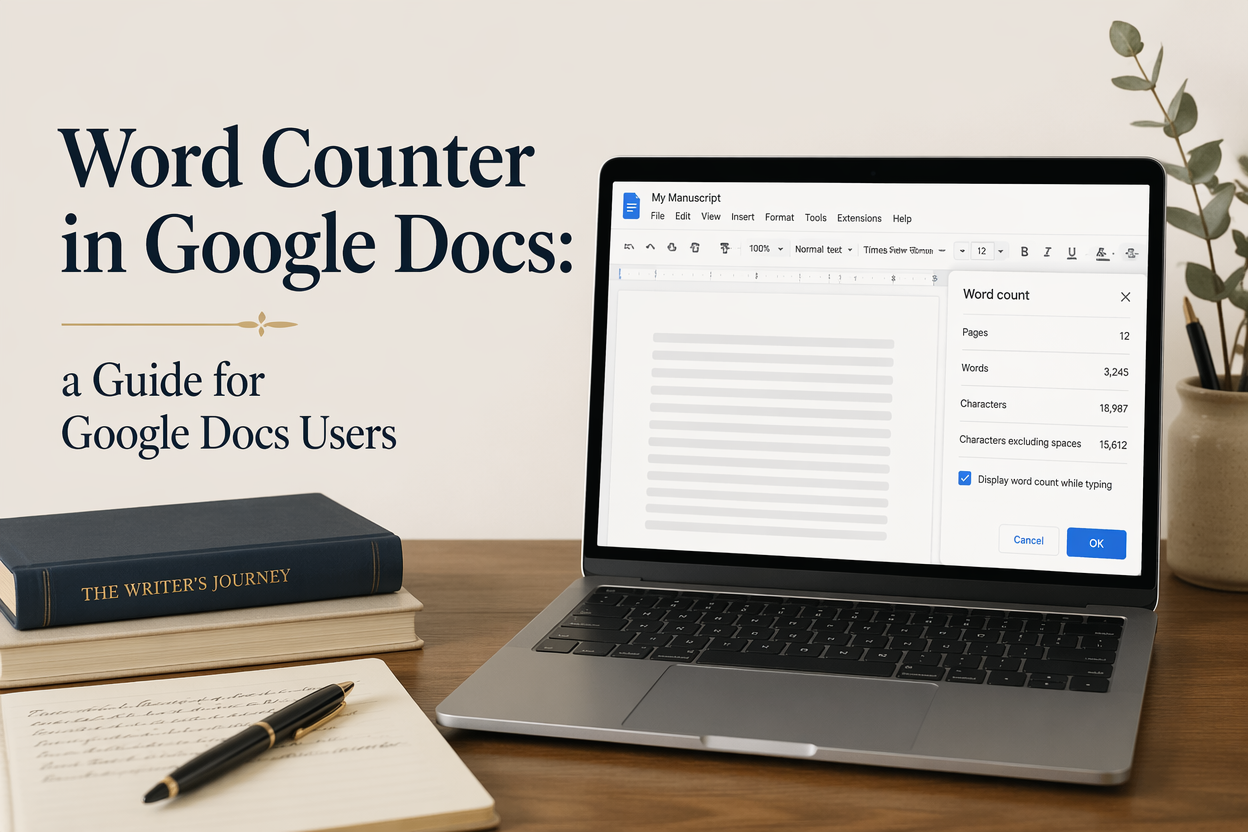
Your word counter in Google Docs is the fastest reality check you have while drafting, and most writers still treat it like a novelty. Word count is a diagnostic tool that tells you whether your scene work, pacing, and market expectations align with the book you think you are writing.
I have watched more drafts go off the rails because of fuzzy targets than because of weak prose. When you know how to read word count the way an editor reads it, you stop guessing. You start steering.
This article shows you how to pull the numbers you need in Google Docs, how to set up a manuscript so the numbers mean something, and how to use those numbers to hit a publishable length without padding or accidental bloat.
Table of Contents
Word Count as a Drafting Instrument
Word count matters because readers carry expectations into a book before they read page one. Some genres tolerate wild variance. Others punish it. For example, a 40,000-word epic fantasy can feel like a prologue. On the other hand, a 140,000-word cozy mystery is going to feel like you locked the reader in a room with your side characters.
Traditional publishing has always cared about length because it affects printing cost, spine width, and shelf placement. Indie authors need to care because length affects read-through, Kindle page reads, audiobook pricing, and whether your book looks like it belongs next to its competitors. Amazon even ties Kindle Unlimited payouts to pages read through KENP, which is why bloat without story value hurts you twice. It slows the reader, and it invites bad reviews. Amazon’s own documentation explains how KENP is determined from the file and why page count is not the same thing as your Google Docs word count.
What Word Count Can Tell You Mid-Draft
If you check word count at natural milestones, it starts pointing out structural problems early. When your Act 1 is 45,000 words in a genre where the whole book often lands near 80,000, you are not building tension. You are delaying the story.
I like to look at word count at the end of each major beat, not every hour. Your drafting brain should stay in story mode. Your editing brain should look at the numbers and ask one question: “Does the pace match the promise?”
Word Count Expectations by Category
Any range you find online is a range, not a rule, and you should always check your actual Amazon category by sampling the top 20 books in your niche. Still, industry guidance exists for a reason. For a grounded baseline, I trust the ranges described by Writer’s Digest for typical novel word counts because it reflects common editorial expectations across genres.
If you write romance, thriller, fantasy, or litRPG, your reader’s patience and your platform’s economics will set different ceilings. Romance readers often prefer brisk momentum. Epic fantasy readers will tolerate length if every chapter pays rent in plot and wonder. LitRPG readers will tolerate length when progression keeps moving. No audience forgives wheel-spinning.
A Simple Targeting Method I Actually Use
I pick two targets before I draft. The first is a market target based on comparable books. The second is a personal target based on the story’s true complexity. When those targets disagree, I adjust the story plan instead of hoping revision will magically fix it later.
You can do this tonight. Choose five recent books in your subgenre that you would be happy to sit next to on an Amazon product page. Look up their approximate length from the paperback page count and the audiobook duration. This gives you a sense of what readers are buying. Then set a draft target range, not a single number, and keep it visible while you write.

Finding Word Count in Google Docs
Google Docs makes word count easy to access, but it also makes it easy to misread. You need two skills: pulling the number fast, and knowing what the number includes. Your draft is full of things that are not part of the book, like notes to yourself, alt lines, and placeholders. If those are counted, your “progress” is fiction.
Word Count on Desktop
On a computer, open your document and go to Tools, then Word count. You will see words, pages, characters with spaces, and characters without spaces. Words are what most authors track. Characters matter when you are writing to a strict limit, like some contests, queries, or ad copy.
If you want the count visible while you type, open Tools, Word count, then check “Display word count while typing.” Now you will see a live tally at the bottom left, and you can click it to toggle between words, pages, and characters. This feature is one of the few “always on” drafting aids that does not get in your way once you are used to it.
Word Count on Mobile
On iPhone or Android, word count exists, but the path is different, and it changes as Google updates the app. In general, you open the doc, tap the menu icon, then look for Word count. If you cannot find it, update the app first. If it is still missing, your account settings or the app version may be limiting features.
Mobile counts are fine for a quick check. For serious tracking, I do it on desktop because it is easier to control what you are counting and to audit your manuscript structure.
Counting a Selection Instead of the Whole Draft
Highlight a passage, then open Word count. Google Docs will show the count for the selection as well as the whole document. This is the most underused feature for authors because it turns word count into a scalpel.
If a scene feels slow, measure it. If your chapters are dragging, measure them. You do not need to guess whether your opening is bloated. You can check the first 3,000 words and see how much time you spend before your inciting incident lands.
Setting Up Your Doc So the Numbers Mean Something
A messy draft produces meaningless metrics. When your word count includes outline debris, version forks, and half-written scenes you abandoned, it will lie to you. You will think you are farther along than you are, then you will hit the endgame and discover you are short 20,000 words of actual story.
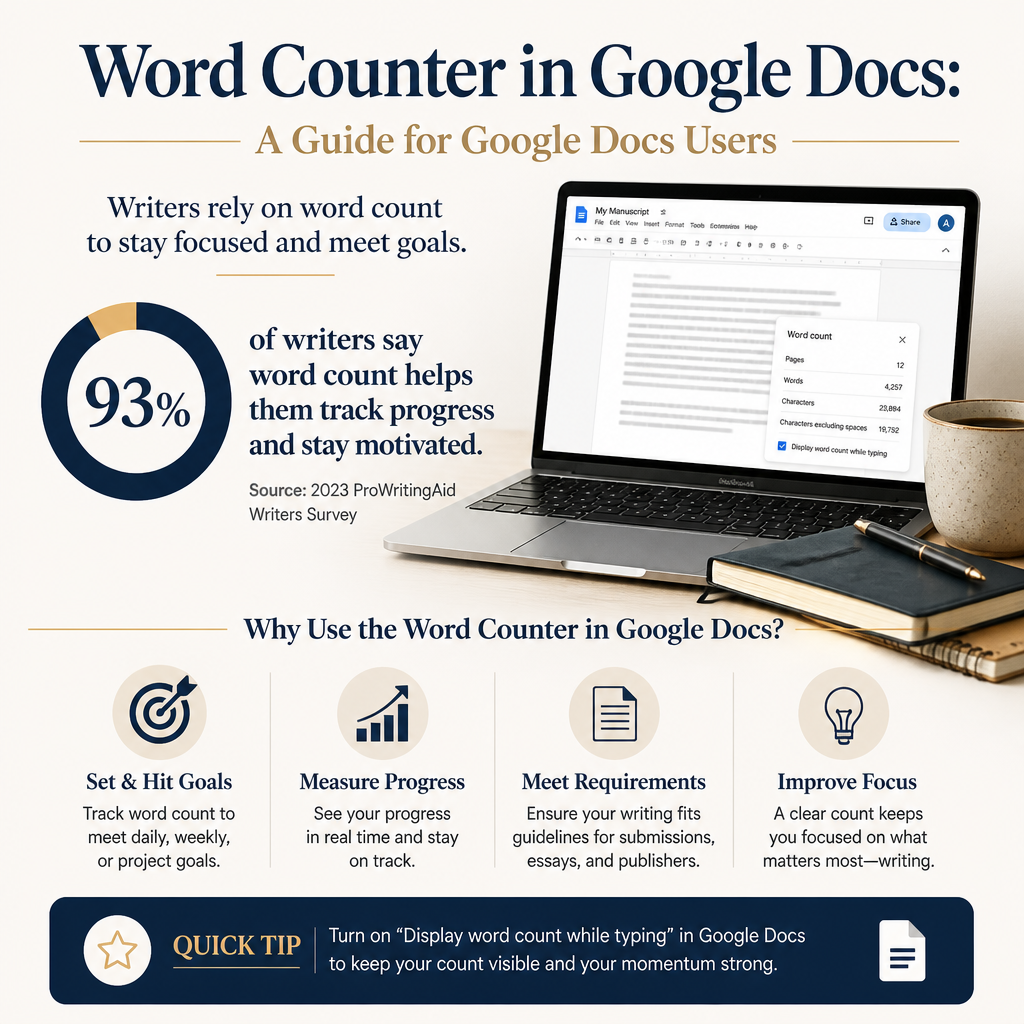
I fix this by separating drafting from tracking. Your drafting document can be chaotic. Your tracking needs to be clean.
Using Headings for Chapters and Major Beats
Format chapter titles with Heading 1. Use Heading 2 for scene breaks or major beats if you like. This is not about aesthetics. It is about navigation and measurement. Once your structure is consistent, you can highlight a chapter fast and count it. You can also use the outline panel to jump around without scrolling through 90,000 words of text.
If you dictate, write out of order, or revise heavily, headings keep you from losing chapters in the sludge of your own enthusiasm.
Keeping Notes Out of Your Draft Word Count
Notes should live in a separate document. If I need inline notes, I use comments. Comments do not count toward word count. That single choice keeps the number honest.
If you are the kind of writer who needs a scratchpad in the same file, put it at the end under a clear heading like “Notes” and exclude it when you track progress. Highlight only the manuscript section when you check word count, so the count reflects the book and not your brainstorming.
Version Control That Does Not Break Your Brain
Google Docs has version history, and it is solid. Use File > Version history > See version history. Name versions at meaningful milestones, like “Draft 1 complete,” “Post beta revision,” or “Line edit pass.” This habit lets you cut 5,000 words without fear because you can always restore earlier text.
Google’s own support page explains how to view and restore revisions. See Google Docs version history instructions. I rely on this when I am aggressive about trimming. It gives you freedom to be decisive.
Using Word Count to Control Pacing and Structure
Counting words is easy. Using word count to write a better book is the real skill. You are not trying to hit an arbitrary number. You are trying to make the reading experience feel intentional.
Chapter Length and Reader Momentum
There is no universal “right” chapter length, but there are genre patterns. For example, thrillers and romance often favor shorter chapters because they encourage “one more chapter” reading. Epic fantasy can handle longer chapters if the internal movement stays strong. If you publish serially, shorter segments often perform better because they fit phone reading habits.
Here is a practical check. Pick one of your favorite books in your genre and measure a representative chapter length by copying a chapter into a doc and running a word count. You will learn more from that than from a dozen generic ranges.
Beat Mapping by Word Count
If you outline, assign rough word ranges to major beats. If you do not outline, you can still retroactively map your beats after a draft. Either way, the point is to see where the book is spending its time.
A common pacing problem shows up as a long, wandering middle where very little changes. When I see that in word count, I look for scenes that do not shift the situation. If a scene does not change what the character knows, wants, risks, or can do, it is probably not earning its length.
Spotting Overwritten Openings
Overlong openings happen when the writer falls in love with setup. Readers want traction. You can use word count to police this without killing your voice.
I like a simple test. Check the word count from page one when the main story problem becomes unavoidable. If that number is high for your genre, you have two options. Bring the problem forward or cut the setup into smaller pieces and thread them later where they create tension instead of delay.
Word Count Workflows That Fit Real Publishing Goals
Your word count workflow should align with your publishing plan. Drafting a single literary novel for a traditional submission path looks different from releasing a series on a 60-day schedule. The tool stays the same. The way you use it changes.
Daily Targets That Do Not Encourage Padding
I like daily word goals, but I do not treat them as a moral scoreboard. If your only goal is “hit 2,000 words,” you will write 2,000 words of anything, including scenes that should not exist. You will pay for that later in revision time.
Try pairing a word goal with a story goal. Write 1,500 words and finish the confrontation scene. Write 800 words and reach the discovery beat. When the story goal is met early, stop. When you miss the word goal but hit the story goal, call it a good day.
Project Tracking Across Drafts
Draft 1 is usually longer than the final book for discovery writers and shorter for tight outliners. Both patterns are normal. What matters is whether the changes in your word count are intentional. Name your drafts and record the count at each stage. You will learn your personal drafting profile within two books.
If you are writing a series, track the length of each installment. Readers notice if book three is half the length of book two for no reason. Consistency is part of your brand, even if you never talk about it.
When Google Docs Is Enough and When It Is Not
Google Docs is excellent for drafting and collaboration. It is less ideal for heavy production tasks like formatting for print and ebook, or managing a complex series bible. If you are drafting in Docs and publishing wide, you will likely export to Word or another tool later.
This is where purpose-built tools help. At Adazing, I spend my time around authors who need speed and clarity. Tools like QuickWrite are built for writing momentum and organization, and Adazing’s generators and marketing tools help you move from manuscript to packaging and promotion without losing weeks to busywork. I still tell authors to master Google Docs because it is ubiquitous. Then layer specialized tools on top when the project demands it.
FAQs for Word Counter in Google Docs: A Guide for Google Docs Users
Why does my Google Docs word count not match my Kindle book target word count?
Google Docs counts words in your document. Kindle uses KENP, which is a normalized page count based on how the ebook renders across devices. Formatting, font settings, and file conversion affect KENP, so you should expect differences. If you need the Kindle metric, check Amazon KDP’s KENP documentation and treat your Google Docs word count as a drafting number, not a payout number.
Does Google Docs count words in comments, footnotes, or headers?
Comments do not count toward word count, which is why I like them for inline notes. Footnotes and headers can affect counts depending on how they are implemented and whether you are counting selections or the whole document. If precision matters, highlight only the manuscript body and run word count on the selection.
How do I count only one chapter in Google Docs?
Highlight the entire chapter text, then go to Tools and Word count. Google Docs will display the selection’s word count. If you use Heading 1 for chapters, selecting a chapter becomes much easier because you can jump to it in the outline and drag-select cleanly.
A Word Count Habit That Pays Off
Your best use of Google Docs word count is consistency. Check it at the same milestones, track it across drafts, and use it to diagnose pacing instead of chasing a number for its own sake. When you treat the count as feedback, you write cleaner books, revise faster, and publish with fewer ugly surprises.
