
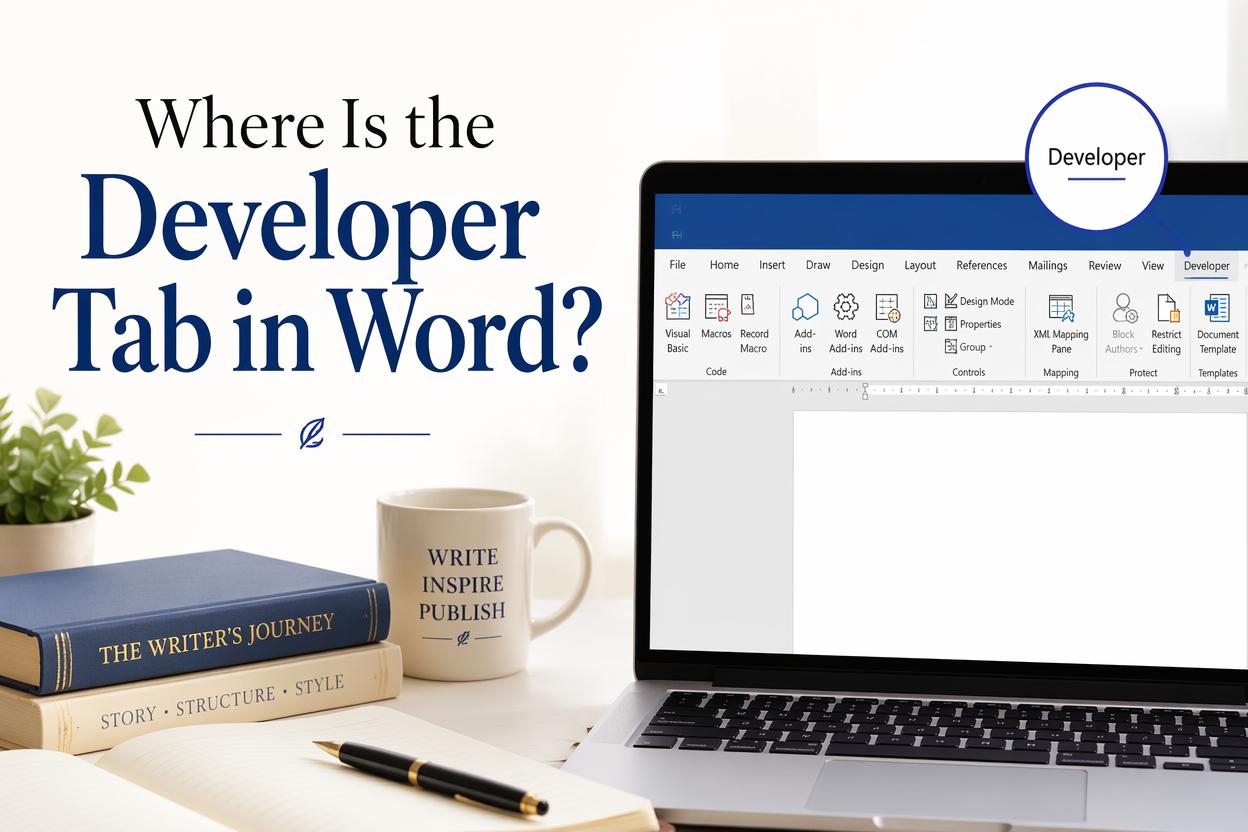
Where Is the Developer Tab in Word? For authors, the answer to this matters because the Developer tab is where you control templates, styles, navigation, macros, and form fields, which are the difference between a clean manuscript and a document that fights you for the last 30 pages.
I treat the Developer tab like the backstage pass. You can write a novel without it, but the minute you start building a submission-ready manuscript, a revision system, or a repeatable production workflow, you want the controls that Microsoft hides by default.
You are going to do three things: turn it on, pin the commands you actually use, and set up one small workflow that pays you back every time you open a draft.
Table of Contents
Where the Developer Tab Lives in Word
The Developer tab is a Ribbon tab. Microsoft keeps it turned off in a fresh install, so you will not see it until you enable it in Ribbon settings. Once it is on, it sits alongside Home, Insert, Layout, References, Mailings, Review, and View.
Windows: Enable Developer From Ribbon Settings
On Word for Windows, go to File > Options > Customize Ribbon. In the right-hand list of Main Tabs, check Developer, then click OK. The tab appears on the Ribbon immediately.
If you are working in a corporate or school environment, Word might be managed by IT. If Developer remains missing after you check it, you are likely dealing with an admin policy. In that case, you can still use many features through other menus, but macros and add-ins may be blocked.
Mac: Enable Developer From Ribbon Preferences
On Word for Mac, open Word > Preferences > Ribbon & Toolbar. Under the Ribbon tab list, check Developer and save your changes. The tab shows up on the Ribbon.
Mac menus move around a bit between versions, so if you do not see Ribbon & Toolbar, use Word Help search for “Ribbon” and jump to the preference panel that controls visible tabs.
Web: What You Can and Cannot Do
Word for the web offers fewer capabilities than the desktop apps. You can edit documents that contain Developer features, but the tab itself and several advanced controls are missing or restricted. If you rely on macros, add-ins, or document protection workflows, do that work in the desktop version.
Microsoft documents these differences in its support content for Word across platforms, and their “show the Developer tab” instructions match the steps above.
Why Authors Actually Need the Developer Tab
I have watched more manuscripts break during formatting than during drafting. The culprit is usually innocent: direct formatting, copied text from web pages, or a document that has grown through twenty revisions without a style system. The Developer tab gives you the tools to enforce structure and reduce the chaos.
Templates and Style Discipline
If you write in Word, styles are your insurance policy. Developer tools make it easier to attach the right template, lock down formatting choices, and keep a long book consistent. This is how you avoid the classic “Chapter headings look fine until page 217” problem.
What I recommend is simple. Pick a manuscript template you trust, attach it early, and force your headings, body text, block quotes, and scene breaks to be styles, not manual tweaks. If you later send your manuscript to an editor or formatter, clean structure saves billable hours.
Navigation That Works for Long Drafts
When you use heading styles, Word’s navigation features become real tools. Developer options matter because they help you keep the document structured, which makes moving scenes, tracking arcs, and running consistency passes far less miserable.
For example, if your chapters use Heading 1 and your scene breaks are consistent, you can jump through the book like a table of contents. That is a practical revision advantage, not a cosmetic one.
Macros and Repeatable Editorial Passes
Authors waste time on repetitive fixes that Word can do in seconds. Once Developer is visible, you can record or run macros, manage macro security, and start building repeatable cleanup passes.
If you do not want to write code, a recorded macro still helps. You can record a sequence like “apply Body Text style, set first line indent, remove extra spaces” and run it whenever you paste in text from a critique group email or a research document.
Macro safety is a real concern. Microsoft warns that macros can contain malicious code, which is why Word treats them carefully. Their documentation on enabling and disabling macros is worth reading once so you understand what Word is blocking and why.
The Fast Fix: Turn It On in Under a Minute
If you are on a deadline and you need the tab to appear, you do not need a deep tour. You need the checkbox.
On Windows: File > Options > Customize Ribbon > check Developer > OK.
On Mac: Word > Preferences > Ribbon & Toolbar > check Developer.
That is it. If you do those steps and the tab does not appear, restart Word once. If it still does not appear, you are either in Word for the web or you are in a locked-down environment where policies restrict customization.
When the Checkbox Is Greyed Out
A greyed-out Developer option usually points to management settings, licensing constraints, or a restricted profile. In plain terms, someone else controls your Word setup. If it is your personal machine, confirm you are not running Word in a restricted mode and that you have permission to change settings.
If you are on a managed device, ask IT whether macros and add-ins are blocked. You might still be able to do the core author work with styles and templates, but you should not bet your production process on macros you cannot run.
Where People Look First and Get Lost
The most common mistake I see is authors searching every tab on the Ribbon for “Developer” and assuming Word removed it. Word did not remove it. It is hidden. You enable it in settings, not in the Ribbon itself.
What to Use the Developer Tab for as an Author
Developer contains a lot, and you do not need most of it. You need the parts that keep your manuscript clean and your process repeatable.
Locking a Manuscript Template to Stop Formatting Drift
If you collaborate with editors, co-authors, or beta readers who return Word files with creative formatting choices, document protection and template attachment matter. Developer gives you access to document protection tools so the book does not quietly accumulate font changes, random spacing, and hand-made headings.
For a working author, the goal is not control for its own sake. The goal is fewer formatting surprises when you are exporting to PDF for print, sending a DOCX to an editor, or handing a manuscript to a formatter.
Building a Submission-Ready Manuscript With Styles
Agents and acquisitions editors still request DOCX in many lanes, and Word remains the default for many editorial workflows. A manuscript built on styles survives copy edits and track changes better than one built on manual formatting. That is a trade-off worth taking even if you do your final layout in Vellum, Atticus, or InDesign.
If you self-publish, you might be thinking, “I upload EPUB, not Word.” Fair. Yet your Word file often becomes the master document you export, quote, or reuse for future editions. Clean structure means fewer expensive fixes later.
Creating Simple Tools for Your Own Drafting Process
Here is a practical author example that is more useful than most macro talk. Create a macro that inserts your scene break exactly how you want it, every time. If your scene break is three centered asterisks with specific spacing before and after, make it a macro so you do not eyeball it for 400 pages.
Another example is a macro that applies your “Block Quote” style and adds the correct spacing. If you write nonfiction with lots of quotations, that single button saves your wrists and keeps the manuscript consistent.
If you want a more dedicated writing environment later, tools like Adazing’s QuickWrite focus on drafting speed and organization. Word remains strong for collaboration and editorial markup, so I often see authors draft in a purpose-built tool and then move into Word when the manuscript becomes a production object.
Troubleshooting When Developer Is Missing or Useless
Sometimes Developer is enabled and still feels absent because the commands you expect are restricted. That is usually version, platform, or security settings.
Macros Blocked by Security Settings
If you can see Developer but cannot run macros, check macro settings in Word’s Trust Center on Windows. Macro blocking is common, and for good reason. Only run macros from files you trust, and keep your “master manuscript” file clean by avoiding random downloaded templates.
Microsoft has been tightening macro defaults in recent years, particularly around files downloaded from the internet. If you receive a macro-enabled file and nothing runs, check whether the file is marked as coming from an external source and whether Word is blocking it.
Add-Ins Not Showing Up
Add-ins live in their own ecosystem. You might enable Developer and still not see the tool you want because it is an Office add-in that appears under Insert or Home, or it is disabled. On Windows, check File > Options > Add-ins to see the active and inactive tools.
If you are relying on a specific writing or editing add-in, confirm it supports your Word version and your platform. Some add-ins work on Windows, but not Mac, and many do not work in Word for the web.
Ribbon Customization Conflicts
If you have heavily customized your Ribbon, Developer might be enabled but hidden in a non-default Ribbon configuration. Resetting Ribbon customization fixes this, but it also wipes your custom layout. If you are not sure, export your Ribbon customization first so you can roll back after a reset.
FAQs for Where Is the Developer Tab in Word?
Why is the Developer tab hidden by default in Word?
Microsoft hides it because most users never need macros, form controls, XML mapping, or document protection settings. For authors, that default is inconvenient because long manuscripts and editorial workflows benefit from those tools, so I enable it on every writing machine I use.
Can I use the Developer tab on Word for the web?
Not in the same way. Word for the web can edit documents that contain Developer features, but advanced controls like macro management are available only in the desktop app. If your workflow depends on macros or strict template control, use Word for Windows or Mac.
Will enabling Developer change my document or mess up formatting?
Enabling the tab does not change your document. It only reveals commands you can choose to use. Your formatting changes come from actions like applying styles, attaching templates, or running macros, so you stay in control.
Developer Is Worth Turning On Once and Keeping On
Writing the book is hard enough without Word inventing formatting problems you did not authorize. Turn on Developer, use it to reinforce styles and structure, and build one or two small repeatable tools that reduce tedious cleanup. Your future self, the one staring at final proof pages at midnight, will thank you.
