
As an author looking for the TM symbol in Word, you likely want a clean mark beside a series name, fictional universe, course title, or publishing brand. With the right method, you can add the symbol in a few seconds, and consistent use keeps your title pages, book descriptions, websites, and advertising copy looking deliberate.
Beyond the mechanics, you also need to understand what the symbol communicates. The trademark symbol, ™, tells readers that you claim a name, phrase, logo, or design as a brand identifier. The symbol says nothing about whether a government office has registered the mark, since registration is a separate step. That distinction matters when you publish a book series, build a recognizable author brand, or sell products under a name readers may remember.
Because the mark carries that weight, I recommend choosing one insertion method, saving it in Word’s AutoCorrect settings, and deciding where the mark belongs in your publishing materials. Placed once in the right spot, the symbol helps your files look polished. Scatter it throughout the text, and your manuscript starts to read like a legal document.
Table of Contents
What The TM Symbol Communicates
The ™ symbol signals an unregistered trademark claim. You can place it beside a word, phrase, logo, or name that identifies your goods or services. In publishing, an author might attach it to a series title like The Ash Harbor Files™, a branded reader community, or a writing course.
Those uses rest on a distinction the United States Patent and Trademark Office draws between its trademark symbols. According to the agency, you can add ™ to a mark for goods, or SM to a mark for services, even if you haven’t filed an application to register it. The registered trademark symbol, ®, has a narrower use and generally belongs beside a mark only after the USPTO or the relevant national authority has registered it.
Trademark Claims For Authors
You don’t need to add ™ to every mention of your book title. In most cases, one prominent use on a copyright page, sales page, series page, or brand statement is enough to show readers you’re claiming the name. I usually place it after the name in the first substantial mention, then omit it from repeated references unless legal or branding reasons require it.
Whether the mark belongs on a book title at all is a separate question. The title of a single creative work generally falls outside trademark protection, since courts treat it as part of the work itself. Series names, publishing imprints, merchandise lines, and branded programs stand on firmer ground because each one identifies an ongoing source of books or services. Before relying on the symbol, consult a trademark attorney about your specific mark.
Trademark Symbols And Copyright Notices
Keep ™ separate from the copyright notice on your copyright page. The copyright notice covers your original content, from the text to the illustrations and photographs. In contrast, ™ marks a brand name or source identifier. Because each symbol serves a different purpose, your page might include a copyright line for the manuscript and a separate statement about the series name.
Claiming that series name with ™ still won’t tell you whether someone else is already using it. Before you build a series, imprint, or product line around a name, search the USPTO trademark database and relevant marketplaces. A name that looks original in a Word document may already appear on books, games, software, or educational products.

Three Ways To Insert The Symbol In Word
Microsoft Word gives you several reliable ways to add ™. I prefer the keyboard shortcut for regular work because it keeps my hands on the keyboard. The Symbol menu works well when you need to inspect character options, and AutoCorrect saves time when the same mark appears throughout a long book package.
Use The Keyboard Shortcut
Place your cursor where the symbol belongs, then press Ctrl+Alt+T on Windows. Word should insert ™ at that spot. Mac users can press Option+2. These shortcuts work in many Word installations, and your keyboard settings and operating system configuration can still affect the result.
Because the result can vary, test the shortcut on a blank line before using it inside your manuscript. If Word inserts a different character, check your keyboard layout and Word version. As a fallback, copy ™ from a trusted document and paste it into your file. To confirm you have the right character, check the Unicode chart for Letterlike Symbols, which lists ™ at code point U+2122.
Choose The Symbol Menu
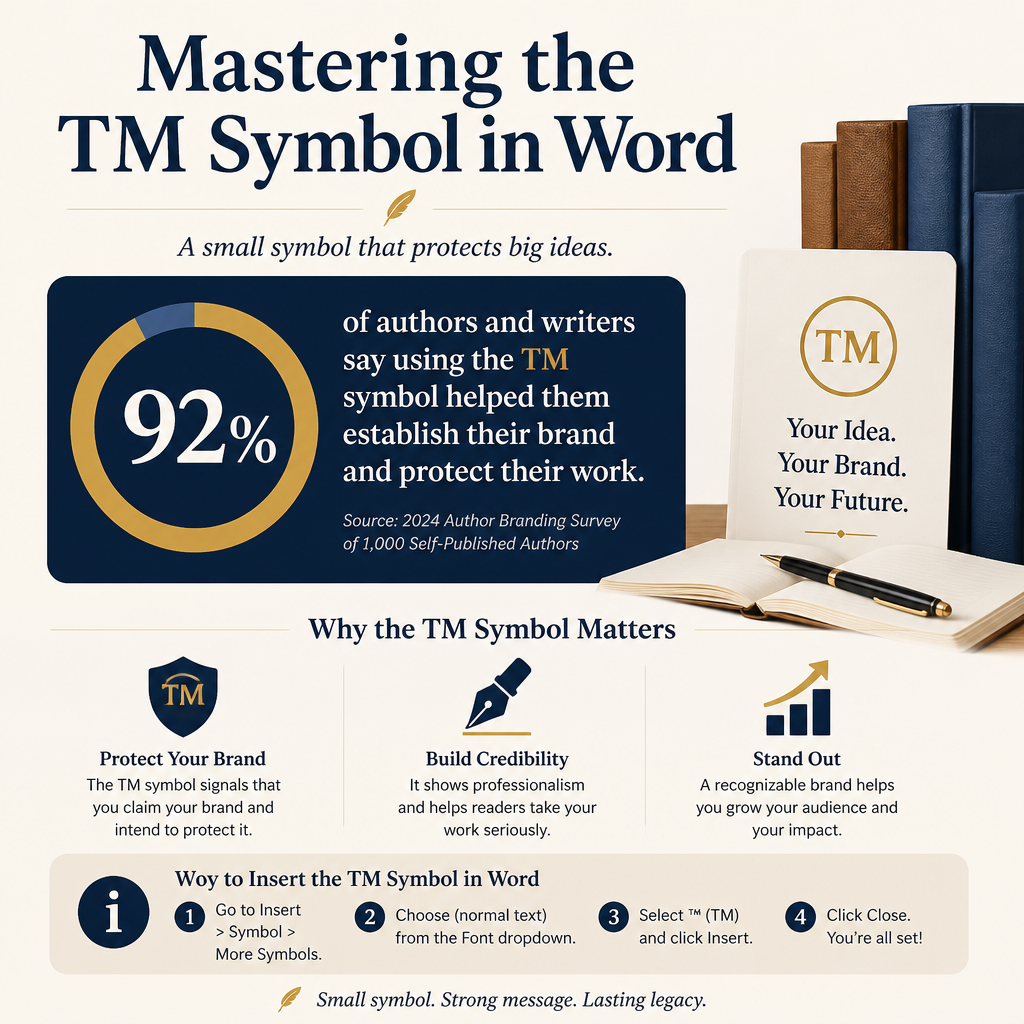
Open the Insert tab, select Symbol, and choose More Symbols. When the dialog box opens, scroll to the trademark sign, which appears in fonts like Segoe UI Symbol, Arial, and Times New Roman. Select the character, click Insert, and close the window.
Taking this route gives you a useful advantage when typography matters. You can see whether the character belongs to the font you are using and confirm that Word has inserted ™ as a single character. Plain T and M letters can look similar on screen, and the difference shows up once you export a manuscript to PDF or hand a cover brief to a designer.
Copy And Paste The Character
If you need the mark only once, copy this character: ™. Paste it beside the relevant name, then check the typeface and size. Copied characters can inherit formatting from their source, so select the mark and match the surrounding font if it appears too large, too dark, or too high on the line.
That manual approach suits short copy, from book descriptions to ad headlines and series pages. In a 90,000-word manuscript with repeated brand references, pasting each mark by hand soon becomes tedious. Long files like that call for AutoCorrect or the keyboard shortcut.
Save The TM Symbol With AutoCorrect
AutoCorrect is the best choice when you use the same mark often. You can create a short trigger like ;tm, and Word will replace it with ™ whenever you type it, followed by a space or punctuation mark. Starting that trigger with a semicolon helps prevent accidental replacements inside ordinary words.
Build A Personal Shortcut
On Windows, open File, choose Options, select Proofing, and click AutoCorrect Options. On Mac, open the Word menu, select Preferences, and choose AutoCorrect. Type ;tm in the Replace box and paste ™ into the With box. Click Add to save the entry, then test it in a new paragraph.
Testing also reveals a trigger that fires too easily, so choose one you won’t type by accident. I avoid plain abbreviations like tm because a manuscript may contain those letters in dialogue, research notes, or character names. With a deliberate trigger, the replacement happens only when you want it.
Keep Formatting Under Control
AutoCorrect usually inserts the symbol using the formatting around your cursor. Because of that, check the result in body text, headings, captions, and footnotes. Sized for 11-point body copy, the mark may look oversized in a 24-point series title.
Scale matters even more on a professionally designed cover, where the designer should handle the final placement. Word works well for book files, website copy, and sales pages. Cover typography involves spacing, baseline alignment, kerning, and print reproduction, and those details often require a designer to adjust the mark by hand.
Place The Symbol With Editorial Judgment
Inserting ™ correctly takes care of the technical side. The editorial side comes down to frequency, since the ideal page lets readers recognize the name you claim as a brand without seeing the small symbol every time it appears.
Use The First Prominent Reference
Suppose your fantasy series is called Glass Kingdom. Its landing page might open with, “Glass Kingdom™ is a four-book fantasy series about a courier who carries forbidden maps across a divided empire.” After that first mention, later paragraphs can refer to Glass Kingdom without repeating the mark.
The copyright page handles the claim differently, with a short statement like, “Glass Kingdom is a trademark of [your name or publishing entity].” Use wording that reflects your actual ownership, and seek legal advice when the brand has meaningful commercial value.
Match The Symbol To The Medium
Your manuscript file, Amazon KDP description, author website, newsletter, and social graphics may each handle the symbol differently. Word usually displays ™ well in standard fonts. Outside Word, website themes can alter superscript styling, and email platforms sometimes substitute fonts. Check the final output on the platform where readers will see it.
Each platform brings its own quirks. KDP descriptions follow plain-text and limited HTML rules that can change the formatting. On a cover, the mark may need to sit smaller and slightly raised, and a social graphic can shrink it until it vanishes at thumbnail size. I recommend exporting a proof, viewing it at the size your reader will encounter, and adjusting the typography there.
Keep Your Brand Consistent
Use the same capitalization and spelling every time you write the branded name. A series title that appears as The Ash Harbor Files in one place and Ash Harbour Files in another creates confusion that a trademark symbol cannot repair. Record the preferred form in your style sheet alongside subtitle punctuation, character names, and series numbering.
That consistency starts even earlier, when you choose the name itself. Adazing tools can help you develop steady book branding before you add the symbol. I use its naming and writing tools to generate options, then check each candidate against existing books, domains, social handles, and trademark databases. Those tools produce ideas, and your research and editorial judgment decide which one deserves a place on the cover.
Fix Common Word Problems
Leaving out the symbol rarely ruins a manuscript. Trouble comes from a mark that changes during export, appears in the wrong font, or gets confused with registered status. Check the document in the exact form that readers, retailers, and designers will receive.
Check Font And Export Behavior
Use a standard, widely supported font for working documents, especially when sending a file to an editor or formatter. After saving as PDF, zoom in on the mark and confirm that it remains a single ™ character. If you see an empty box, a strange substitute, or separated letters, change the font and export again.
The same care applies once the file leaves your hands. In a cover brief, include the symbol as text and as a reference image if exact appearance matters. With both versions, the designer can confirm whether the mark should sit at the upper right, rise above the cap height, or stay on the same baseline as the series name.
Check Search and Replace
Use Word’s Find tool to search for the brand name and review each occurrence. Search separately for ™, the plain name, and any common misspelling. You may discover that your first chapter uses one form, the copyright page uses another, and your back-cover copy uses a third.
Those mismatches can creep back in late, which is why a final pass after accepting editorial changes matters. Track Changes can leave old wording behind, and a formatter may replace the symbol during cleanup. Running one more search takes less time than correcting a published PDF and every promotional graphic afterward.
Know When Legal Advice Belongs In The Process
Word stops at inserting the character. The program can’t tell you whether your name conflicts with another mark, whether your goods and services fit a filing class, or whether a registration makes sense for your business. The federal registration process addresses those questions, and the USPTO guide to trademark basics walks through each stage along with the duties that come with owning a mark.
How much of that process you need depends on the scale of your publishing plans. A hobby project with a single book may need only a trademark search before publication. If you’re building a series, imprint, course, or merchandise line, speak with a qualified attorney before spending heavily on covers, ads, packaging, or inventory. Paying for advice at the naming stage usually costs far less than rebuilding a brand after a conflict.
FAQs for Mastering the TM Symbol in Word
What Keyboard Shortcut Adds The ™ Symbol In Word?
Place your cursor where you want the mark, then press Ctrl+Alt+T on Windows or Option+2 on a Mac. Word’s Insert tab and Symbol menu offer another route, and an AutoCorrect trigger like ;tm works well for repeated use.
Should I Use The ™ Symbol With My Book Title?
Use ™ when you are claiming a name as a brand, especially for a continuing series, imprint, course, or product line. Standalone book titles usually name a single creative piece, and the mark rarely adds much value there. Whenever you do use ™, place it after the first prominent mention and keep the treatment consistent.
What Is The Difference Between ™ And The Registered Symbol?
™ communicates an unregistered trademark claim. The registered symbol, ®, carries more weight because it generally signals that the relevant government trademark office has registered the name. Reserve ® for marks with an applicable registration, and consult a trademark attorney if you plan to use either symbol across different countries or product categories.
Use The Symbol With Purpose
Word makes ™ easy to insert, and the best results come from using it sparingly. Add the character with a shortcut or AutoCorrect, inspect it in the final file, and place it beside the brand name where readers first encounter it. Once the mark is in place, turn your attention to the branding decisions that shape how readers see your work: a memorable series name, a cover that reads at thumbnail size, and sales copy that gives readers a reason to care.
