
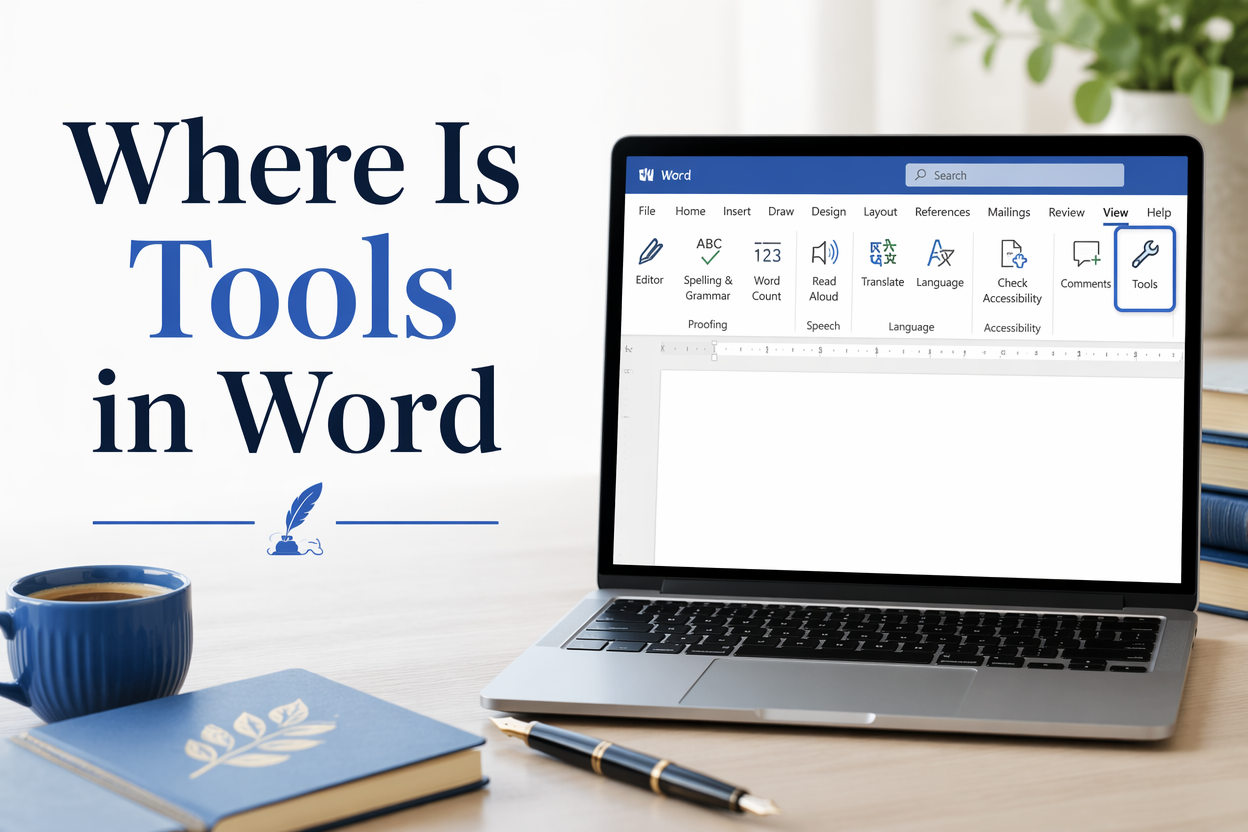
The reason you keep asking “Where is Tools in Word?” is that Microsoft removed the old-school “Tools” menu years ago and scattered the same functions across the Ribbon, the File screen, and the right-click menus. For a writer, that matters because when formatting or editing slows you down, you stop thinking about story and start thinking about software.
Treat this like you would a messy draft. The tools are still there, but they need a map. Once you know where Word hides the equivalents, you can get back to writing chapters and shipping books instead of hunting for settings.
Table of Contents
Why The Tools Menu Disappeared And What Replaced It
In older versions of Word, “Tools” was a single menu that held everything from spelling to options. Starting with Office 2007, Microsoft replaced menus with the Ribbon, which groups commands by task and puts deeper settings under “Options” and “Preferences.” Microsoft explains the Ribbon change and its goals in their own overview of the Ribbon interface.
For authors, the practical translation is simple. If you are looking for “Tools,” you are really looking for one of four places: Review, References, Mailings, or File, depending on what you are trying to do.
The Fast Mental Swap I Use
When your brain says “Tools,” ask what you are actually trying to accomplish.
If it is editing, you want Review. If it is document setup, styles, and page-level control, you want Layout and Home. If it is exporting, protecting, or changing global settings, you want File. If it is citations, you want References. This small reframing saves more time than any shortcut list because you stop searching from nostalgia and start searching for outcomes.
Word For Windows Versus Word For Mac
Windows Word relies heavily on the File and the Ribbon tabs. Mac Word still has a classic menu bar at the top of your screen, but even there, the old “Tools” menu no longer functions as it did in the early 2000s. Some commands live in “Word” on Mac for preferences, and many editing tools sit in the Review tab just like on Windows.

Where The Most-Used Author Tools Live In Modern Word
Most writers go looking for the same cluster of features: spelling and grammar, word count, find and replace, styles, track changes, and document formatting. Here is where I expect you to find them in current Word versions.
Spelling, Grammar, And Editor
Go to Review and look for Editor or Spelling & Grammar. This is the modern replacement for the old spelling tool. Microsoft’s own documentation for checking spelling and grammar in Word also explains where those commands sit and how they behave across versions.
Trade-off for authors: Word’s grammar suggestions can help catch true errors, but it will also flag deliberate voice choices and genre style. If you write fiction, treat grammar alerts as a second opinion, not an editor with taste.
Word Count
You have two reliable options. The first is the status bar at the bottom of the window, where Word count is often visible. The second is Review > Word Count. For a working author, I recommend checking the word count within a scene or chapter by selecting text first. Word will show the count for the selection, which is much more useful for pacing and chapter targets than the full-manuscript number.
Find, Replace, And Navigation
Find and Replace moved to the Home tab, usually far right under Editing. You can also use Ctrl+F or Cmd+F. Authors underestimate Replace, then spend hours manually fixing name changes, capitalization consistency, and double spaces.
If you are revising a novel, Replace is where you clean systemic problems. If you are writing nonfiction, Replace is where you standardize terms, headings, and repeated phrases that drift over time.
Styles And Formatting Control
Styles live on the Home tab. This is the part of Word that separates authors who fight formatting from authors who control it. If your book is going to KDP, IngramSpark, or a traditional layout stage, clean styles reduce the odds of weird spacing, inconsistent headings, and invisible formatting junk that shows up later.
My rule: if you are formatting the same thing more than twice, it should be a style.
Track Changes And Comments
Everything revision-related lives under Review, including Track Changes, Accept, Reject, and New Comment. This is the author-editor handshake zone. Even if you self-edit, Track Changes is still useful because it forces you to see what you altered and keeps you from “fixing” the same paragraph in six conflicting ways.
The Real Replacement For Tools Is The Ribbon And The Right-Click Menu
Writers often miss this because it feels too basic, but the fastest “Tools” menu in Word is the right-click menu plus the contextual Ribbon tabs that appear when you select certain objects.
Right-Click For Speed
Highlight a paragraph and right-click. You will see quick access to styles, bullets, numbering, and sometimes spelling suggestions. Right-click a word, and you get synonyms and corrections. Right-click a comment to get reply, resolve, and delete.
This is where the time savings live because you stay in the text. On drafting days, I care less about perfect formatting and more about avoiding context-switching. Right-clicking keeps you in the manuscript.
Contextual Tabs Writers Miss
Click a table, and Word shows table design tools. Click an image to get the picture formatting tools. Click a header or footer, and you get header and footer tools. These are basically the old Tools commands, revealed only when relevant.
If you are laying out a nonfiction book with tables, checklists, and screenshots, this matters. You do not need to memorize where those commands live. You need to know they appear when you select the object.
The File Tab As The Hidden Tool Chest
Many authors look everywhere except File. The File tab is where Word keeps global settings, exporting options, and account-level behavior. If you need to change proofing behavior, save formats, default fonts, or accessibility checks, you will often need to go through File to find them.
How To Add Your Own Tools Menu With Customize Ribbon And Quick Access Toolbar
If you miss the old Tools menu because you used it as a personal control panel, recreate it. Word allows you to add custom Ribbon groups and build a Quick Access Toolbar that follows you across tabs.
Quick Access Toolbar For Daily Writing
The Quick Access Toolbar sits at the top of Word and can hold your most-used commands. In my experience, authors get the biggest payoff from adding: Word Count, Track Changes, New Comment, Styles Pane, Navigation Pane, and Save As PDF.
On Windows, right-click any command on the Ribbon and choose “Add to Quick Access Toolbar.” On Mac, use Word Preferences or the Ribbon customization options depending on your version.
A Custom Ribbon Tab Named Tools
If your muscle memory wants a Tools menu, build a tab called “Tools” and put your preferred commands there. Microsoft documents the process for customizing the Ribbon, and it works well when you know which commands you reach for during drafting versus during formatting.
I recommend separating two groups inside your custom tab. One group for drafting tools like Navigation Pane, Word Count, and Editor. Another group for production tasks like Styles Pane, Show Paragraph Marks, and Page Setup.
The One Setting That Saves You From Formatting Chaos
Turn on paragraph marks when you are fixing layout issues. The command is usually on the Home tab and looks like a pilcrow symbol. Seeing hidden formatting is the difference between guessing and knowing why a line breaks or a paragraph refuses to behave.
If you publish often, this single habit prevents a lot of last-minute panic when you are preparing a file for print or ebook conversion.
Tools Outside Word That Authors Should Use On Purpose
Word is a solid drafting environment, and I still use it for plenty of manuscripts. It is not built to solve every author problem, particularly the ones that show up at scale: idea generation, naming, marketing assets, and promotion workflows. When you hit those walls, do not force Word to become something it was never designed to be.
Drafting Support And Speed
If you write better when the software gets out of your way, use a drafting tool that reduces friction. At Adazing, I built tools like QuickWrite for writers who want to stay in flow and keep momentum through messy chapters. Word can do the job, but it asks you to think about formatting and settings more often than you need to during a first draft.
The practical approach I recommend doing: draft in the environment that keeps you writing, then move into Word for structured revision, comments, and production formatting.
Names, Titles, And Worldbuilding Inputs
The old Tools menu never helped you pick a character name that fits your genre or a book title that sells at thumbnail size. That is a separate skill set. When you are stuck on names, I prefer generators that let you iterate fast and keep a list, then test the best options against your comps and your cover concept. Adazing offers name generators for exactly that kind of author work, where speed matters and you need ten decent options before you find the one that clicks.
Promotion Tools That Word Cannot Touch
Once your book is formatted, Word is done. Marketing lives elsewhere: your blurb, your categories and keywords, your cover, your newsletter, your ads, your promo sites. This is where a lot of talented writers stall because the tasks feel unrelated to craft, even though they decide whether anyone sees the book.
If you want a simple workflow, keep a Word or Google Doc file for your marketing copy drafts, but use dedicated tools for assets and execution. Adazing’s cover makers and promotion tools exist because authors need repeatable systems, not more menus inside a word processor.
FAQs for Where Is Tools in Word
Where did the Tools menu go in Microsoft Word?
Microsoft removed the classic Tools menu when it introduced the Ribbon interface in Office 2007. The same functions are now spread across tabs like Home, Review, References, and Layout, with deeper settings under File and Options.
What is the closest thing to Tools in Word now?
The closest equivalent is the Review tab for editing tools and the File tab for program-level settings. If you want a single place like the old menu, create a custom Ribbon tab named “Tools” and add the commands you use most.
How do I find a command when I do not know which tab it is on?
Use Word’s search box if your version has it, or right-click inside the document to see the context menus that display the most relevant commands. When I am stuck, I also open the Customize Ribbon screen and search the full command list to learn where Microsoft filed it.
A Clean Tools Workflow For Authors
If you stop hunting for a missing Tools menu and start thinking in tasks, Word gets easier fast. Put drafting and revision commands on your Quick Access Toolbar, build a custom Tools tab if you miss the old setup, and keep paragraph marks turned on when you are fixing layout problems. Then use purpose-built author tools outside Word, including those I build at Adazing, for the parts of the process Word was never meant to handle.
