
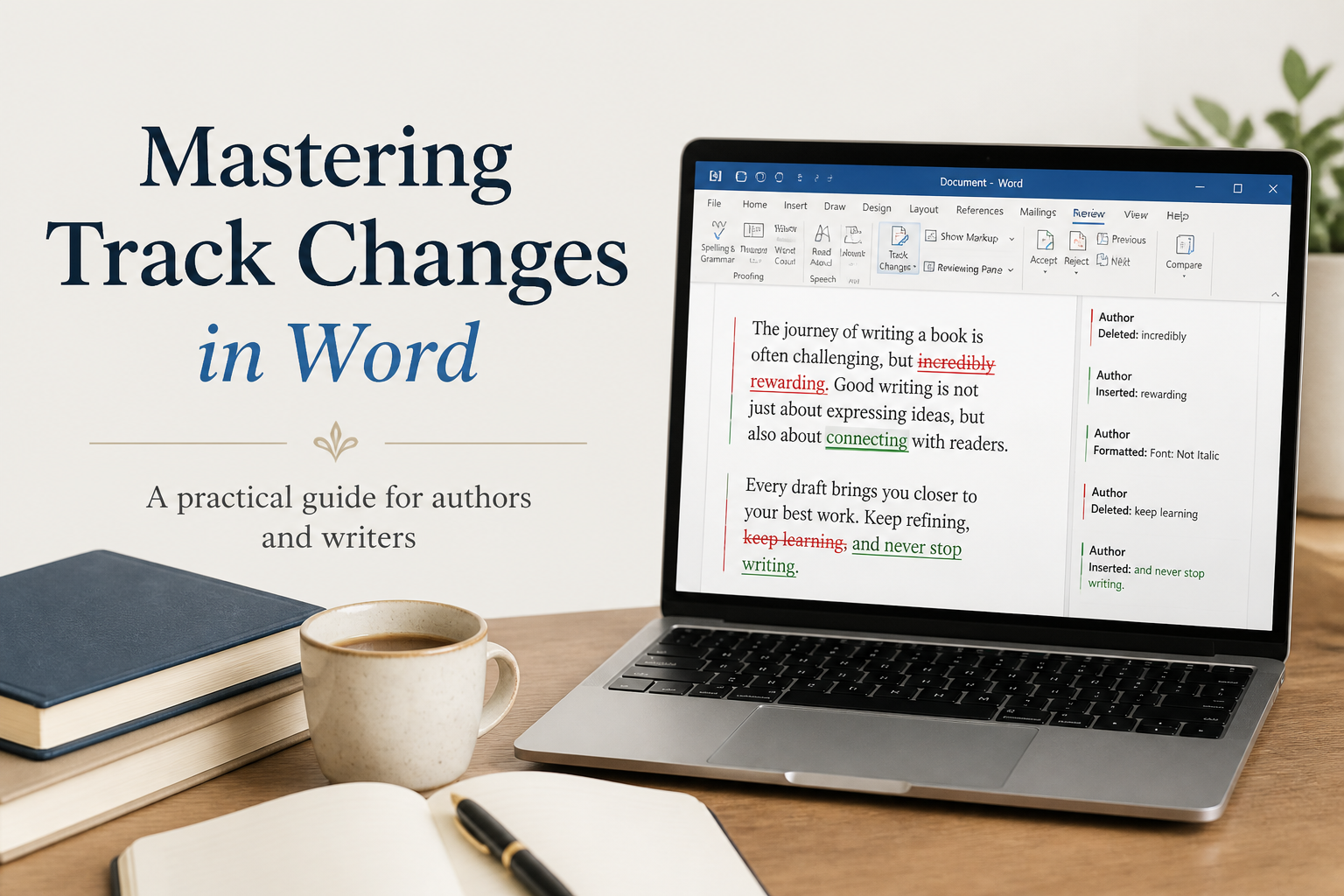
Anyone preparing a manuscript for publication eventually learns why Track Changes in Word belongs in the editing routine. A revision file can hold hundreds of decisions, from a single comma to a rewritten chapter, and Word gives you a visible record of each one. Used with discipline, Track Changes keeps your editor, proofreader, and future self from arguing with invisible edits.
That discipline starts when you treat the feature as an editorial record rather than a button you switch on once and forget. I use it to separate suggestions from accepted copy, preserve the original wording, and mark the moment a manuscript shifted from developmental editing to proofreading. That separation protects your voice and stops a last-minute fix from quietly altering the book you meant to publish.
Table of Contents
Why Track Changes Matters For Authors
Protecting that book gets harder once a manuscript starts circulating in multiple copies. In a typical round, an editor sends a marked-up file, a critique partner adds comments, a proofreader catches typographical errors, and the author revises the document between each pass. Without a visible revision history, those files become a stack of near-identical drafts with no reliable account of what changed.
Track Changes supplies that account by giving every revision a status. Deleted words, inserted sentences, moved paragraphs, and formatting changes all appear on the page. From there, you can accept a sound edit, reject a suggestion that weakens the voice, or leave a comment for later discussion. Each choice turns the file into a conversation about the manuscript, so revision no longer depends on guesswork.
To keep that conversation in one place, I recommend working from a single master document during each editorial pass. Save a dated copy before you begin, then turn on revision tracking in the master file. The date does real work here, since a filename such as Novel_Title_Line_Edit_2025-03-08.docx tells you which pass you are holding and gives you a recovery point if the tracked changes get tangled.
Protecting Your Original Voice
Inside that master file, an editor may suggest a tighter sentence, a different scene order, or a sharper verb. Those suggestions deserve attention. Each change still has to earn acceptance on its own merits. Track Changes gives you room to judge those merits by letting you compare the proposed wording with your own sentence first.
To make that comparison, read the revised line aloud and check its rhythm, point of view, tense, and level of detail. Those checks matter because grammatical polish can cost a sentence its character’s voice. Let the book’s needs decide each edit, since a red mark on its own creates only pressure.
Separating Editorial Passes
That pressure grows when edits from different stages land in the same file, because developmental editing, line editing, copyediting, and proofreading ask different questions. For example, a developmental editor may recommend cutting a chapter. At the copyediting stage, the concern shrinks to a single comma. Keeping those passes distinct prevents you from polishing a scene that later disappears.
To hold that line, name each pass in the file and in the review instructions, and tell your editor what kind of feedback you want. The clearer the brief, the less time everyone spends debating a problem that another stage should handle.

Turning On Track Changes In Word
Open the Review tab in Word’s desktop app and select Track Changes. Word then records edits made to the document. You can also choose whether tracking applies to everyone who edits the file or only to your own edits, depending on the version you use and account settings. Microsoft documents this on its support page on turning Track Changes on and off.
With the feature on, open the markup options before you edit and decide how revisions should appear. For a long manuscript, I prefer a clean display with revisions shown in balloons, and I switch to a line-by-line view when I need to inspect a sentence. Whichever view you pick, the recorded edits stay the same, since the display only changes what you see. Choose the one that helps you read with care.
Choosing The Right Display
Picking the right view starts with the Display for Review menu on the Review tab, which usually lists Simple Markup, All Markup, No Markup, and Original. For a detailed review, All Markup shows every tracked change. Simple Markup suits a lighter pass by reducing the clutter to a red line in the margin next to revised text. If you want to read the book the way a reader would, No Markup displays the document as though every edit had been accepted, and the tracked revisions stay in the file underneath.
That hidden layer is where authors get into trouble, because a display setting is easy to mistake for a decision. Switching to No Markup accepts nothing, and switching to Original rejects nothing. Each view only hides part of the record. Before a file goes to your editor, check the review controls, since a polished-looking screen can hide a manuscript full of unresolved changes.
Locking The Review Process
A shared editorial file adds another risk. Any contributor can disable Track Changes with a single click. The Lock Tracking option under that same button blocks the move with a password. Microsoft explains the available controls in its documentation for managing tracked changes and review permissions. Expect some differences in where these options sit across Word for Windows, Word for Mac, and Word for the web.
That lock works best when everyone understands the workflow, so tell your editor which sections they can revise, whether comments should remain open, and when you expect a response. Technical controls cannot repair unclear editorial instructions.
Reading And Handling Revisions
Once the edits come back, reviewing them takes two separate readings. The first follows the manuscript’s meaning and voice, and the second inspects the mechanics of each change. Folding them into one pass can lead you to accept a correction simply because the sentence looks tidier on screen.
To begin, open All Markup and move through the manuscript in order. At each change, read the sentence before it, the revised sentence, and the surrounding paragraph. That wider view matters because a word-level correction may affect a repeated image, a clue in a mystery, or the rhythm of a romance scene several pages later.
Accepting And Rejecting Edits
Once you’ve weighed a change in context, record your decision with the Accept and Reject controls on the Review tab. Word lets you handle changes one at a time or apply a decision to a larger selection. I recommend going through the main text one change at a time, especially during developmental and line editing. Bulk acceptance makes more sense later, in a final proofread where a trusted copyeditor has corrected a known set of typographical errors.
At any stage, reject an edit when it changes your intended meaning, damages the voice, conflicts with your style sheet, or fixes a problem the manuscript never had. If your reason would help the editor understand that choice, add a comment. Consider a short note such as “I need the repetition here for the character’s anxious rhythm,” which records your thinking and heads off another round of debate.
Handling Comments With Purpose
Explaining a rejected edit is one of the best uses for a comment, along with asking questions and recording decisions. Private reminders that only make sense to you turn the margin into a second manuscript, so write comments another person can act on. For example, “Check the timeline after Chapter 12” gives an editor a task. A note that only says “Fix this” leaves them guessing.
When you’re working through a point with your editor, use Reply to keep the discussion inside the existing thread. Once you’ve confirmed the agreed change in the manuscript, select Resolve to close the thread. Resolving keeps that history on file. Deleting comments too early throws away context you’ll want when you revisit the book months later for a new edition.
Building A Clean Author Editor Workflow
Comments, replies, and resolved threads all fit into a larger route that carries the manuscript from edit to publication, and Track Changes works best when that route stays predictable. In my own projects, it follows a simple sequence: the editor marks the file, the author reviews every substantive change, both people resolve open questions, and the author saves an accepted version for the next pass.
After you accept or reject revisions, save the result as a new copy with a clear label, and hold on to the original marked file until you’ve confirmed the new one. That clean copy can then go to the next professional without dragging every old comment and formatting experiment into the proofread.
Creating A Style Sheet
Every pass on that route needs a shared reference for decisions that Track Changes alone cannot explain, and a style sheet fills that role. For fiction, it should cover character names, spelling preferences, capitalization, hyphenation, timeline facts, place names, number style, and recurring terms. Nonfiction adds a few entries of its own, such as preferred sources, terminology, and the correct forms of real individuals’ and organizations’ names.
Once the sheet exists, share it with every editor who touches the manuscript. If Word flags a term the sheet approves, you can reject the change knowing the decision is already on record. Across a long book, the sheet saves repeated questions and protects consistency from the first chapter to the last.
Managing Multiple Editors
That consistency gets harder to hold once several editors work on the same book, so give each one a separate pass when the schedule allows. Ideally, the developmental editor finishes before the copyeditor begins. That order keeps a sentence-level specialist from spending hours refining material you later cut.
If the schedule forces two people to work at the same time, assign chapters or sections clearly and merge the files carefully. The Compare button on the Review tab can identify differences between versions. Judging the conflicts it finds still takes a human reader. Once you’ve settled them, save the merged file under a new name and reread each affected section from the start of its chapter.
One last checkpoint comes before you send a manuscript to an ARC reader or upload a file for publication. At that stage, accept or reject every remaining revision. A reader should receive a stable book with the editing machinery fully hidden, and the same discipline applies to the interior file you send for print proofing.
Preparing The Final Word File
With every revision settled, a finished manuscript needs one more inspection before it goes out. Start by selecting Show/Hide ¶ on the Home tab, which reveals extra paragraph breaks, tabs, manual spaces, and stray section breaks. From there, search for double spaces, placeholder text, comments, and highlighted passages. The Navigation pane and Find speed up that search. I still read the pages at normal size afterward, since some problems only show up on the page.
Once the pages look right, check the document properties and file format before delivery. A publisher, freelance formatter, or print designer may request DOCX, PDF, or another format. Ask what they need before exporting, since a conversion can affect page breaks, footnotes, tables, and scene ornaments.
Checking Before Publication
Before any export, open the Review tab and check the comment list for anything unresolved. Comments and revisions sit on separate tracks in Word. Accept All Changes leaves every comment in place, and Delete All Comments in Document leaves pending revisions untouched, so handle those tasks one at a time.
Once the comment list is empty and no revisions remain, open the accepted file on the device you will use for delivery. Look over the first pages, chapter openings, headings, italics, numbered lists, and any unusual formatting. For a book going to Amazon KDP, your formatter may need either a clean DOCX or PDF, depending on the edition and production method. Whatever format goes out, keep the marked editorial file archived in case questions come up during proofing.
Using A Final Reading Pass
Before proofing begins, read the clean file the way a reader would. This pass checks continuity, paragraph breaks, missing words, repeated words, and accidental shifts in tone. Dialogue deserves a spoken reading, since the ear catches stiff phrasing the eye can glide past.
That reader-first discipline also shapes how I use writing tools at Adazing. A tool can help you draft, compare, or organize material. Only the author, who understands the book’s promise, can decide what serves it. Track Changes logs every edit, and what stays in the book is your call.
FAQs for Mastering Track Changes in Word
How Do I See Every Revision In Word?
On the Review tab, set Display for Review to All Markup. Under Show Markup, confirm that Comments, Insertions and Deletions, and Formatting each have a check mark. From there, work through the document from the first page so you can follow each decision in context.
Can I Accept Some Changes And Keep Others?
Yes. Click inside an individual revision and choose Accept or Reject, or highlight a passage to apply the same decision to every revision inside it. I recommend handling story, voice, and style edits one at a time. Grouped decisions fit a final proofread once you’ve confirmed the correction pattern.
Why Do My Edits Disappear When I Open The File?
The document may be displaying No Markup, which hides revision marks without accepting them. Switching back to All Markup makes the recorded changes visible again. Opening the file in another copy of Word or converting it to a different format can also change what you see. To avoid surprises, save the working manuscript as DOCX and use Compare to check it against the delivery file before it goes out.
Make Every Revision Accountable
Track Changes proves its worth in an author’s process by preserving every decision. To get that value, turn it on before editing, review each meaningful change in context, keep a style sheet, and deliver a clean file only after every revision and comment has a clear status. Until the final proof has passed, keep that record visible.
