
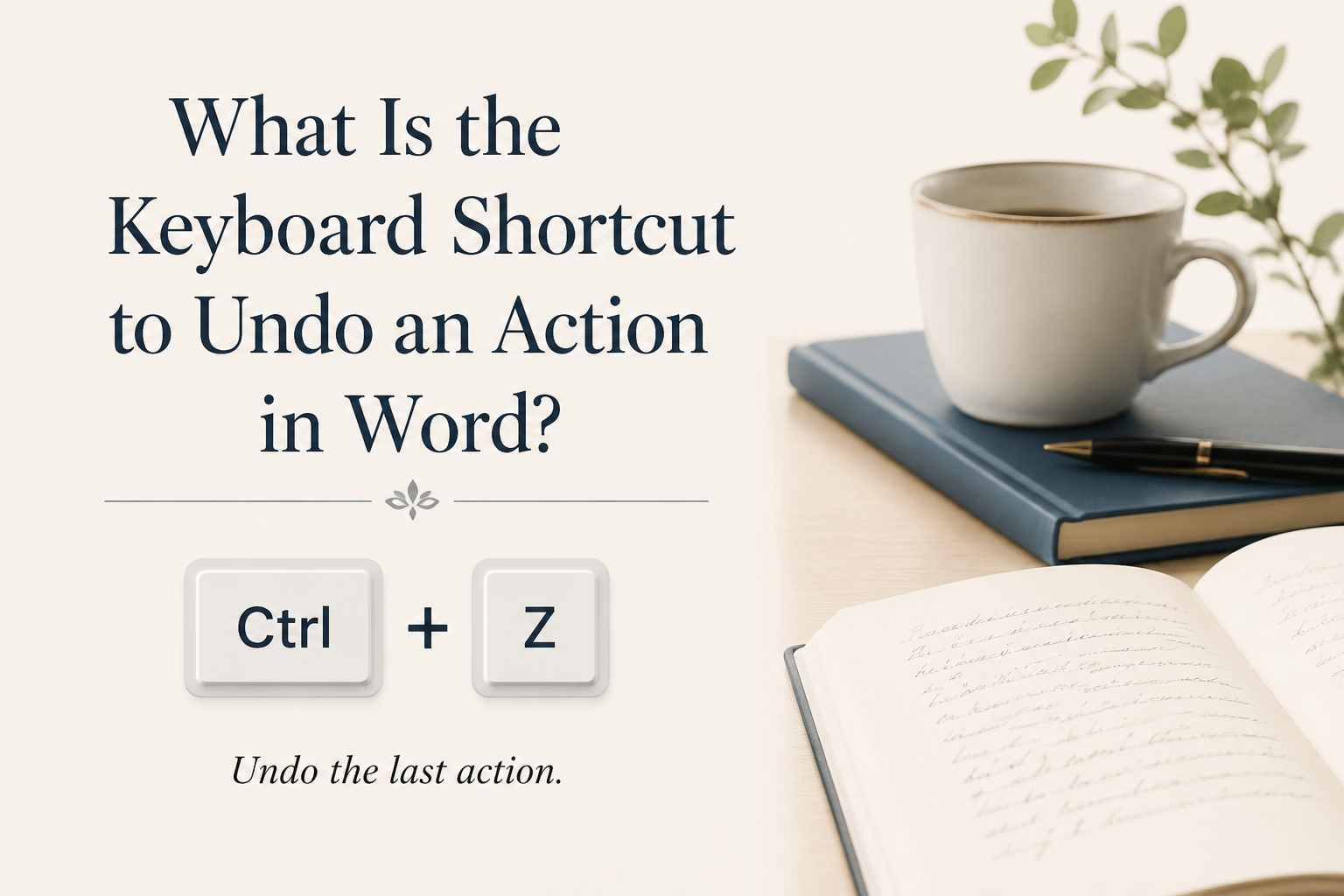
Your drafting pace lives or dies on tiny recoveries, and the keyboard shortcut to undo an action in Word is one of the fastest recoveries you get. What is the keyboard shortcut to undo an action in Word? On Windows, press “Ctrl + Z.” On Mac, press “Command + Z.” If you write long sessions, that one shortcut saves more momentum than any fancy formatting trick.
I care about this because authors do risky work inside a document all day. You paste research notes, you rearrange chapters, you accept and reject edits, you try a different phrasing, and you delete three paragraphs you suddenly hate. Undo is the safety net that lets you take creative chances without paying for every misstep.
Below is the practical stuff that actually matters when you are writing a book in Word: how Undo behaves, when it fails, how to redo, how to protect yourself around Track Changes, and how to keep Word from turning your manuscript into a crime scene.
Table of Contents
The Actual Undo Shortcut You Need
If you only remember one thing, remember this: use the shortcut, not the toolbar. Your mouse hand is for scrolling and selecting text. Your keyboard hand is for staying in flow.
- Undo in Word on Windows: “Ctrl + Z”
- Undo in Word on Mac: “Command + Z”
When I am drafting, I treat Undo like backspace with a longer memory. If I just deleted a sentence I actually liked, I hit Undo once and keep typing. I do not stop to hunt for it, I do not curse at myself, and I do not break the scene in my head.

How Undo Works in Word When You Are Writing a Manuscript
Undo feels simple until you start doing author things: heavy paste, outline shuffles, styling, and collaborative edits. Word keeps a stack of your recent actions, and Undo walks backward through that stack one step at a time.
Undo Steps and Why They Matter
Word can store multiple levels of Undo, which is why you can usually reverse a whole chain of edits. The catch is that some actions count as one step, some count as many, and some wipe the stack. Microsoft’s own page on undoing, redoing, and repeating an action puts the default at the last 100 undoable actions and notes that certain commands, including saving a file and anything on the File tab, cannot be reversed at all.
For you, this means a practical rule. If you are about to do something that feels “big,” like applying styles across a whole manuscript or running a global Find and Replace, create a backup copy first. Word is a word processor, not a time machine.
Undo Is Per Document, Not Per Session
Undo history is tied to your current open document state. Close the file, and you generally lose that history. I have watched writers close Word to “reset” after a glitch, then reopen and realize the one thing they needed to undo is now permanent. Save versions, not just files.
If you draft in Word, I recommend a simple versioning habit: save a new file when you finish a chapter or make a structural change. “MyNovel_12_Chapter07_rewrite.docx” is clunky, but it is better than recreating a lost scene from memory.
Undo Does Not Protect You From Everything
Undo fixes many edits, but it does not fix the bigger manuscript hazards. If a sync service overwrote your file, or a collaborator accepted changes you did not want accepted, Undo might not reach back far enough. That is why I treat Undo as a convenience, and versioning as protection.
Redo, Repeat, And The Shortcut Pair Authors Forget
Undo has a partner, and if you are revising, you want both in muscle memory.
- Redo on Windows: “Ctrl + Y” (often) or “Ctrl + Shift + Z” (in some Office apps)
- Redo on Mac: “Command + Shift + Z”
Word’s standard redo behavior on Windows is typically “Ctrl + Y,” and Microsoft groups Redo with Repeat because the same shortcut repeats your last action when there is nothing to redo. That detail is handy when you are formatting chapter headings or applying the same style repeatedly. Microsoft lays out that pairing in its page on undoing, redoing, and repeating an action, where the Redo button switches to Repeat once there is nothing left to restore.
I use Redo most during line edits. I undo a change, reread the sentence, and redo it if the original edit was stronger. That small loop keeps me honest, because I am judging the text, not my pride.
Undo In Real Author Workflows: Drafting, Revising, And Track Changes
Undo behaves differently depending on what mode you are in. If you write novels or nonfiction in Word, you probably move between three mindsets: drafting, self-revision, and collaboration. Each has its own Undo traps.
Drafting: Undo Without Losing Your Voice
During drafting, I want Undo to be invisible. Here is how I keep it that way.
- Undo once, then type forward. If you keep Undoing for long stretches, you are back in editing brain, and your draft will slow down.
- Paste with intention. When you paste a big block of text, Word may treat it as one undo step, which is great, until you need to undo only part of the paste. If it is research material, I paste into a separate scratch document first.
- Do not fight AutoCorrect mid scene. If Word changes something and it annoys you, undo it, keep writing, and adjust settings later. Your scene is more fragile than Word’s settings panel.
If you are writing inside an Adazing tool like QuickWrite and then moving your text into Word for final formatting, the same principle holds. Draft where you feel fast, then revise where you feel in control. Undo helps in both places, but it cannot replace a workflow that respects your attention.
Self Revision: Undo As A Comparison Tool
When you revise, Undo can help compare two versions of the same sentence. You change a line, read it aloud, then Undo to hear the original again, then Redo if the new version wins. This method is faster than copying lines into a separate file, and it keeps you from “improving” a sentence into something vague.
The trade-off is that Undo history is fragile across major operations. If you run the Find and Replace feature across the whole manuscript, your ability to Undo individual lines becomes less reliable. Before a global change, save a new version of the file.
Track Changes: Undo Versus Accept And Reject
When Track Changes is on, Word records edits as markup. Undo still works, but you also gain editorial controls: Accept, Reject, Next Change. This matters when you are working with an editor, a proofreader, or a coauthor.
If you accidentally accept a bunch of changes, Undo can often reverse that acceptance if you catch it immediately. If you do not catch it, your safest route is versioning. Keep a “pre edits” file. Treat it like your untouched manuscript archive, because it is.
Microsoft’s support page on the Track Changes feature is worth keeping open, since the most expensive Undo mistake in an author’s life is misunderstanding what was accepted, what was hidden, and what was removed.
Keeping Undo From Failing You During Big Manuscript Moves
Undo is strong for moment-to-moment typing, and weaker for structural edits. Authors do structural edits all the time, so you need safeguards that do not rely on Undo.
Versioning That Fits Book Work
If you only save one file for your entire book, you are trusting that nothing will go wrong for months. That bet fails more often than writers like to admit.
I recommend this version pattern:
- After every major revision pass: new file name, stored in a “Versions” folder.
- Before any global Find and Replace: duplicate the file first.
- Before you send to an editor: export a PDF snapshot for reference, then send the editable docx.
That way, Undo handles small mistakes, and your version history handles the expensive ones.
Safer Find And Replace
Find and Replace is powerful enough to wreck a manuscript in under a minute. If you replace “May” with “might” to satisfy a style decision, you can also corrupt dates, names, and headings. Undo might reverse the whole operation, and it might not reverse the exact subset you wanted.
When you run a global replace, start with a narrow scope. Use “Find Next” and “Replace” for the first 10 instances and confirm the change is behaving. Only then should you consider “Replace All.”
Copy, Paste, And Formatting Landmines
Pasting between documents can bring hidden styles with it, and then your manuscript starts behaving like it is haunted. Undo will remove the paste, but it will not teach Word to stop importing weird formatting next time.
When you paste, choose “Keep Text Only” if you are moving plain prose. You can also paste into Word’s “Unformatted Text” mode depending on your version. This habit keeps your styles stable, which keeps layout headaches down when you later format for print or ebook.
FAQs for What is the Keyboard Shortcut to Undo an Action in Word?
What is the undo shortcut in Word for Windows?
Press “Ctrl + Z.” It reverses your last action, and you can press it repeatedly to step back through multiple actions.
What is the undo shortcut in Word for Mac?
Press “Command + Z.” The behavior matches Windows in most cases, and it is the standard Undo shortcut across macOS apps.
Why does Undo stop working or undo the wrong thing in Word?
Undo history can reset after certain operations, and closing the document clears it entirely. Big actions, such as macros, file-level operations, and complex formatting changes, can also behave unpredictably. I protect myself by saving versioned copies before structural edits, and I rely on Undo for small, immediate corrections.
The Habit That Saves Your Writing Day
Use “Ctrl + Z” or “Command + Z” reflexively, and back it up with versioned saves before you do anything that could ripple through the whole manuscript. This pairing keeps you brave on the page. You can take risks in your prose, because you have a fast escape hatch for small errors and a sturdy safety line for big ones.
