
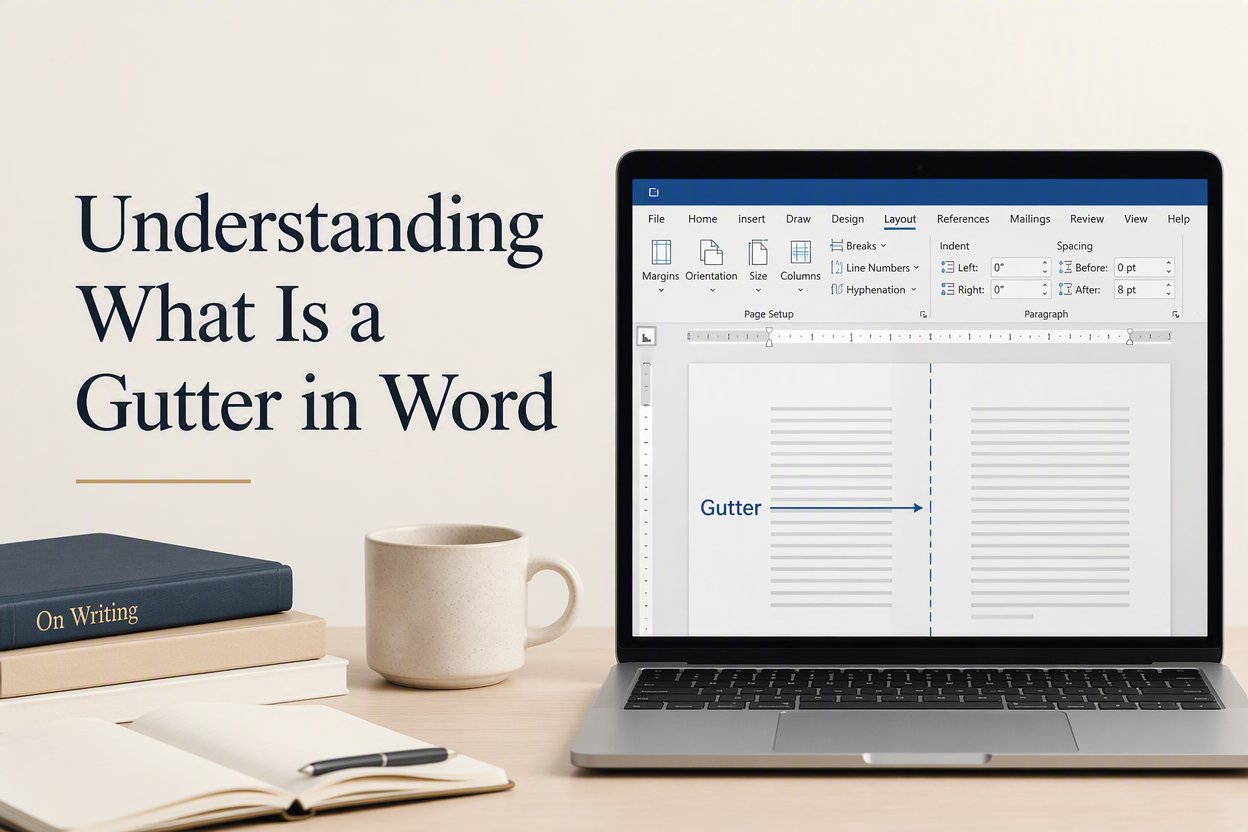
Some authors formatting a print manuscript eventually ask, “What is a gutter in Word?” because the answer affects whether the inner lines of a bound book remain readable. A gutter is extra space added to the inside edge of facing pages. Word places that space beside the binding, where paper disappears into glue, thread, or a sewn section.
For a short story collection printed at six by nine inches, a standard inside margin may be enough. A 500-page paperback needs more room because the thicker spine pulls text farther from the reader’s thumb. The setting you choose depends on your trim size, page count, binding method, and printer’s specifications.
I see authors repeatedly make the same formatting mistake. They create attractive pages on screen, export a PDF, and discover during the proof that the first words of every left-hand page sit too close to the spine. You can prevent that problem by treating the gutter as part of the book’s physical design rather than as a decorative margin.
Table of Contents
Gutter Meaning In Word
In Microsoft Word, the gutter setting adds binding space to the inside margin of your manuscript. Word also gives you a gutter position, which tells the program where to place that extra space. For a standard book printed double-sided, the gutter usually belongs on the left side of odd-numbered pages and the right side of even-numbered pages.
The setting works with the document’s mirror margins. Mirror margins make the inner and outer margins switch sides across facing pages, so the layout resembles a real book. Microsoft describes this arrangement in its instructions for setting margins for facing pages.
Gutter And Inside Margin
Your inside margin controls the ordinary distance between text and the binding edge. Your gutter adds extra space to that inside edge. Word may display both settings in the Page Setup dialog, so do not treat the gutter as a replacement for the inside margin. Think of the inside margin as the page’s normal breathing room and the gutter as compensation for the physical binding.
For example, an inside margin of 0.75 inches with a 0.25-inch gutter gives the bound edge a combined space of about 1 inch. The exact result depends on how Word applies the settings and how your printer handles the file, so inspect the PDF and the printed proof.
Gutter And Binding Type
Paperback perfect binding usually needs more gutter space than a thin saddle-stitched booklet. Hardcover books often need similar planning, with the final requirement determined by the printer and binding construction. A digital ebook does not have a physical gutter because its pages reflow on a screen.
For Amazon KDP, use the current paperback and hardcover manuscript requirements for your trim size and page count. The KDP trim size, bleed, and margin guidance gives margin ranges and separate requirements for books with bleed. Printer specifications take priority over a generic Word template.

Why Gutter Space Matters For Books
A reader should be able to open your book far enough to read the first and last lines without forcing the spine flat. Too little gutter space creates a cramped inner column. Too much space makes the text block look shifted toward the outer edge and reduces the number of words that fit on each page.
The mistake I see most often is measuring the page on a screen and assuming the screen shows the finished object. A monitor presents a clean rectangle and nothing more. Your printed book arrives with a spine, page curl, paper thickness, and a reader’s hands pressing the pages open.
Page Count And Spine Pressure
Page count affects how the book opens. For example, a 90-page novella has a narrow stack of paper, so its pages usually open with little resistance. A 420-page mystery holds a thicker text block, and the inner margins deserve more thought. The binding may consume a small part of each page’s inner area, especially near the center of the book.
Ask your printer for a gutter recommendation based on the final page count. Do this after you apply your font, line spacing, trim size, and chapter layout. Any change to those settings can alter the page count and, in turn, the binding requirement.
Reading Comfort And Typography
Gutter space works alongside font size, leading, line length, and paragraph spacing. A narrow text block with generous margins can remain comfortable even when the book has a long page count. A wide text block in a small trim size can push lines toward the spine, forcing the reader to spread the book farther open.
Keep your body text away from the binding, and watch the first and last lines on every page. A page that looks elegant in a single-page view may appear crowded beside its facing page.
Print Proofs And Physical Inspection
A digital proof helps you find missing pages, bad widows, broken headers, and font problems. A physical proof tells you whether the gutter works. Order one before releasing the book, open it at the middle, and read several pages without pressing the spine flat.
Check a chapter opening, a page with a long paragraph, a page with a running head, and the final pages. Hold the book at a natural reading angle. If you need to flatten it to see the inner words, increase the inside space or ask the printer for a better binding recommendation.
Word Gutter Settings For A Print Manuscript
Word keeps the gutter controls inside Page Setup. The labels can vary slightly by Word version. The process still follows the same structure.
Page Setup Controls
- Open the Layout tab in your Word document.
- Choose Margins, then select Custom Margins.
- Set Multiple Pages to Mirror Margins.
- Enter your top, bottom, inside, and outside margins.
- Enter the gutter measurement supplied by your printer.
- Set the gutter position to Left for a typical left-bound book.
- Apply the settings to the whole document.
Use the inside and outside labels when mirror margins are active. Word then swaps the page edges as the pages face each other. Save a copy before changing the layout, since a margin adjustment can move chapter endings, alter page breaks, and change your table of contents.
Sample Paperback Values
Suppose you are preparing a 300-page, six-by-nine-inch paperback. Your printer might suggest a 0.75-inch inside margin, a 0.25-inch gutter, a 0.6-inch outside margin, and 0.75-inch top and bottom margins. Those numbers are examples for testing the layout, not universal specifications.
Apply the values, turn on the Navigation Pane, and review every chapter heading. Then export a PDF using the printer’s preferred settings. Open the PDF as single pages and as two-page spreads. The text should sit comfortably away from the spine without making the outside margins look unusually wide.
Headers, Footers, And Page Numbers
Headers and page numbers need their own inspection. A running head positioned close to the inner edge can become harder to read than the body text. Page numbers placed in the outer footer tend to stay easier to find, especially in a novel or memoir with mirror margins.
Use different odd and even headers when the design calls for a book-like layout. Check that the author name and chapter title switch sides correctly. Word’s section breaks can introduce separate margin settings, so inspect every section after you make a change.
Common Gutter Mistakes In Word
Word gives you a useful control. The program has no idea how your printer binds the book, though. Formatting errors usually come from applying a reasonable setting to the wrong physical format.
Using A Single Margin For Every Book
A margin that worked for a 120-page poetry collection may fail in a 500-page historical novel. Genre also affects the visual target. A large-print devotional book needs a different text block from a compact business guide. Start with the printer’s requirements and the book’s final specifications.
Adding Gutter Space Twice
Authors sometimes set a large inside margin by hand, then stack an equally large Word gutter on top of it. The result is a swollen inner blank area next to a narrow reading column. Decide how much total inner space your book needs, then divide that space between the ordinary inside margin and the gutter according to the printer’s instructions.
Ignoring Sections And Front Matter
Title pages, copyright pages, contents pages, and body chapters may use different section breaks. A section can carry its own margin settings, header rules, and page numbering. Use Show/Hide formatting marks to find section breaks, then verify the first page of every section in the PDF.
Front matter often uses blank verso pages and roman numerals. Those pages still occupy physical space in the binding, so the book’s total page count includes them. A printer’s page-count calculation should include every page that will appear in the final file.
Gutter Checks Before Publishing
Do a full layout check after your manuscript is edited. Editing after layout can change page count, and a shift of 20 or 30 pages may affect the printer’s gutter recommendation. I treat the final proof as both a design check and a production check.
PDF Inspection
Open the exported PDF and review it at 100 percent. Scan facing pages for text that approaches the spine. Check chapter openings, quotations, lists, tables, illustrations, and pages with short final lines. Look for accidental single-page sections that use different margins.
Review the page size in the PDF properties. A six-by-nine-inch book needs a six-by-nine-inch page unless your printer requests a different file size to accommodate bleed. A correct gutter on the wrong page size still produces a poor book.
Physical Proof Inspection
Order a proof through your printer or print a small test section on your home printer. Fold or bind the pages as closely as possible to the final format. Read near the spine, inspect the outer margins, and check whether headers and footers remain balanced across the spread.
Keep a short production checklist using the final trim size, page count, paper type, binding, inside margin, outside margin, and gutter. That record helps you recreate the format for the next edition or a revised cover package. Adazing’s publishing tools can help you prepare related book assets. The final gutter decision still belongs to the interior layout and printer specifications.
FAQs For Understanding What Is A Gutter In Word
What Does The Gutter Setting Do In Word?
The gutter setting adds space beside the binding edge of a document. In a double-sided book, pair it with mirror margins so the extra space stays on the inside edge on facing pages. Use your printer’s measurement because page count and binding type affect the result.
How Much Gutter Space Does A Paperback Need?
There is no single measurement for every paperback. A thin book may call for less inner room than a thick book, and printers vary in their production specifications. Ask for the required total inner margin, then test the layout in a physical proof.
Do Ebooks Need A Gutter In Word?
Ebooks do not need a physical gutter because the text reflows across devices. You may still use Word margins while drafting. A print manuscript and an ebook file usually need separate formatting passes, though. Remove print-specific layout features when you prepare the ebook edition.
Build The Gutter Into Your Book Design
A gutter is small in the Page Setup dialog and large in the reader’s experience. Give the binding enough room, use mirror margins for facing pages, inspect the PDF, and read a physical proof before publication. Those four checks protect your typography from the one part of the book a screen cannot reproduce: the spine.
