
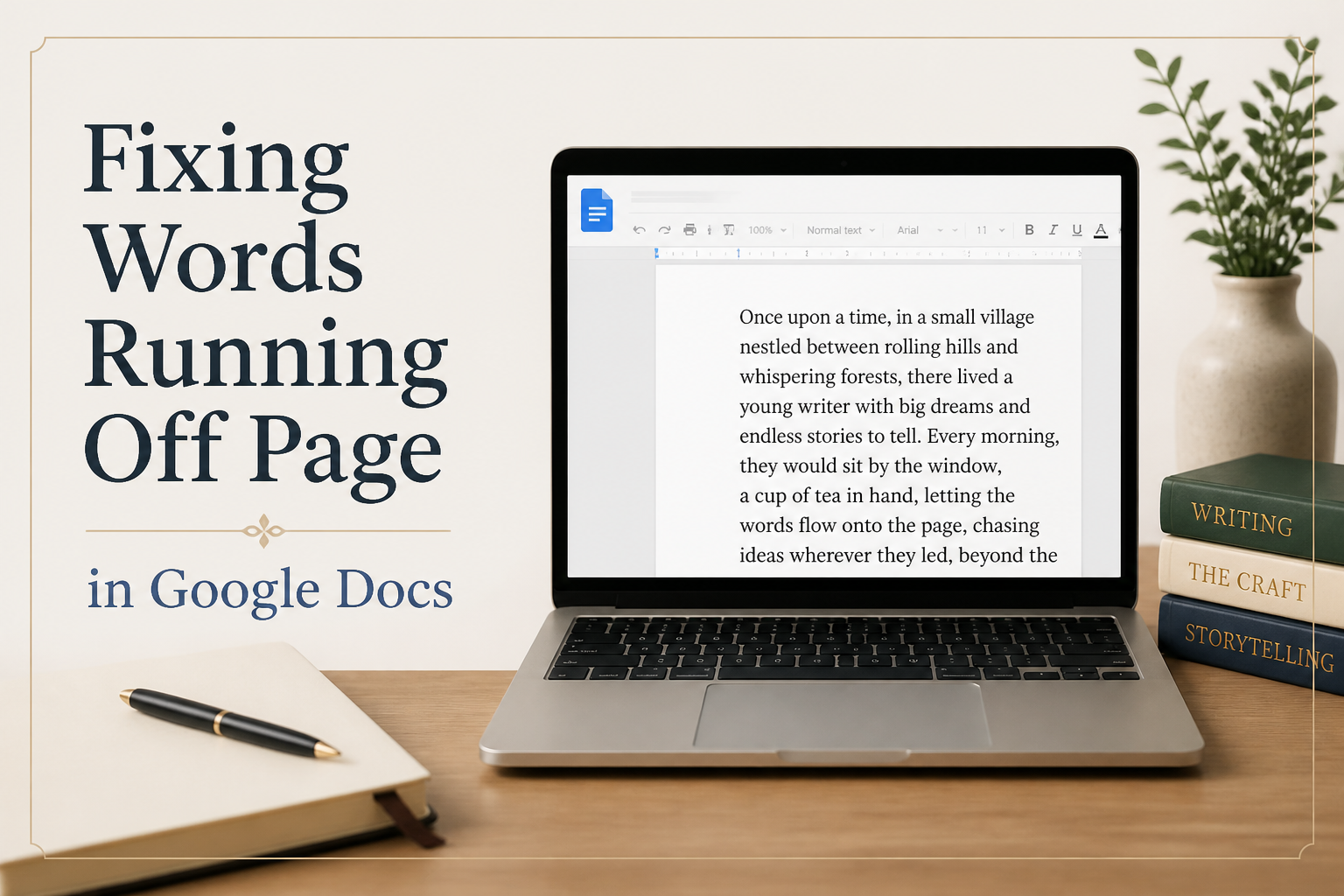
Fixing words running off the page in Google Docs is usually not a mysterious “Google bug.” It is almost always a formatting mismatch between what you think the page is and what the document is actually set to, plus one rogue element that refuses to wrap.
If you draft novels or nonfiction in Docs, this matters more than it should. Overflowing text hides problems that turn into ugly surprises when you export to Word for an editor, generate a PDF for ARC readers, or paste sections into Vellum, Atticus, or KDP’s previewer.
I’m going to walk you through a reliable diagnosis order. If you follow it, you’ll stop guessing, and you’ll fix the root cause instead of nudging margins forever.
Table of Contents
Spot The Real Cause Before You Start “Fixing”
The fastest way to waste an hour is to treat every overflow like the same problem. In my experience, words run off the page in Google Docs for four main reasons: page size or margins are wrong, a paragraph has a weird indent or tab pattern, a table or image is forcing width, or a single unbreakable string is refusing to wrap.
Confirm You Are Actually In Pages Mode
If your document is in Pageless mode, you can get odd “off the edge” behavior depending on zoom and window width, especially when pasting content from another app. Go to File > Page setup. If you see “Pageless,” switch to Pages and check again.
If you collaborate with an editor in Word, sticking with Pages mode is usually the least painful path because it mimics the page constraints you will see later in Word and PDF exports.
Check Zoom And Window Width Before You Panic
Sometimes nothing is wrong with the document. You are zoomed in far enough that the page extends beyond the visible workspace. Set zoom to 100% and maximize the window. This is not the “fix,” but it prevents you from chasing a ghost.
Turn On The Ruler So You Can See The Offender
Go to View > Show ruler. When text runs off to the right, the ruler usually shows you why. A margin slider dragged too far, a right indent set incorrectly, or a tab stop parked out in the weeds will all show up there.
Lock Down Page Setup And Margins First
Authors tend to treat Docs like an infinite canvas while drafting, then they try to “format” late. That is exactly when overflow problems show up because pasted material inherits odd spacing, and your page settings drift without you noticing.
Set The Correct Paper Size For Your Workflow
Go to File > Page setup and confirm the paper size. If you are drafting for most US-based editors and beta readers, Letter is common. If you are outside the US, you may be on A4. A doc that flips between A4 and Letter can show layout shifts that look like lines are “escaping” the page.
If you plan to export to Word for a professional editor, match the editor’s expectation. If you are unsure, ask. That one question saves the kind of nitpicky cleanup that drains revision energy.
Reset Margins To Something Boring On Purpose
Margins that are too narrow can make tables, images, and long words feel like they have no room to wrap. For drafting, I recommend something conservative like 1 inch on all sides. Set it in File > Page setup, then apply it to the whole document.
If you are formatting an interior for print, Docs is not my first choice. You can do it, but you will fight it. I would rather you draft and revise in Docs, then format in a tool built for books.
Check For Section-Specific Settings
Google Docs does not have Word-style “sections” in the same way, but it does allow different headers, footers, and page numbering. More importantly, pasted content can bring in its own paragraph formatting that behaves like a localized “mini-style.” Overflow may appear only in certain chapters because only those paragraphs carry the bad settings.
This is why I fix overflow at the paragraph level next, not by dragging margins until the symptom goes away.
Hunt Down Rogue Paragraph Formatting
When text spills off the right side, the usual culprit is a right indent, a tab stop, or a line that is unintentionally set to wrap. The good news is that you can usually fix this in under a minute once you identify the pattern.
Use Clear Formatting As A Diagnostic Tool
Select a single “broken” paragraph and click Format > Clear formatting (or press Ctrl+ on Windows, Cmd+ on Mac). If the overflow immediately disappears, you have confirmed the problem is paragraph-level formatting, not page setup.
Be aware that Clear formatting also removes italics, bold, and other inline styling. That is why I test it on one paragraph first. If it fixes the issue, undo, then apply a cleaner fix using indents or styles.
Reset Indents And Tab Stops With The Ruler
Click inside the problem paragraph. On the ruler, you will see small blue markers for left indent, first-line indent, and sometimes a right indent. If the right indent marker is pulled way to the right, drag it back toward the margin. If you see a tab stop sitting far out, drag it off the ruler to remove it.
Novelists run into this after copying text from a PDF, a web page, or an email thread with weird tabbing. Nonfiction authors hit it after pasting bullet lists or tables from spreadsheets.
Fix Paragraph Direction And Alignment When It Flips
It is rarer, but I have seen Google Docs documents where pasted text flips directionality, especially when the source contains right-to-left language marks or special characters. If alignment behaves strangely, select the paragraph and check Format > Paragraph direction. Set it to left-to-right for English manuscripts.
This problem can look like “the right edge is broken” when it is actually the paragraph behaving as if the page starts somewhere else.
Remove The Objects That Force The Page Wider
If the overflow happens near an image, a table, a chart, or a pasted “text box” style element, the object is probably wider than the usable page area. Google Docs will not always gracefully scale it, and your text will suffer for it.
Tables That Refuse To Fit
Tables are notorious for pushing content wide. Click in the table, then right-click and choose Table properties. Reduce column widths and avoid fixed widths that exceed the page’s content area.
If the table came from Google Sheets, it may carry column widths that make sense in a spreadsheet and make no sense in a manuscript. Shrink it until it fits inside the margins, or convert the table to plain text if it is only there as drafting scaffolding.
Images With Wrapping Set Wrong
Click the image, then check the wrapping options. “Wrap text” can cause awkward spacing and apparent overflow if the image is large and badly anchored. For manuscripts headed to editors, I prefer “In line” or “Break text” so the layout behaves predictably when exported.
If you need images for a nonfiction book, treat Docs as your draft container. Keep the images, but do not assume the layout will survive export. You will place images properly during layout in your book formatting tool.
Pasted Content From Design Tools
If you pasted from Canva, InDesign, or even a web page with heavy formatting, you may have imported invisible layout constraints. When I suspect this, I paste the same content into a plain text editor first, then paste into Docs without formatting. After that, I reapply headings and emphasis using styles.
It is slower for five minutes. It saves you an hour of hunting later.
Fix The One Thing Docs Cannot Wrap
Sometimes the page setup is fine, the paragraph is fine, and there are no tables or images. One long, unbreakable string is forcing the line to run off the page. For authors, the usual suspects are raw URLs, tracking links, a string of underscores, or a long “house style” placeholder like XXXXXXXXXXXXXXXXX.
Long URLs In Research Notes And Nonfiction Drafts
Google Docs does wrap many URLs, but not all of them, especially if they include long segments without natural breakpoints. The most practical fix is to replace the visible URL with linked text. Type a short label like “Source on PubMed,” highlight it, then insert the link.
If you are keeping research notes in your manuscript, this is a nice craft habit anyway. Your draft stays readable, and you still keep the citation trail.
When you cite sources in your published materials, use stable links where possible. For example, the Google Docs Help page on margins and page setup is a clean reference for the settings you are changing here, and it stays more stable than a random blog post.
Break The String With A Soft Hyphen Or A Space
If the overflow comes from a single monster word or code string, insert a breakpoint. You can add a regular hyphen if it makes sense, or you can insert a soft hyphen in some contexts. Google Docs support for soft hyphens is inconsistent across exports, so I keep it simple and rewrite the string when possible.
Stop Using Underscores As Blank Lines
Authors still do this, especially when they are drafting worksheets, workbooks, or journaling prompts. A line of underscores is a single unbreakable element, so it loves to run off the page. Use a border line, a table cell, or paragraph spacing instead.
FAQs for Fixing Words Running Off Page in Google Docs
Why does this happen only in one chapter of my manuscript?
That chapter probably has pasted text with different paragraph settings, a hidden tab stop, or a table that is wider than the page. I would click into a broken paragraph, turn on the ruler, and try Format > Clear formatting on one paragraph as a test. When the test works, you can fix the underlying indent or tab pattern without stripping your italics across the whole chapter.
Will exporting to Word or PDF automatically fix the overflow?
Sometimes export hides the symptom, and sometimes it makes it worse. Word will often preserve the bad indents and tabs, and PDF will faithfully print whatever your page thinks it contains, including a line that disappears off the edge. I fix overflow in Docs before exporting because it reduces layout surprises when an editor opens the file or when you preview the PDF.
Is Google Docs a good tool for final book formatting?
For most books, I treat Google Docs as a drafting and collaboration tool, not a final layout tool. You can produce a readable PDF from Docs, and plenty of authors do, but print interiors and image-heavy nonfiction usually go smoother in dedicated book layout software. At Adazing, I care about keeping your drafting environment clean so your later steps – editing, formatting, cover, and marketing – do not start with avoidable friction.
A Cleaner Draft Saves You Pain Later
Words that run off the page are a symptom of something concrete: page settings, paragraph formatting, objects that force width, or unbreakable strings. Fix the cause in that order, and you will stop re-fighting the same battle every time you paste in research, add a table, or export for an editor.
When your draft behaves, you spend your time where it counts, on story, structure, clarity, and the kind of revision that sells books.
