
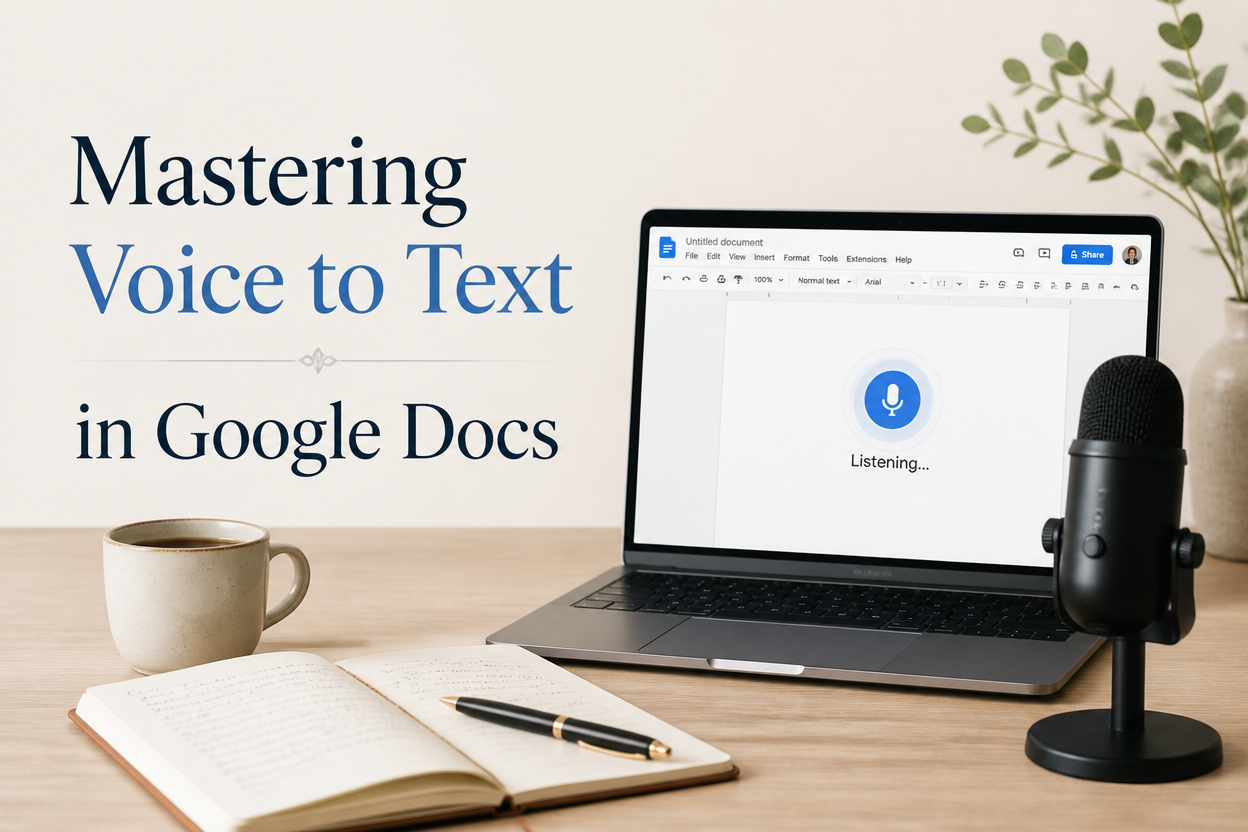
Authors who use voice-to-text in Google Docs can draft a chapter in the time it takes to stare at a blinking cursor and negotiate with themselves. The tool works best as a rough-draft instrument, so expect to shape its output before anyone reads it. Your voice carries rhythm, emphasis, and instinct. Google Docs captures the words, and your editorial judgment shapes them into a chapter.
I recommend voice typing for scenes, personal essays, blog posts, interview notes, and the first pass of nonfiction chapters. It earns its keep for me whenever a sentence needs motion, and the screen has me overthinking every paragraph. Dictation can also expose weak thinking. For example, a sentence that sounds tangled when you say it usually needs attention on the page.
The trade-off is real. Speaking feels fast in the moment. On the other hand, revision often takes longer, since spoken language includes repetition, filler, loose transitions, and punctuation problems. Dictation speeds up the first draft and leaves more cleanup for later. Set clear limits on each session, and the bargain pays off.
Table of Contents
Google Docs Voice Typing Basics
Google Docs puts voice typing under the Tools menu. Open a document, choose Tools, select Voice typing, click the microphone, and grant microphone access when your browser requests it. According to Google’s help page on voice typing, the feature works in the latest versions of Chrome, Edge, and Safari.
Your microphone matters less than your room and your speaking habits. In a quiet office, a laptop microphone works fine. A headset helps when you dictate near a fan, an open window, or a family member who has decided that your writing hour is the perfect time to discuss dinner. Before you begin a serious passage, run a short test by reading two sentences aloud and checking the text for dropped words and strange substitutions.
Browser And Microphone Checks
Keep the document open in one browser tab and close anything that might interrupt your recording. In your computer’s sound settings, select the microphone you intend to use. Then speak at your ordinary conversational volume from a consistent distance, since shouting makes the recording harsher and rarely improves recognition.
Start with a paragraph you already know well. For example, a description of your protagonist, a book summary, or a short passage from your current chapter gives you useful evidence. Once the text appears, check proper names, invented terms, numbers, and contractions. Fiction authors should test character names early because a name that appears twenty times can create a tedious correction pass.
Google Account And Document Habits
Voice typing works inside Google Docs, so your usual document organization still matters. Before a long session, create a separate draft file or duplicate your working manuscript. I prefer one document for raw dictation and another for edited chapters. Keeping them apart lets the first pass stay loose. The separation also shields your main manuscript from accidental rewriting before the idea has finished arriving.
Set up headings for chapters and scenes before you dictate. For example, a simple structure such as Chapter Seven, scene break, and revision notes gives you places to stop. If a problem arises, type a bracketed reminder such as [check timeline]. Those markers preserve momentum and give you a searchable list for the revision pass.
Preparation For A Productive Dictation Session
Voice typing rewards preparation more than speed. Before you press the microphone, write three to five bullets about the passage you want to create. Include the scene goal, the character’s immediate problem, the information the reader needs, and the point where the passage should end. Skip the full outline and aim for just enough direction to keep a ten-minute monologue about weather from becoming the chapter.
Dictation trips up many authors because they try to build the argument, find the perfect words, and handle punctuation all at once. Give each job its own stage. On the first pass, focus on what you mean and where the passage is heading. Save the work of shaping language for the reader’s eye until revision.
Planning Fiction Scenes
For fiction, speak the scene in beats. For example, you might dictate, “Mara enters the station expecting an apology. She sees the suitcase first. The suitcase proves her brother left before dawn.” From there, expand each beat into action, sensory detail, and dialogue, which gives your scene a spine before you decorate it.
Keep a short character sheet nearby, with names, ages, locations, and recurring terms within reach on paper or in a second window. A glance at the sheet won’t break the scene’s momentum. Dictation works especially well for emotional reactions and physical action because you can hear whether the moment has energy.
Planning Nonfiction Chapters
For nonfiction, dictate the reader’s problem before you explain it. For example, you might open with, “The author has finished a manuscript and still has a book page that fails to explain who should buy it.” From there, define the cause, give a concrete example, and state the decision the reader should make.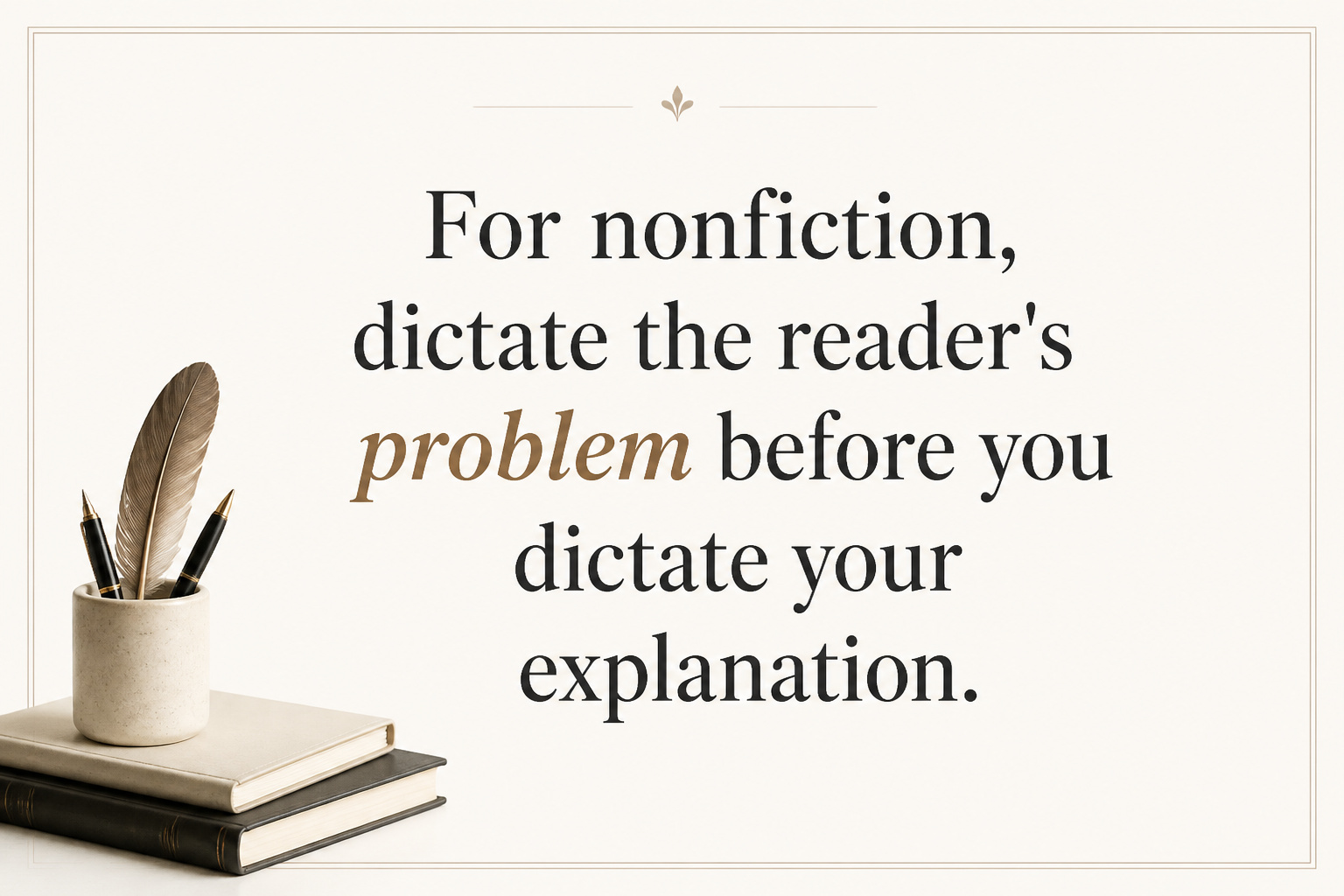
Keep research citations separate from the spoken draft. For example, say “citation needed for the survey on audiobook listening,” then continue and add the source during revision. When a factual claim depends on outside evidence, link it to a named source. Google Docs can hold the draft. Your citation system, on the other hand, still needs deliberate attention.
Speaking Punctuation And Paragraphs
Google Docs can recognize spoken punctuation commands. Support depends on language, and results can vary with browser and sentence pattern. Google’s official help page on voice typing lists commands such as “period,” “comma,” “question mark,” “new paragraph,” and “new line.” Test the commands in your own setup before building a whole chapter around them.
I use spoken punctuation sparingly. Saying every comma interrupts thought and gives the draft a mechanical rhythm. In my own sessions, I usually dictate a sentence or two, say “period,” and use “new paragraph” when the idea or speaker changes. Most commas, quotation marks, and dialogue formatting wait until the edit.
Commands Worth Practicing
Practice four commands first: “period,” “question mark,” “new paragraph,” and “new line.” Those cover the structural decisions that matter during a fast draft. Quotation marks don’t appear on Google’s official command list, so test “open quotation mark” and “close quotation mark” in your own browser before relying on them.
Some commands behave differently across browsers and languages, appearing as visible text or getting no response at all. When that happens, keep speaking and mark the spot with a plain phrase such as “punctuation check.” That simple workaround beats losing the sentence because you stopped to troubleshoot.
Paragraph Breaks And Dialogue
Paragraph breaks carry meaning. For example, a new paragraph in fiction can signal a new speaker, a change in focus, or a turn in tension. Similarly, nonfiction writers rely on a break to separate a claim from its example. Say “new paragraph” when that separation matters, then review the result in the document.
Dialogue needs a careful second pass because speech recognition may capture words without shaping the exchange for the page. Dictate the spoken content first. Afterward, check speaker tags, paragraph ownership, contractions, and the punctuation around dialogue. You can hear a conversation clearly and still need to format it for comfortable reading.
Editing Dictated Prose Into Book Prose
Editing begins shortly after the microphone stops. Give the passage a few minutes to rest, then read it on screen. Spoken language tends to repeat ideas, open softly, lean on filler phrases, and depend on vocal emphasis. Your reader doesn’t hear your voice, so the page must carry the meaning without your performance.
My revision happens in three passes. The opening pass repairs misheard words and fills in anything the software dropped. With those errors fixed, a second pass removes repetition and reshapes sentences. The last read then tests the passage against the chapter’s purpose. Keeping these jobs separate prevents you from polishing a paragraph that later gets cut.
Recognition Errors
Begin by checking names, homophones, numbers, and technical terms. For example, voice typing may turn “their” into “there,” change a character’s name, or remove a small word that changes the sentence. After you correct those, read the passage aloud from the screen, since your ear can catch errors your eyes have started to accept.
Use Google Docs’ Find and replace tool for repeated errors. Suppose the software converts a character name into the same wrong spelling throughout a session. In that case, one controlled replacement can save time. Inspect every replacement before accepting it because a common word may appear in a legitimate context.
Spoken Filler And Repetition
Watch for phrases such as “I think,” “kind of,” “you know,” and repeated explanations. Speakers lean on these fillers to reach the next thought, and they rarely belong in the finished paragraph unless the narrator or character uses them deliberately.
Read each paragraph for its main movement. A paragraph should usually advance the scene, clarify the idea, deepen the character, or create a question. When three sentences perform the same job, keep the strongest one and give the remaining space a new purpose.
Sentence Rhythm And Voice
Talking to an imagined reader often gives dictation a natural sound that hand-built phrasing lacks, so protect that quality during revision. Keep the contractions, pauses, and surprising verbs that sound like you, and cut the verbal clutter that only existed to help you think.
Once the screen edit is finished, run a final read-aloud. The passage should sound like a person with a point of view and still read cleanly in silence. A strong authorial voice comes from consistent choices in diction, rhythm, distance, and detail. Voice typing can help you uncover those choices, but making them remains your job.
Manuscript Workflow And Privacy Choices
A useful dictation workflow has a beginning, a working file, and a handoff into revision. Start with a brief outline, record one focused passage, label the document, and edit before the next session. I recommend naming files with the project, chapter, date, and status, such as River Glass Chapter 4 2025-03-08 Raw Draft.
Keep a backup outside the active document. Google Docs saves your changes to Drive automatically. For a second recovery point, download a DOCX or PDF after each substantial session, and store the manuscript in a private folder with sensible account security.
Privacy And Sensitive Material
Before dictating in a shared office, public space, or workplace account, think about what you plan to say aloud. A manuscript may contain client information, unpublished research, personal history, or details drawn from real people. For sensitive projects, choose a private location and a suitable account, and strip identifying information from any draft that calls for extra care.
Voice typing also creates an audio environment around your writing, since family members, coworkers, and visitors can hear scenes long before publication. If you write memoir, erotica, confidential nonfiction, or material involving living people, plan your recording space with the same care you give your file storage.
When Another Tool Fits Better
Google Docs works well for a browser-based draft and collaborative editing. For recorded interviews, long audio files, or projects that need speaker labels, a dedicated transcription service may fit better. When you need prompts, variations, or a way to push through a stubborn section, Adazing’s QuickWrite can help. Choose based on the job in front of you.
Voice typing won’t suit every author or every passage. For example, dense copyediting, tables, screenplay formatting, and intricate footnotes usually demand direct keyboard control. Use dictation where it creates momentum, then return to the method that gives you the cleanest control over the page.
FAQs for Mastering Voice-to-text in Google Docs
Does Google Docs voice typing work on a phone?
In a desktop browser, Google Docs voice typing runs through the document’s Tools menu and your browser’s microphone access. On a phone, you generally use the device keyboard’s microphone feature, which sends speech into the active text field. Test the result with a short paragraph because mobile punctuation and word recognition depend on your device settings.
How do I add punctuation during dictation?
Say commands such as “period,” “comma,” “question mark,” or “new paragraph” when your browser recognizes them. I recommend using only the commands you have tested. Leave detailed punctuation for the editing pass when a command interrupts your thinking or creates errors.
Can voice typing create a whole book?
Yes, it can take you through a whole book draft, provided you pair it with outlining, revision, fact-checking, copyediting, and proofreading. A sustainable routine might include one dictated scene or subsection per session, followed by a separate edit. The software captures language, and you remain responsible for structure, clarity, style, and the reader’s experience.
Use Your Voice For Momentum
Voice typing earns its place in an author’s toolkit when it gets ideas out of your head and into a draft before you’ve had time to polish a single sentence. Prepare a short plan, test your microphone, dictate in focused sections, and edit the text with your eyes and ears. Google Docs can hold your first draft, and your craft gives it shape.
