
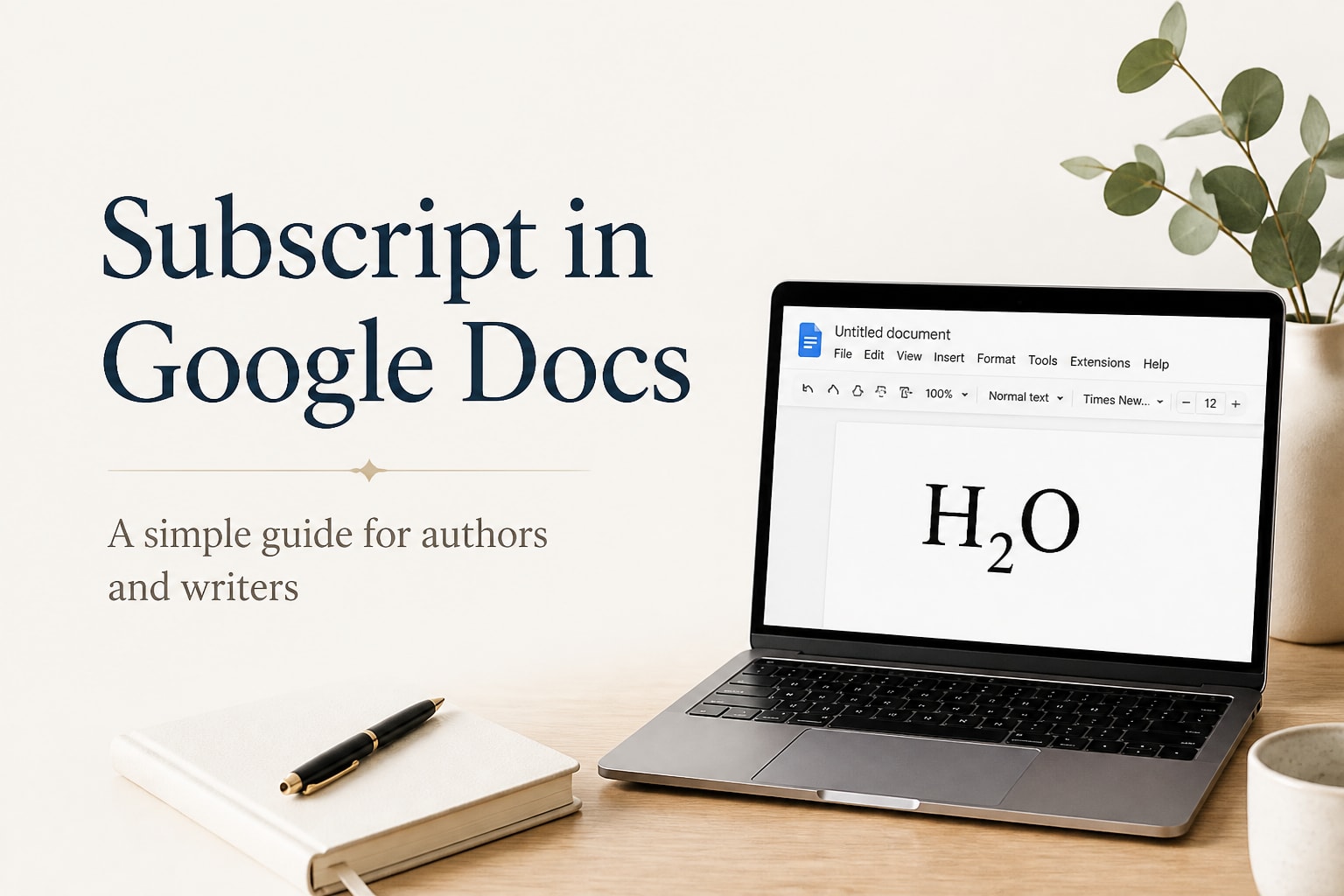
Formatting subscript in Google Docs gives a small piece of text a precise job. That formatting lets chemical formulas, footnote markers, mathematical notation, and editorial symbols settle neatly below the baseline without awkward spacing or manual guesswork. Such precision matters for authors, since a manuscript can be structurally sound and still look careless when someone positions technical characters by eye.
Getting it right takes one of three dependable methods. You can press a keyboard combination, open the Format menu, or insert a symbol through Special characters, and each option suits a different writing situation. I press the keys when I am working inside a manuscript, open the menu when I need to confirm what a command does, and turn to special characters when I need a symbol that regular typing cannot produce.
That third option points to the distinction that matters most. Formatting existing text and inserting a ready-made subscript character produce different results in the file. Once you understand that difference, you can prepare clean book files, worksheets, reference material, and instructional pages without breaking your writing rhythm.
Table of Contents
What Subscript Does In A Manuscript
Subscript lowers a character or word slightly below the normal baseline. For example, a novelist might use it for a chemical formula like H₂O. Nonfiction tends to call for it more often, in equations with x₁ and x₂, variables in technical explanations, or notation systems specific to your field.
Beyond fiction and general nonfiction, editorial and academic work relies heavily on subscripts. Consider a history author who needs a source marker connected to a note system. Science writers depend on it for CO₂, CH₄, or formulas with several variables, and a writing instructor might use it to show how a sentence changes when a symbol takes on a special meaning.
Each use shapes how quickly and confidently a reader moves through the page. Readers may forgive a typo in a draft. Someone who buys a polished reference book expects formulas, symbols, headings, and notes to follow a consistent visual system. For that reason, I treat subscript as part of the book’s technical design, even when it appears only a few times.
Subscript And Superscript Roles
Subscript text appears below the baseline, and superscript text appears above it. Since the two forms can look alike on a manuscript page, confirm the position before you move on. Consider the formula H₂O, where the 2 appears lower than the H and the O. A footnote marker like ¹ generally takes superscript.
Keeping those positions straight pays off when you prepare a manuscript for publication. A production editor can fix an isolated error. Repeated misuse adds extra work and can change what a formula says, so read the sentence around every specialized mark before you export your document.
Examples Authors Actually Use
How often you face that check depends on the kind of book you write. A memoir may need subscript once or twice, if at all. Cookbooks occasionally use it in nutrition notation or technical ingredient names. In textbooks, workbooks, science fiction reference guides, and craft books, it can appear on every page. Genre sets how often subscript shows up, and your production standards decide how well it holds up in print.
To test those standards before you format a full chapter or worksheet, type H₂O, CO₂, x₁, x₂, and aₙ into a blank Google Doc. Those samples give you a quick visual check of how the format looks on the page.

Keyboard Shortcuts For Subscript
When your text is already on the page, a keyboard command saves the most time. On Windows and ChromeOS, select the character or word and press Ctrl + comma. Mac users can select the text and press Command + comma. After typing, press the same combination again to return to regular text.
Those combinations appear in Google’s official documentation, along with the matching keystrokes for superscript. If your operating system or browser behaves differently, Google’s list of Docs keyboard shortcuts shows what currently works on each platform.
Applying The Shortcut To Existing Text
Write the passage first if the wording still needs revision. Once the sentence is settled, highlight only the characters that need special treatment. In H2O, that means selecting the 2 and applying a subscript. Expressions like x1 and x2 call for selecting each number separately, unless the entire expression belongs below the baseline.
Precise highlighting prevents one of the most common formatting mistakes. If you include the space after a subscript character, Google Docs may carry the formatting into the next word and turn a normal sentence into a small typographic puzzle. Keep your highlight tight, then press the spacebar and keep writing.
Turning The Format Off
As you keep writing, Google Docs may leave subscript switched on. Press Ctrl + comma or Command + comma again before you type ordinary text. If that keyboard command misbehaves, the toolbar or the Format menu will switch your text back to regular.
To catch any slip, I check the next few words after applying subscript. That habit takes less time than discovering several pages later that an entire phrase has dropped below the baseline. Tables, captions, and footnotes deserve extra attention, since errors tucked into smaller text are harder to notice.
Using The Format Menu
The Format menu suits writers who prefer visible commands, and it also helps when a keyboard command conflicts with a browser function. Select the text, open Format in the top menu, choose Text, and then choose Subscript. Google Docs then lowers the highlighted characters.
Clicking through those menus takes longer than using the keyboard. In exchange, you see the exact command name before you apply it. That visibility is why I recommend the menu when you are learning the interface, editing on a shared computer, or working through a production checklist that asks you to verify each formatting type.
Formatting A Single Character
Every method demands the same precision once formulas enter the manuscript. Highlight only the number or letter that belongs below the baseline. In H₂O, select just the 2. C₆H₁₂O₆ is longer, with three numbers that need subscripts. You can format them one at a time or in small groups. Google Docs keeps every character in its original order and lowers only the ones you chose.
Those small groups protect the formula’s shape. Avoid selecting the entire formula unless your design calls for every character to sit low, since readers should recognize the notation at a glance. Selective formatting preserves the visual hierarchy that makes scientific notation readable.
Formatting A Word Or Phrase
Some style guides go further and require subscript on a whole word or phrase. In that case, select the phrase, open Format, choose Text, and select Subscript. Afterward, review the surrounding line, since a lowered phrase can change line spacing in a narrow book interior.
That spacing problem grows as the lowered text gets longer. Long blocks of subscript usually signal a design issue, so if several lines need lowering, consider whether a table, equation block, or specialized type treatment would present the material more clearly. Google Docs will lower as much text as you select, and only you can keep the page comfortable to read.
Inserting Subscript Characters
Formatting moves ordinary text to a new position. Inserting a subscript character works differently. That method adds a distinct Unicode character to your file. This distinction matters when you copy text into a book cover maker, an ebook description, a website, or a publishing platform that may drop Google Docs formatting.
To add one of those characters, open Insert and choose Special characters. Type a term like “subscript two,” “subscript one,” or “Latin subscript letter” into the box, or browse the categories and pick the symbol from the visual grid. Google’s help page on Docs keyboard shortcuts covers formatting commands. The symbols themselves live in the Special characters menu.
When Unicode Characters Work Well
Those Unicode characters work well in short labels, social posts, book metadata, and plain-text environments. Take the familiar H₂O. Built from Unicode characters, it usually stays intact when pasted elsewhere, more reliably than ordinary text formatted in a document editor. That portability can help a short author bio or a science-fiction title treatment.
Portability still depends on the destination, so check it before you commit to Unicode. Some fonts lack the full range of subscript letters, and some publishing systems replace unsupported characters with empty boxes. A symbol that looks elegant in Google Docs can turn into a production error after upload.
When Formatting Works Better
To avoid that risk in a print manuscript, use regular text with subscript formatting, especially for any document that will move through an editorial workflow. Editors, designers, and typesetters can identify the underlying characters and adjust the styling later. That approach also gives you more control over fonts and spacing.
Choosing between the two methods comes down to a simple rule. I reach for Unicode when text needs portability and for formatting when the document needs control, and that split covers most author workflows. Before you format an entire glossary or appendix, test a sample in its final destination.
Checking Subscript Before Publication
Every proofing pass should include a subscript check, since formatting errors often hide in plain sight. A manuscript can look correct on your screen and shift after you download it as a PDF, import it into another program, or convert it for an ebook.
To catch those shifts, press Ctrl + F or Command + F to locate every formula, variable, or notation you used, and read each instance in context. Next, inspect the exported file at normal reading size. Zooming to 200% can reveal alignment problems. Judge the final result at a smaller scale, since your reader will experience the page that way.
Print And Ebook Checks
A printed page offers another useful test. Print one with your most complicated formula, then check the baseline, the line spacing, and how the formula sits beside nearby punctuation. A subscript mark that drops too far can open a visible gap or make the line look damaged.
Digital editions need the same scrutiny, so test the file on more than one screen when possible. Kindle devices, phones, tablets, and desktop reading apps can render fonts differently. Amazon KDP’s guide to manuscript formatting recommends previewing your converted book in Kindle Previewer before publication, since the source document alone cannot show how each device will display it.
Style Consistency Across The Book
Repeated formulas need one consistent treatment. Keep the same font, size, and relationship between regular text and subscript throughout the manuscript, so readers recognize a recurring notation system without stopping to decode a new style on every page.
To hold that treatment steady, write a short style note for yourself. Record whether you use formatted text or Unicode characters, how you handle punctuation, and which formulas need special review. That record will save time if an editor, cover designer, or formatter works on the book later.
Common Subscript Problems
Applying subscript to too much text is the most common mistake. Authors highlight a whole sentence when only one number needs lowering, then keep writing without turning the format off. Both errors disappear when you highlight only the characters you need and check the following few words before moving on.
Copying and pasting introduces a second kind of trouble. Text from a website, PDF, or word processor may carry hidden formatting or Unicode characters into your file. Paste that material into a clean section of your document first, inspect the symbols, and apply one consistent treatment before moving it into the manuscript.
Even clean symbols can fail if the font lacks them. A document may display a symbol correctly in one typeface and show a missing-glyph box in another. Choose a font that includes the characters you need, then test the exported PDF or ebook on the devices your readers are likely to use.
Beyond fonts, Google Docs has limits as a book-production tool. It suits drafting, collaboration, and editorial review. Once formulas, tables, cross-references, and page design become dense, a complex technical book may need professional typesetting software. I would rather move a difficult project into the right production tool than spend hours forcing a browser document to behave like a typesetting program.
FAQs for Subscript in Google Docs
How do I type subscript in Google Docs?
Select the character or word, open Format, choose Text, and select Subscript. Keyboard users can press Ctrl + comma on Windows or ChromeOS, or Command + comma on a Mac. To return to regular text, apply the same command again.
Can I add subscript numbers without formatting?
Yes. Open Insert, select Special characters, and type a description like “subscript two” to find the number you need. Unicode characters travel well across plain-text fields. Before using them throughout a book, test them in your chosen font and publishing platform.
Why does my subscript change after I export the document?
Fonts, conversion settings, and ebook apps can shift how specialized text appears. Inspect the exported PDF or ebook, then test a page with your most complicated formula. For a technical book, give the final file a dedicated notation and font check before publication.
Use Subscript With Production Discipline
Subscript takes only seconds to apply. Its effect on a finished book lasts far longer, since a single lowered character can change what a formula says. Select only the characters that need it, choose formatting or Unicode based on the destination, and inspect the final file after export. That small routine protects formulas, notation, and the polished finish readers expect in a published book.
My own process follows the same pattern. I draft and edit confidently in Google Docs, then judge every specialized mark in the file readers will actually receive. Adazing tools can help with writing, book preparation, and promotion. Clean typography still begins with the choices you make inside the manuscript.
