
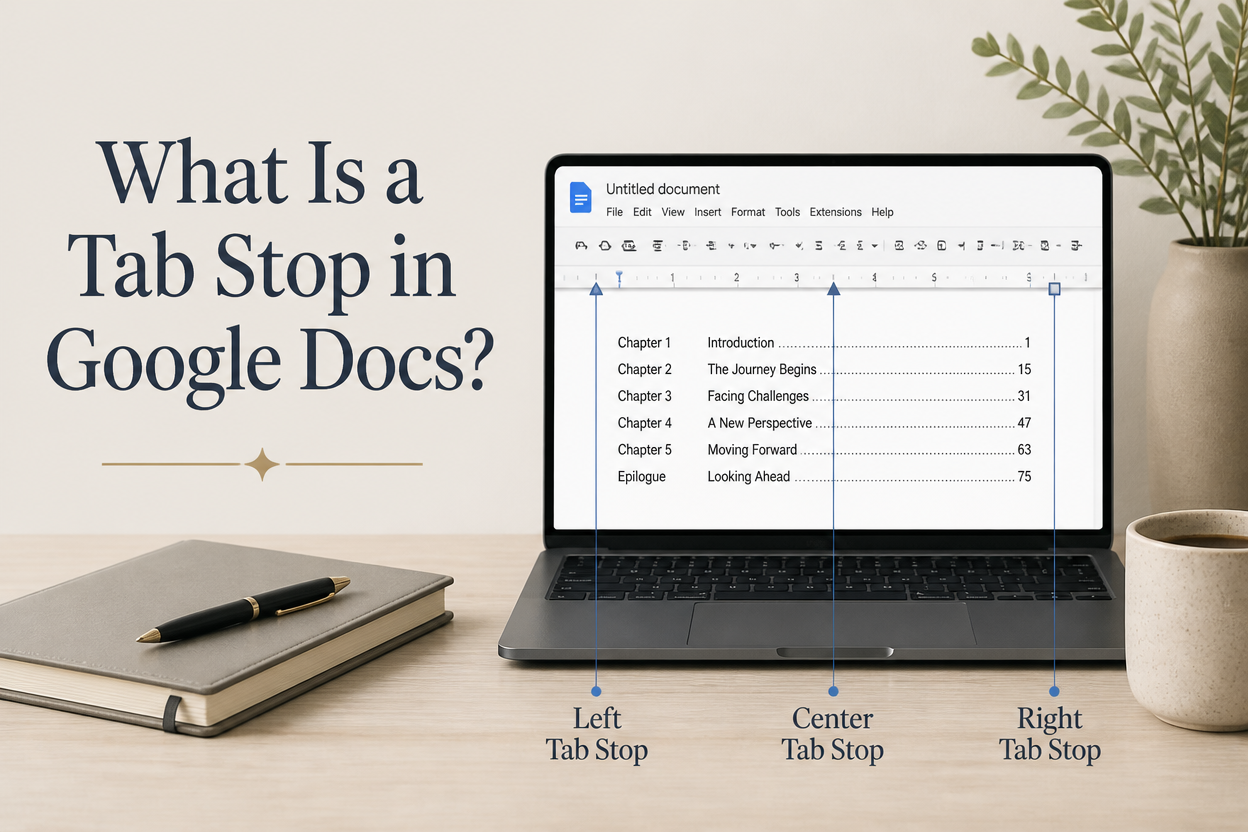
Every author formatting a manuscript eventually asks, “What is a tab stop in Google Docs?” because a clean page depends on more than good prose. A tab stop controls the exact position where your cursor lands after you press the Tab key. It gives you a repeatable horizontal starting point for text, which helps with manuscript formatting, chapter outlines, front matter, and working documents that need a little more structure.
I use tab stops when ordinary spaces start creating problems. Spaces shift when you edit a line, change the font, or move content into another document. A tab stop keeps related text aligned at a defined measurement on the ruler, so your chapter titles, scene notes, or submission materials look deliberate rather than patched together.
Google Docs makes tab stops simple to set up once you know where the controls are. You can set them from the ruler, choose how the text aligns, and apply them to selected paragraphs. I recommend learning this small feature before you build a manuscript template, because clean formatting saves time during revisions and gives your book files a more professional foundation.
Table of Contents
Tab Stop Basics For Authors
A tab stop is a preset location on a document’s horizontal ruler. Pressing Tab moves your cursor to that location. The next tab stop appears after that point, letting you create several aligned positions along a line.
Suppose you are drafting a chapter outline with a scene number, a working scene title, and a point-of-view character. A line such as “03 The Locked Room Mara” becomes unstable when you build it with repeated spaces. A tab stop gives each element its own position, so every line follows the same pattern.
Google Docs includes default tab positions, commonly spaced at half-inch intervals. You can replace those defaults by adding your own stops to the ruler. The exact result depends on the paragraph or paragraphs you select before making the change, so selection matters.
Tab Stops And Paragraph Formatting
A tab stop is part of paragraph formatting. That means it affects the paragraphs you select when you add it. New paragraphs may inherit the formatting when you continue typing. However, pasted material can bring its own settings.
For a manuscript template, I select the full group of paragraphs before setting a stop. For a single outline entry, I place the cursor in that paragraph. Afterward, I test the Tab key on several lines because a formatting choice that looks correct on one line can expose a problem across a page.
Tab Stops And Indents
A tab stop controls where the cursor lands after Tab. An indent controls where a paragraph begins or where its lines wrap. Those features work together. Even so, they solve different problems.
For example, a first-line indent gives each paragraph’s opening line a consistent position. A tab stop can place a scene label at a specific point across the page. Using one tool for the other usually creates awkward spacing, especially after you revise a paragraph.

Tab Stop Types In Google Docs
Google Docs supports several alignment choices for tab stops. The right choice depends on the kind of information you are arranging and how it should read across the page.
Left Tab Stops
A left tab stop starts your text at the selected ruler position and lets it continue toward the right. This is the most useful choice for chapter outlines, character lists, research notes, and tables of contents that you are drafting manually.
Use a left tab stop when the first character of each entry needs to line up. A writing plan might place the scene number at 0 inches, the scene title at 0.5 inches, and the point-of-view character at 4.5 inches. Each line then begins from the same set of positions.
Center And Right Tab Stops
A center tab stop centers the text around the selected ruler position. This can help with a short running header, a date line, or a centered label in a worksheet.
A right tab stop ends the text at the selected position. Authors often use it for page numbers in a manually built table of contents or for dates in a submission tracker. The text grows toward the left, so the final characters align neatly.
Decimal Tab Stops
A decimal tab stop aligns numbers around a decimal point. It has limited value in a standard novel manuscript. For nonfiction authors drafting statistics, budgets, royalty estimates, or research tables in Google Docs, it can help.
Use decimal alignment for numbers that readers need to compare. A list of chapter word counts becomes easier to scan when 2,500, 12,400, and 8,750 align around their decimal positions, even though the numbers have different lengths.
Adding Tab Stops On The Ruler
The ruler is the fastest place to create a tab stop in Google Docs. You may need to turn it on first. Open the View menu, choose Show ruler, and look for the horizontal ruler above the page.
Select the paragraphs you want to format. Then use the small tab selector at the left edge of the ruler to choose the alignment type. Click the ruler at the measurement where you want the stop, then a marker appears there. Pressing Tab in the selected paragraphs moves the cursor to that location.
The Google Docs Help instructions for rulers and paragraph formatting describe the current controls and the way Google Docs applies ruler settings. Google occasionally changes menu labels and interface details, so the Help page is the best reference when your screen differs from mine.
Setting Stops For A Chapter Outline
Try this arrangement for a working outline. Select your outline entries, add a left tab stop at 0.5 inches for the scene title, and add another at 4.5 inches for the point-of-view character. Type each line with one Tab between fields.
Your entries might look like this:
- 01 The Storm Lena
- 02 A Door Opens Lena
- 03 The Message Omar
The labels above are separated by tab characters in the document, even though the visual result may vary inside this HTML example. In Google Docs, each field begins from a ruler position rather than from a guessed number of spaces. That difference matters as soon as one scene title runs longer than another.
Removing Or Moving Stops
To move a tab stop, drag its marker along the ruler. To remove one, drag the marker off the ruler. Select the affected paragraphs first when you need to change several lines at once.
I test the result after moving a stop because long titles can run into the next field. Give each column enough room for the longest realistic entry. For example, a point-of-view field sized for “Jo” may fail when a later scene uses “Dr. Alexandra Petrov,” and Google Docs will place the text wherever the available space allows.
Tab Stops In Manuscript Formatting
Tab stops have a useful place in an author’s workflow. Even so, they rarely belong in the body text of a standard novel manuscript. Most manuscript guidelines call for ordinary paragraph indents, double spacing, readable fonts, and consistent margins. A tab stop can interfere with that convention when it replaces a first-line indent across hundreds of paragraphs.
For body copy, use paragraph indentation through the ruler or the Format menu. Reserve tab stops for material with separate fields or deliberate alignment, such as a submission tracker, a front-matter checklist, a cast list, or a nonfiction table.
Front Matter And Preliminary Pages
Drafting front matter often involves short lines that need consistent placement. You might prepare a copyright page, a dedication worksheet, or a list of edition details before transferring the final text into a book layout program.
A tab stop can help you create a temporary working grid for those details. Keep the finished page in mind, too. A professional book interior usually relies on styles, paragraph settings, and layout software for final positioning. Google Docs is an excellent drafting environment. On the other hand, it falls short as a print-production tool.
Submission And Marketing Documents
Tab stops work especially well in documents you use around the book rather than inside the book. A query tracker can place the agent name, agency, date sent, and response in predictable columns. Launch checklists can align tasks with deadlines, and rights or audiobook worksheets can keep multiple details readable on a single page.
Adazing authors also use Google Docs alongside writing and book marketing tools. I often recommend keeping a clean tracking document for comp titles, review requests, promo dates, and retailer links. Tab stops help you scan that information during a busy launch without turning every line into a miniature spreadsheet.
Common Tab Stop Problems
The most common mistake is using spaces to imitate alignment. Spaces depend on the font and the number of characters before them. Change the font from Times New Roman to Arial, and the columns can move out of place. Edit one title, and every following field may shift.
A second mistake is setting a stop first without selecting a paragraph, then assuming the whole document changed. Google Docs applies the setting to the current paragraph or selected paragraphs. Select the full section when you need consistent formatting.
Tabs That Jump Too Far
A cursor that jumps farther than expected usually indicates a missing custom stop or a stop placed beyond the position you intended. Check the ruler for markers, remove unnecessary ones, and add a fresh stop at the desired measurement.
Also inspect your paragraph indentation. A left indent can change the visual starting point, so the ruler may be behaving correctly even though the text appears displaced. Compare the paragraph start with the tab marker before changing several settings at once.
Tabs That Break Across Pages
Long text can run into the next tabbed field or wrap in a way that ruins the layout. Shorten the field, move the later stop farther right, or use a table when the content has several rows and columns.
Tables are usually better for finished data grids because they preserve row and column relationships more clearly. Tab stops suit simple, text-based alignment. I choose the simpler tool for a draft and switch to a table when the information needs to behave like a grid.
Best Practices For Author Documents
Start with the purpose of the document. A manuscript, a scene outline, and a submission tracker need different formatting. Once you know the document’s job, choose tab stops that support reading rather than decorating the page.
Use one alignment system throughout a section. Mixing spaces, tabs, and manual line breaks makes revisions fragile. I also keep a separate clean manuscript file, so experiments with tab stops never spread into the book’s body text by accident.
Test the document with real content before you trust the format. Use the longest chapter title, the longest character name, and the largest number you expect to enter. A layout that works with placeholder text has passed only the easiest test.
Finally, remember that Google Docs formatting may change when you paste into Microsoft Word, an ebook editor, or a print layout application. Export a sample, inspect it, and correct the destination file. For a book cover, interior, or promotional asset that requires precise control, Adazing’s publishing tools can help you move from rough working material toward a polished reader-facing file.
FAQs for What is a Tab Stop in Google Docs?
How Do I Add A Tab Stop In Google Docs?
Turn on the ruler from View, then select the paragraphs you want to format. Choose a tab alignment from the tab selector at the ruler’s left edge and click the desired measurement on the ruler. Press Tab in the selected paragraphs to test the new position.
What Is The Difference Between A Tab And A Tab Stop?
A tab is the character or keyboard command that moves your cursor forward. A tab stop is the position where the cursor lands. You press Tab to use the positions you set on the ruler.
Should I Use Tab Stops For A Novel Manuscript?
Use them for outlines, trackers, and structured notes. For standard body text, use paragraph indentation and the formatting requirements supplied by your agent, editor, or publisher. Tab stops belong in a manuscript when the document contains separate aligned fields that benefit from fixed positions.
Cleaner Documents Start With Deliberate Alignment
A tab stop gives your author documents a fixed place to begin each piece of information. That small control prevents spacing errors, speeds up revisions, and makes outlines and trackers easier to read.
Open one of your current Google Docs files and replace a row of repeated spaces with two deliberate tab stops. Test it with your longest entry. Once you see how much cleaner the document becomes, you will have a reliable formatting tool for every stage of writing, publishing, and book marketing.
