
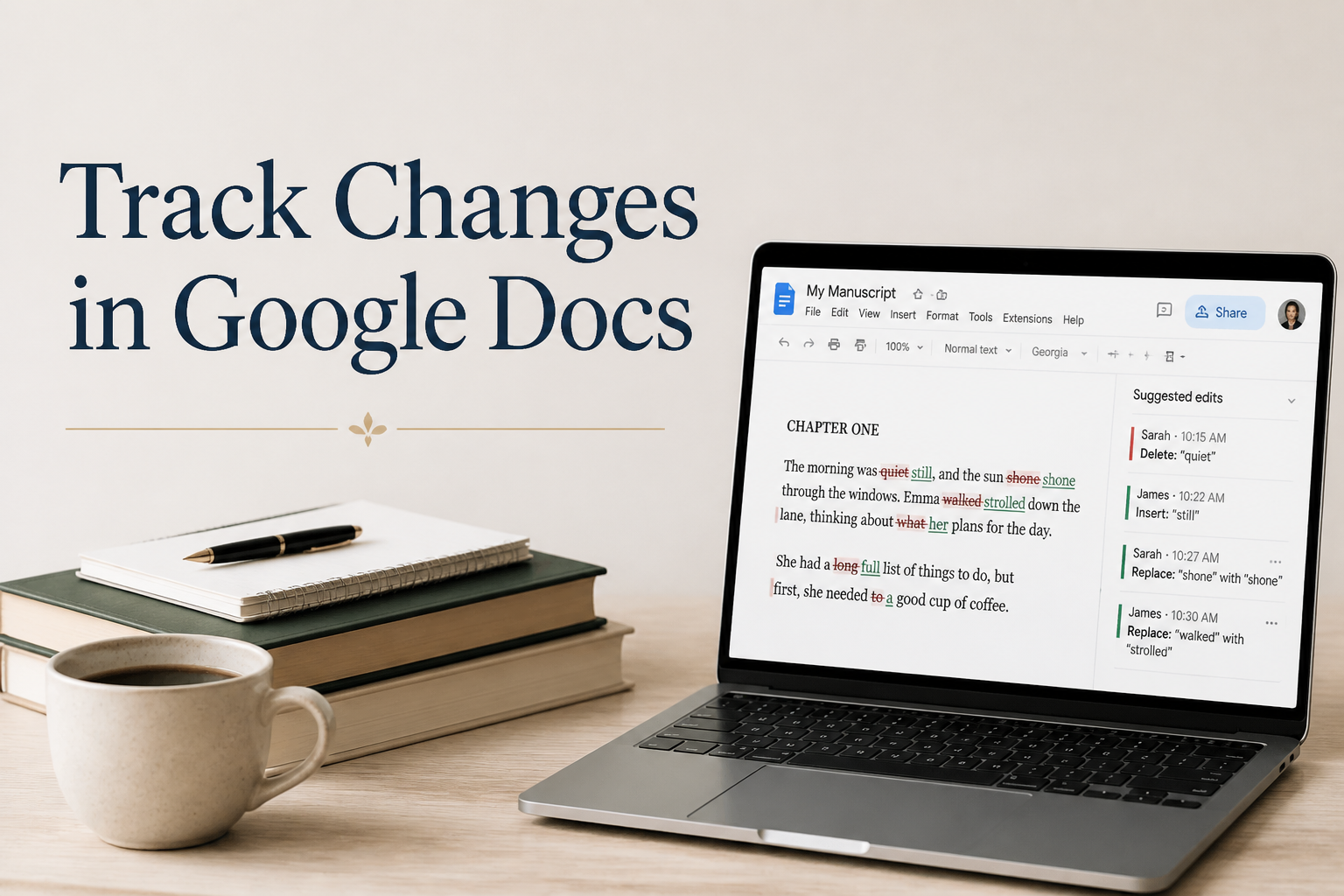
When an editor works through your manuscript, you need a way to see every proposed change without turning the draft into a maze of colored text. If you’ve searched for Track Changes in Google Docs, the tool you need goes by a different name. Google Docs calls it Suggesting mode, where every line edit waits for your review so you can accept or reject each one individually. How much that control helps depends on how you use it.
Used well, the document becomes a working record of editorial decisions. When your editor suggests a tighter sentence, you get to weigh the reasoning first. Only the changes that serve the book reach the final manuscript. That separation protects your voice by keeping a rushed edit from quietly shifting character motivation, tone, or meaning.
Protecting that voice starts before anyone opens the file, with a clean workflow. Set the right permissions, use Suggesting mode for proposed text, keep comments focused on questions, and name a version before each major revision round. A 3,000-word short story needs those habits as much as a 90,000-word novel.
Table of Contents
Google Docs Suggesting Mode
The first habit starts with finding the right control, since Google Docs has no button labeled Track Changes. In a desktop browser, open the mode menu near the upper-right corner of the toolbar, which usually displays Editing, Commenting, or Suggesting. Switch to Suggesting before you revise another writer’s sentence or ask an editor to review your work.
Once that mode is on, deleted text stays visible with a strikethrough, and new text appears as a proposed insertion. Google Docs labels each suggestion with the name of the person who made it, so you always know who proposed each change. You can still type freely in the document. Every change you make now becomes a pending decision for someone to accept or reject.
Editor And Commenter Permissions
The Share button controls which collaborators can accept or reject those pending decisions. Someone with Editor access can rewrite the text directly or propose changes in Suggesting mode. Commenter access sets tighter limits, allowing comments and suggested edits, so the original wording stays in place until someone accepts a suggestion. Google explains the available sharing roles in its Google Docs sharing and access guide, so check the permission level before sending an editorial link.
As a rule, give each person the smallest permission that fits the job. Reserve Editor access for an editor responsible for revising formatting or repairing a broken table of contents. Beta readers offering reactions and questions can work comfortably as a Commenter. For a reader who only wants to read the draft, Viewer access is enough.
Suggestions And Comments
Once collaborators have access, they can leave two kinds of marks on the manuscript. Suggestions propose changes to the text itself, and comments start a conversation beside it. Picture an editor who suggests replacing “walked across the room” with “crossed the room,” then adds a comment asking whether the scene needs a stronger emotional beat. Each mark serves a different purpose, and keeping them separate makes review easier.
In practice, comments suit open questions, continuity worries, and requests for context. Suggesting mode handles wording, punctuation, paragraph movement, and any other change that could enter the manuscript. Google provides a helpful explanation of both in its Google Docs instructions on suggesting edits.

A Clean Editorial Workflow
Those separate marks only help when every collaborator uses them consistently. If each person applies a different method, the document becomes hard to review. To avoid that confusion, I recommend a simple sequence that assigns each person a defined role and leaves the final decision with you.
Preparing The Draft
The sequence begins with your revision, completed before any outside feedback. That means running a spelling pass, checking chapter headings, removing stray notes, and confirming the document contains the correct draft. Otherwise, an editor who finds three drafts of Chapter 4 in one file spends paid time sorting out a file problem, time that should go toward improving the book.
With the draft settled, name the file with the project title, draft stage, and date. A filename such as The Glass Orchard – developmental edit – 2026-03-08 tells you exactly what you’re opening, even months later. A separate folder for exported DOCX or PDF copies adds another safeguard, since a clean archive protects you when the shared document becomes crowded.
Inviting Your Editor
Before sharing that file, send a message outlining what the review covers. In it, tell your editor whether you want sentence-level edits, comments on structure, proofreading, or a mixture. A line such as “Please use Suggestions for wording and comments for questions about character motivation” removes guesswork before the first page opens.
That same message should ask the editor to work in Suggesting mode for proposed text. Your editor picks Suggesting from the mode menu in the toolbar, and Google Docs then records each suggestion beside the relevant words. Spelling this out saves time, because your editor has no reason to infer your preferences from a document full of unexplained changes.
The scope should cover timing too, so divide a novel into manageable rounds. A developmental review may cover the full manuscript or a sample plus an editorial letter. Line editing can then move chapter by chapter, and proofreading comes near the end, once plot, structure, and voice are settled. One enormous file with every kind of feedback requested at once leaves you sorting through competing decisions.

Creating A Review Rhythm
To keep those decisions manageable, set a review date and a routine for working through each round. For example, you might read suggestions for two chapters each morning, then spend an afternoon revising scenes affected by those edits. Your pace depends on the book, your deadline, and how heavily the manuscript has been marked. Whatever pace you choose, consistency matters most, since scattered review sessions make continuity errors easier to miss.
A running list of unresolved questions helps you spot those errors early. Put it in a separate document or at the top of the draft. Consider a comment asking whether a character knows the secret in Chapter 3, which may require a decision that affects Chapter 18. Record the answer before accepting the local sentence, or you may fix a line and leave the larger problem in place.
Reviewing Suggestions With Judgment
That same caution applies to the suggestions themselves. Accepting every one feels efficient until your voice starts sounding like somebody else’s. An editor supplies an informed reading of the manuscript, and you remain responsible for the final prose. For that reason, read each proposed change against the paragraph, the scene, and the book’s larger pattern.
Accepting And Rejecting Edits
When you’re ready to decide on a change, click the suggestion to open its review box. That box holds Accept suggestion and Reject suggestion controls for the individual change. For a wider pass, Tools > Review suggested edits opens a panel with Accept all and Reject all. Since menu names can shift over time, check Google’s official help for accepting or rejecting suggestions to confirm the current labels.
Whichever control you use, accept a change when it improves clarity, correctness, rhythm, or reader comprehension. Reject it when it flattens a deliberate voice choice, changes the intended meaning, or fixes a problem the scene never had. Even a rejected suggestion offers useful evidence about how another reader experienced the sentence.
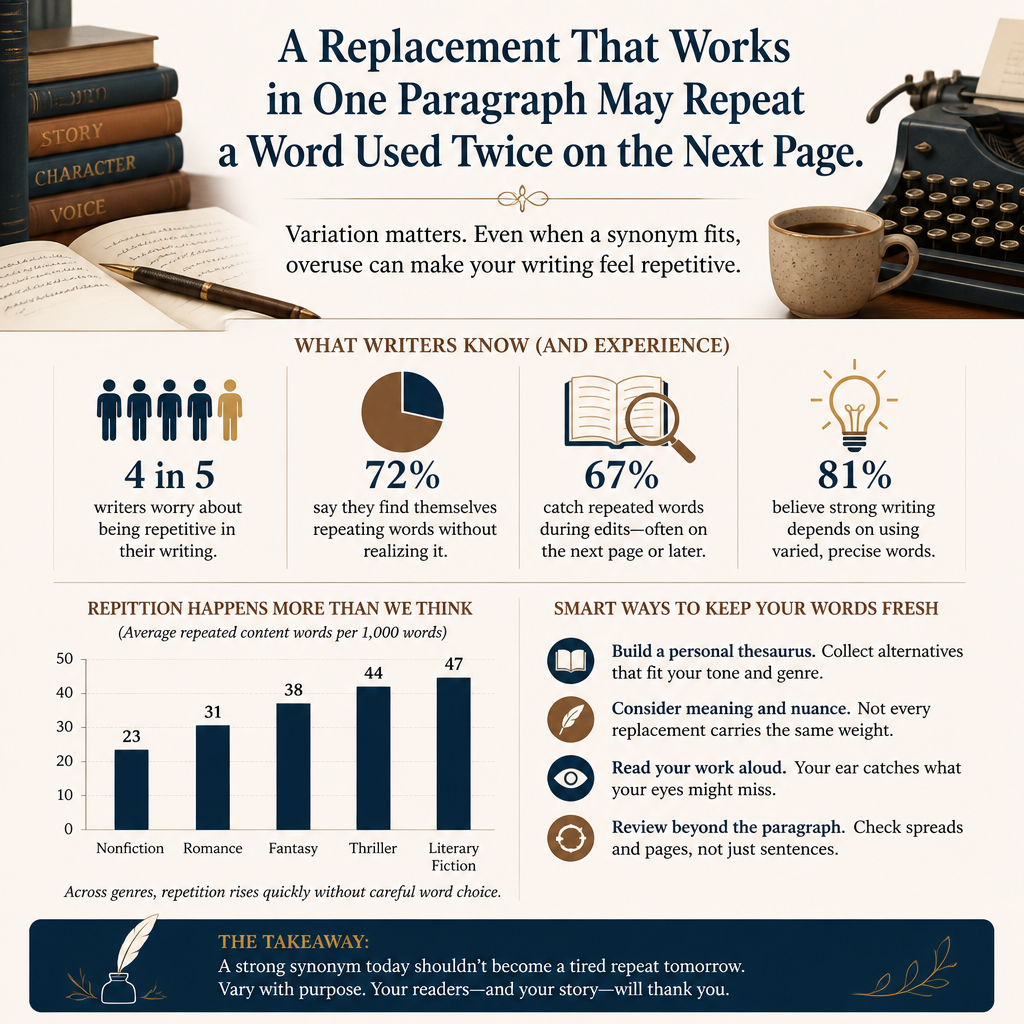
Accepted edits need the same contextual reading before you move to the next section. Take a replacement that reads well in one paragraph. On the next page, the same word may already appear twice. In another case, a comma fix may reveal that the sentence needs a full rewrite. Editorial review operates at several levels, and a tool that handles one sentence cannot judge how your chapter is built.
Handling Comments And Questions
Comments call for different decisions. When one needs your editor’s clarification, use Reply to answer it. Once a comment holds a settled decision and you’ve applied that decision to the manuscript, click the checkmark to mark it resolved. Any comment still carrying a live issue, such as a timeline question you need to check against another chapter, stays open.
That checkmark should follow real revision, since a reply on its own leaves the manuscript unchanged. If you write, “I changed this in Chapter 9,” update Chapter 9 first, then resolve the comment. A long trail of promises can look like progress without changing a single page.
Protecting Voice And Meaning
Once those changes reach the page, line editing should sharpen your prose without sanding away its sound, and every book sounds different. For example, a spare literary novel needs different sentence pressure from a fast thriller. Memoir works differently again, often relying on conversational syntax that a strict grammar pass would erase. To protect those choices, tell your editor which patterns are intentional before the review starts.
A short style sheet puts those intentions in writing, covering names, capitalization, spellings, timeline facts, and recurring terms. For fiction, add character ages, locations, point of view, and tense. Nonfiction needs its own entries, such as terminology, source conventions, headings, and claims that require verification. With that sheet in hand, you can settle questions by checking a written standard and stop relying on memory.
Version History And Author Control
Memory also fails when a large revision changes more than you intended, and version history fills that gap. Under File > Version history > See version history, Google Docs keeps earlier states of the file so you can review changes over time. Google’s help page on version history explains how to view earlier versions, name them, and restore a previous state.
Name a version at three moments: before an editor begins, after a developmental pass, and before you accept a large batch of line edits. In the version history panel, Name this version sits under the three-dot More menu. Labels that describe the event, such as “Before line edit” or “Developmental decisions complete,” work best, since they lead you straight to the right point in the manuscript.
Even a well-labeled history stays in Google Drive, so keep an independent backup. At meaningful milestones, export the draft as a DOCX or PDF through File > Download and store those copies outside Drive. A shared document works well for collaboration, and exported copies on a drive you control give your publishing archive a safer home. That archive matters later, when you need to compare the proof against the file sent to a typesetter or uploaded to Amazon KDP.
Large Batches And Review Limits
Before the file reaches that stage, large batches of suggestions can slow your judgment. If an editor has proposed hundreds of small changes, accept them in sections and reread each section after the batch. That approach matters because a single decision about a character’s name or a technical term can affect dozens of later suggestions.
After each review round, open Find and Replace to check recurring terms, such as a character name, a product name, or a phrase your editor flagged. Accepted local edits can conflict with the style sheet, and a targeted search catches those inconsistencies faster than another full read.
Preparing A Manuscript For Collaboration
Many of those inconsistencies trace back to the setup, so the strongest Google Docs workflow begins before the first suggestion arrives. Start by stripping out personal information you do not need to share, confirming the document title, and checking whether linked research files contain material your editor should see. Collaboration exposes the file structure along with the prose.
That exposure is also a reason to separate your manuscript from planning material. Keep your synopsis, character list, research notes, and marketing copy in companion documents unless the editor needs them in the same file. When the synopsis sits in its own document, your editor skips paging through 80,000 words to find it and saves that attention for the manuscript.
Inside the manuscript itself, apply clear heading styles to chapter titles and section breaks. Google Docs can then build a table of contents through Insert > Table of contents and list each chapter in the document outline, which helps collaborators move through the draft. Consistent formatting also reduces cleanup when you export the manuscript for a proofreader, formatter, or cover designer.
Working With Beta Readers
Beta readers play a different role from those professionals, so their brief should differ from the one you give a paid editor. Ask them to comment on reading experience, confusion, pacing, and emotional response, guided by a short list of questions tied to your book’s purpose. For example, you might ask whether the mystery solution felt earned or whether the nonfiction chapter answered the promise made in the introduction.
Those questions work best as comments, so ask beta readers to flag passages rather than rewrite them. Their reactions are valuable because they show where a reader stumbled. Any replacement sentences they offer may help you understand the problem. Shaping the final prose remains a job for your editor or your own revision.
Moving Toward Publication
With the final prose in place and the manuscript at the stage you and your editor marked as final, close the editorial document. Closing it means accepting or rejecting every remaining suggestion, resolving comments that no longer need discussion, running a final proofread, and exporting the file format your formatter asks for. Your formatter needs settled text, and an active suggestion file in production invites avoidable errors.
Once the layout comes back, proof the actual interior file rather than relying on the Google Docs draft. Page breaks, widows, running headers, footnotes, and caption placement can change during layout. Google Docs handles editorial collaboration well. Layout falls outside its reach, so a print-ready PDF needs its own inspection.
Beyond the manuscript and its layout, Adazing tools can help with the surrounding work, from generating early word and name ideas to preparing book promotion materials. For editorial decisions, I treat the shared draft as the source of truth. To keep everything tied to that source, connect the writing, production file, cover assets, and marketing copy through clear filenames and dated copies.
FAQs for Track Changes in Google Docs
Does Google Docs Have Track Changes?
Not under that name. Google Docs serves the same editorial purpose through Suggesting mode, where proposed insertions and deletions stay visible for review, and you can accept or reject each one. To use it, switch to Suggesting in the mode menu before making edits you want another person to review.
How Do I Turn On Suggestions In Google Docs?
In a desktop browser, open the mode menu near the upper-right side of the toolbar and select Suggesting. In the mobile app, tap the three-dot More menu and turn on Suggest changes. If your screen looks different, Google’s help page on suggesting edits shows the current steps for each device.
Can I Accept All Suggestions In Google Docs?
Yes. Under Tools > Review suggested edits, you’ll find Accept all and Reject all. I recommend saving those commands for after you’ve checked the manuscript section by section. Bulk acceptance saves time on a clean proofreading round. In a long editorial pass, the same shortcut can bury a substantive change.
A Better Manuscript Review
Google Docs works well for editorial collaboration when you give every change a place and every decision a moment of attention. In practice, that means Suggesting mode for proposed text, comments for discussion, version history for protection, and exports for your publishing archive.
Your editor can improve the draft. The book’s final shape comes from your judgment, so review with the whole manuscript in mind, preserve deliberate voice choices, and close the file only after every change has a clear decision. That discipline turns a shared document into a reliable part of your publishing process.
