
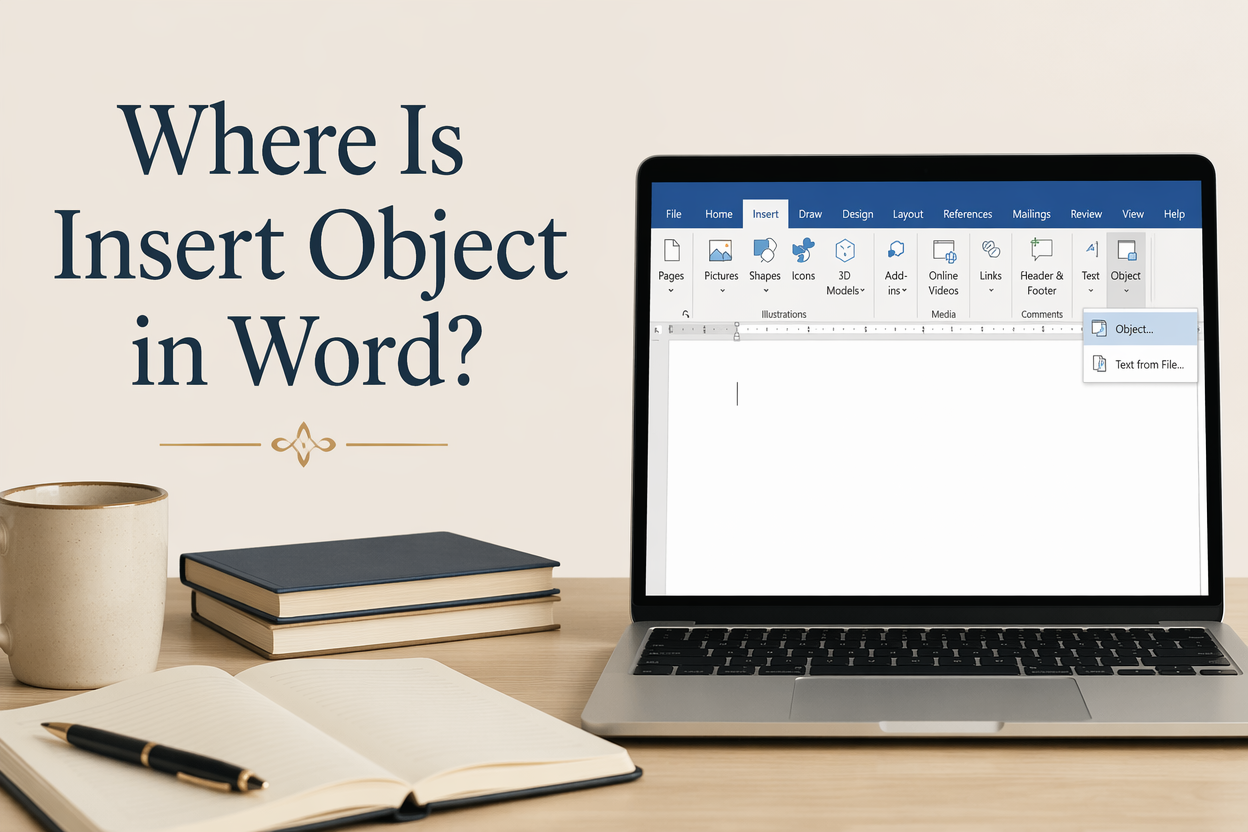
If you’ve asked “Where is Insert Object in Word?” before, you are usually trying to do one of three author jobs: drop in a chart or spreadsheet, place a clean icon or signature line, or embed a file so your editor can open the source without hunting through email threads. Word can do all of that, but Microsoft has scattered the controls across the Ribbon, and the option you need changes depending on whether you want an embedded object, a linked object, or a simple picture.
I work with a lot of manuscripts that have to survive formatting, copy edits, and conversion to ebook without exploding. The difference between inserting an object the right way and the sloppy way shows up later as broken layouts, blurry images, or a file that prints fine but turns into chaos in Kindle Previewer.
Here is the clean map: in modern Word, “Object” lives on the Insert tab in the Text group, and the command opens a dialog where you choose how the object should behave. Once you know that, the rest is picking the right insertion method for your draft stage and your publishing target.
Table of Contents
Finding the Insert Object Command in Different Word Versions
On Word for Windows (Microsoft 365 and Word 2016, 2019, 2021), you find it here: Insert tab, then look for the Text group on the right side of the Ribbon, then click Object. If your Word window is narrow, Word collapses groups, so you may need to click a small drop-down in the Text group to reveal Object.
In Word for Mac, the path is similar, but the Ribbon layout varies per version. Look for Insert, then Object. If you do not see it, check the top menu as well. Mac builds often keep the command under Insert in the menu bar even when it is hidden from the Ribbon.
When the Ribbon Hides the Button
If you cannot see Object even on Windows, it is usually because one of two things is happening. Your Word window is not wide enough, so Word is collapsing the Text group into a single icon, or your Ribbon is customized, and the Object command has been removed.
First, maximize the Word window and look again under Insert. Second, use search inside Word. In Microsoft 365, use the Search bar at the top and type “Object”. If Word can do it, the command will appear in the results, and you can click it directly.
Restoring Object If the Ribbon Was Customized
If Object is genuinely missing, fix the Ribbon. Go to File, then Options, then Customize Ribbon. Find the Insert tab, locate the Text group, and confirm “Object” is checked. If someone customized your Word for a workplace template, you may need to reset the Ribbon to defaults. Do that only if you are fine losing other customizations.

Choosing the Right Insert Method for Manuscripts
Authors often reach for Insert Object when they actually want something else. Word gives you multiple insertion paths, and each one has different consequences for editing and for publishing formats.
Here is how I decide in real manuscript work: if it needs to look exact, I treat it as an image. If it needs to stay editable inside Word, I embed it as an object. If it needs to pull updates from an external file, I link it and then lock down version control so it does not drift.
Insert Picture vs Insert Object
If you are inserting a map, a family tree, a sigil, an illustration, or any visual that must remain stable, use Insert then Pictures. This keeps the file as a graphic, which is what most layout and ebook workflows expect. A Word “object” can behave more like a mini-program inside your document, which is overkill for simple visuals and can cause surprises when you export to PDF.
When inserting a spreadsheet or a chart and wanting to edit cells within Word, use Insert > Object, then choose Microsoft Excel Worksheet. That embeds an editable Excel surface. It is handy in nonfiction drafts where you are still changing numbers.
Insert Object as an Embedded File
Open Insert Object, then choose Create from File. Pick your file, then decide whether to show it as an icon or display the content in the page. This matters for authors because showing content inline can push your pagination around and create widows and orphans where you do not expect them.
For manuscript collaboration, I prefer “Display as icon” when the object is supporting material, like a permissions letter, a sensitivity report, or a source spreadsheet that your editor might need. It stays tidy and does not wreck your page flow.
Link to File and the Hidden Trade-Off
The “Link to file” checkbox looks attractive because it keeps your Word document small and updates the content when the source file changes. The trade-off is that links break the moment you move folders, rename a file, or send the Word document to someone else lacking the linked files in the same path.
If you are collaborating with an editor or formatter, treat linked objects as a studio tool rather than a delivery format. Before you send the manuscript, convert linked objects to embedded objects or to images, or you will create a scavenger hunt for whoever opens your file.
Embedding Objects Without Breaking Layout and Formatting
Word will let you embed almost anything, and that freedom is exactly why authors get into trouble. The moment you start mixing embedded objects, floating elements, and tracked changes, Word behaves like a manuscript with too many point-of-view characters. It can work, but you have to control it.
Controlling Anchors and Text Wrapping
After you insert an object, click it and choose Layout Options. If the object is purely informational and you do not need fancy page design in your draft, keep it In Line with Text. This choice reduces weird anchor jumps when you add or delete paragraphs above it.
If you set an object to wrap text, Word ties it to an anchor. In a manuscript with revisions, anchors wander. When they wander, your chart or icon appears on the wrong page, and you waste time fixing what looks like a random bug.
Keeping Objects From Becoming Blurry
Word compresses images and can degrade quality. Even though Insert Object is not always an image insertion, embedded content can still be rendered so it looks fine on-screen but fuzzes out in print PDFs.
I recommend you turn off image compression for book-bound documents. Microsoft documents how to do that in Reduce the file size of a picture in Microsoft Office. The wording is about file size, but the setting that matters for authors is the “Do not compress images” option.
Handling Captions, Cross-References, and Numbering
If you are writing nonfiction and you have figures and tables, do not type captions manually. Use References, then Insert Caption. Word will manage numbering and let you cross-reference Figure 3 or Table 5 without needing to redo the numbering by hand every time your content shifts.
Microsoft explains the caption workflow in Add, format, or delete captions in Word. If you are planning an index, a textbook-style layout, or a print edition where references matter, this is worth doing correctly from the start.
Objects Authors Commonly Insert and the Best Way to Do Each
The reason this question keeps coming up for writers is that “object” sounds like the correct choice for anything beyond plain text. In practice, it is the correct choice for a narrow set of things. Here are the author scenarios I see most.
Charts and Tables for Nonfiction
If you are drafting a business book or a how-to book, an embedded Excel worksheet can be great while you are still revising. When the numbers settle, convert the chart to an image for stability. Your formatter will thank you, and your print PDF will behave.
If you are self-publishing through Amazon KDP, remember that complex tables and charts are among the first places ebooks get ugly. KDP gives its own guidance on ebook formatting limits in Kindle Create and Kindle ebook formatting help. Even when you do everything right, you may still decide to simplify visuals for Kindle and keep the richer presentation for paperback and hardcover.
Signatures, Icons, and Small Graphics
For a signature under an author note, insert a PNG image through Insert Pictures. Keep it modest in size, and set it In Line with Text so it does not float into the middle of a paragraph later. If you are inserting decorative icons between sections, treat them the same way.
If you are building marketing materials like one-sheet PDFs or reader magnets, I often draft the text in Word and then move to a design tool for the final. Adazing tools are built for that part of the process, especially when you are turning book assets into covers, ads, and promo graphics and you need them to look consistent across platforms.
PDFs, Forms, and Other Documents You Want Attached
If you want to attach a PDF inside the Word file so the recipient can open it, Insert Object with Create from File and Display as icon is the clean approach. It keeps your manuscript readable while still packaging the extra material into a single file.
If your goal is to show a PDF page in the manuscript, Word will sometimes render it as a static preview, sometimes poorly. In publishing work, I prefer converting the specific PDF page to an image and inserting that, because it prints predictably.
When Insert Object Is the Wrong Tool for Publishing Work
A manuscript is a working document. A publishable file is a different animal. Insert Object can be useful in drafting, but it is a weak choice for anything that must survive conversion to EPUB, MOBI, or print-ready PDF.
If you are aiming for ebook distribution, embedded objects are often dead weight. EPUB wants reflowable text and standard image handling. Word objects can turn into missing elements or awkward blanks after conversion.
Ebook Conversion Constraints
If you plan to publish wide or even publish on Kindle, treat Word objects as temporary. Before you export or hand the file to a formatter, convert embedded objects to images or recreate them using Word-native tables and styles.
Microsoft explains that embedded objects depend on the host application and object type, which is fine on your machine and unreliable elsewhere. The practical result for authors is simple: if your reader cannot open it on their device, it does not belong in the final ebook.
Submission and Collaboration Reality
Editors and proofreaders generally want clean text, styles, and track changes that behave. When you stuff a manuscript with embedded objects, you increase the odds that Word slows down, crashes, or produces strange revision artifacts.
If you need to share reference material, I prefer a separate folder in a shared drive, a single zip file, or an appendix document. Keep your main manuscript focused on the content that will become the book itself.
My Practical Rule for Drafts
If the object changes the meaning of your book, make it part of the book in a stable format, usually an image or a Word table. If the object supports the work but does not need to appear to the reader, keep it external or attach it as an icon so it does not collide with layout.
FAQs for Where is Insert Object in Word?
Where is the Object button on the Insert tab in Word?
On Word for Windows, go to Insert and look at the right side of the Ribbon for the Text group, then click Object. If your window is narrow, the Text group may collapse into a single drop-down, so expand it to see Object.
How do I insert a PDF as an object in Word?
Go to Insert, then Object, then Create from File, select your PDF, and choose whether to Display as icon. If you need the PDF content to print cleanly inside the page, converting the relevant PDF page to an image and inserting it as a picture usually behaves better.
Should I embed or link an object in a manuscript I am sending to an editor?
Embed if the editor must open the file from inside the document and you want the manuscript to travel as a single package. Avoid linking unless you control the shared folder structure for everyone who will open the document, because links break easily when files get moved or renamed.
Getting Back to Writing Without Fighting Word
Insert Object sits in Insert, under the Text group, and the dialog gives you the real decision that matters: embedded, linked, or icon. For author work, I use embedded objects sparingly, treat anything visual as an image once it is final, and keep my manuscript as clean as possible so editing and formatting stay predictable. Your job is to get the words and the reader experience right, and Word behaves best when you do not ask it to be a file cabinet and a layout program at the same time.
