
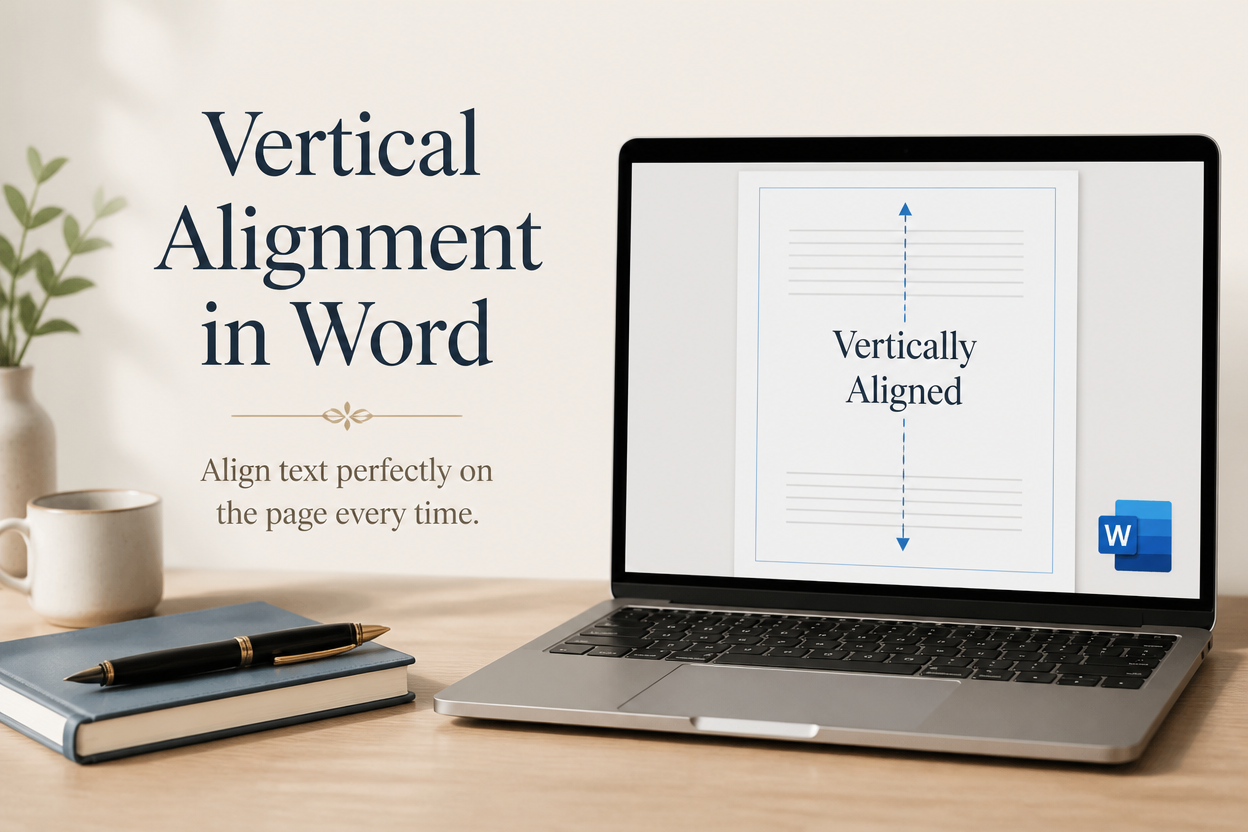
A clean title page depends on vertical alignment in Word because where your text lands on the page affects how finished and readable your book looks. When a title sits too high, the page can feel incomplete. Push the text block too low, and it looks accidental, even when every word is correct.
I use vertical alignment for title pages, copyright pages, section openers, forms, and short documents that need controlled spacing. Word gives you several ways to position text from top to bottom, and each method suits a different publishing task. Choose the wrong one, and you can spend an hour nudging blank lines around a page that still shifts when you edit the manuscript.
Reliable results come from paragraph settings for ordinary pages, section settings for book parts, and table cells for tightly controlled layouts. Once you understand those three tools, you can position your text exactly where you want it and avoid fragile formatting that causes trouble during PDF export or print production.
Table of Contents
Why Vertical Alignment Matters In A Book
Horizontal alignment controls the left-to-right position of text. Its vertical counterpart decides where the text block sits between the top and bottom margins. Word defaults to top alignment because that suits ordinary documents. That default rarely gives a book’s title page the balance it needs.
Consider a title page with the title, subtitle, author name, and publisher mark. With top alignment, the group crowds toward the upper margin. Center alignment gives the page a deliberate pause and creates the familiar composition readers expect from a title page. Move the block to the bottom, and it suits a signature line or a footer-based form better than a title. Each choice communicates something about the page before a reader studies the words.
Book interiors also benefit from deliberate placement. For example, a part opener may begin lower on the page to leave breathing room before the heading. Dedications often sit near the center. On a manuscript submission page, a compact block near the top lets an editor find the relevant information without searching.
I recommend deciding the page’s purpose before changing its alignment. For example, a decorative title page calls for visual balance. Copyright pages need compact utility. With a chapter opener, the priority shifts to spacing you can repeat across the entire book. Your formatting method should follow that purpose.

Set Vertical Alignment For An Entire Document
Word can apply vertical alignment to a complete document through the Layout tab. This setting affects the text area between the top and bottom margins, so margin size still matters. A large top margin can make centered content appear lower than you intended.
Use The Layout Tab
Open your document in Microsoft Word and select the Layout tab. In the Page Setup group, select the small dialog launcher in the lower-right corner. In the dialog box, choose the Layout tab, then find Vertical alignment.
Word offers Top, Center, Justified, and Bottom. Choose Center for a centered title page, then select OK. The setting applies to the current section, which in a single-section document usually means the entire file.
Microsoft’s support page on text alignment walks through these controls, including the vertical alignment setting in the Page Setup dialog. Menu names can vary slightly across Word versions. Across all of them, the Page Setup dialog remains the dependable place to find the control.
Check Margins Before Judging The Result
After choosing an alignment, turn on formatting marks with the paragraph symbol on the Home tab. Next, check the top and bottom margins under Layout > Margins, since they decide where the center actually falls. A title page with a 1-inch top margin and a 1-inch bottom margin will center differently from a page with a 2-inch top margin.
Book interiors often use mirrored margins or a larger inside margin for binding. Those settings affect the page’s horizontal balance and can change how the whole design feels. For that reason, I judge the page at 100 percent zoom in an exported PDF. A layout that looks balanced in the editing window can still shift once it becomes a PDF.
Apply a global setting only when every page in that section needs the same treatment. A full manuscript with centered vertical alignment will place ordinary body text in the middle of every page, which makes the book difficult to read. Use this setting for a short document or a dedicated title-page section.
Align One Page With Section Breaks
Most books need mixed alignment. For example, your title page may use center alignment. Your copyright page usually works better with top alignment. For chapter pages, a standard body layout works. Section breaks let you assign each page group its own vertical setting.
Create A New Section
Place your cursor at the end of the page before the page that needs a different alignment. In the Layout tab, choose Breaks and select Next Page under Section Breaks. Word then starts the following page as a new section.
Click anywhere in the new section and open the Page Setup dialog from the Layout tab. Inside the dialog, choose the vertical alignment you want and set Apply to > This section. The page shifts into position, and earlier sections keep their alignment.
Microsoft’s support page on inserting section breaks describes each break type and where it starts the new section. A page break moves text to a new page. Meanwhile, a section break creates a new formatting area, which is what vertical alignment requires.
Show Breaks Before You Edit
Turn on the paragraph mark before you troubleshoot. You will see labels for section breaks and can identify where a new section begins. This small habit prevents a common publishing error: applying center alignment to a section that contains several unrelated pages.
Headers and footers can also make section work confusing. By default, Word links new sections to earlier sections. If a title page needs a different header or footer, open the header or footer and turn off Link to Previous. Vertical alignment and header settings are separate controls, so check both before you export the file.
For a book interior, I usually create dedicated sections for the front matter, each part opener when the design requires it, and the main body. I keep the number of sections manageable because every additional break creates another place for page numbering, headers, and alignment to drift.
Control Text Inside A Page
Page-level alignment works well for a whole block of text. Sometimes you need more control over the relationship between several elements, such as a title, subtitle, author name, and logo. A one-cell table gives you a stable container for that arrangement.
Use A One-Cell Table For Title Pages
Insert a one-column, one-row table from the Insert tab. Once the table appears, place your title-page content inside the cell. Select the cell, open the Table Layout tab, and choose the vertical alignment you want. You can align the contents to the top, center, or bottom of the cell.
Remove the table border through Table Design and Borders. Next, set the table width to the usable page width and adjust cell margins through Table Properties. This method keeps the title, subtitle, and author name together when you revise a line or change the font size.
A table works especially well when a title page contains a small publisher logo. The content remains inside one movable object, so you can test different vertical positions without adding a dozen empty paragraphs.
Use Paragraph Spacing For Small Adjustments
Paragraph spacing gives you fine control over the distance between a heading and the text that follows. Select the paragraph, open the paragraph settings, and adjust Spacing Before or Spacing After. This approach keeps the layout tied to the paragraph rather than to invisible blank lines.
Empty paragraphs are tempting because they produce an immediate visual result. The trouble is the unstable page they leave behind, where a font change, revised subtitle, or altered margin can push everything downward. For that reason, I remove empty paragraphs from title pages before preparing a print-ready PDF.
Use paragraph spacing for local adjustments after you choose the page’s main alignment. The page setting establishes the broad position. From there, paragraph spacing refines the distance between the individual pieces.
Troubleshoot Alignment Before Export
When a page refuses to sit where you expect, the cause is usually a section break, an oversized paragraph, or a margin setting. Randomly deleting blank lines rarely solves the underlying problem.
Inspect The Section And Margins
Click on the troublesome page and open Page Setup. Once the dialog opens, confirm the selected alignment and check the Apply to field. A setting applied to the whole document can undo the page-specific design you created earlier.
Next, inspect the margins, since a title page with a large bottom margin has less usable space for centered content. Page size also affects the result, because a document set to A4 can shift when converted to US Letter. A 6-by-9-inch book interior has very different proportions from either sheet size.
Review the paragraph settings for the text block. Large spacing before the first paragraph can make a centered group appear low. Line spacing and font metrics also alter the block’s height, so judge the complete group rather than the first line alone.
Test The PDF And Printed Page
Export a PDF through Word’s Save As or Export command. After opening the file, view each page at full size. For print books, print one sample on the intended paper size. A page that looks balanced on a monitor can feel different on paper, where physical margins and binding direction affect how it reads.
Check the title page beside the first chapter opener. Readers experience those pages together, and a title page that sits dramatically lower can make the book’s front matter feel disconnected. Also compare the left and right margins, especially if your printer uses mirrored pages.
Keep a clean master file before making final changes. Save an editable Word version alongside a separate copy set up for PDF export. Adazing tools can help with writing, book covers, and promotion. The final interior still deserves a page-by-page proof, because software can speed production without judging whether your title page feels visually deliberate.
FAQs For Vertical Alignment In Word
How Do I Center Text Vertically On One Page?
Place the page in its own section with a Next Page section break before it. Open Layout, launch Page Setup, choose the Layout tab, select Center under Vertical alignment, and apply the setting to This section. This keeps the surrounding pages unchanged.
Why Does My Text Move When I Add A Section Break?
A section break can carry different margins, headers, footers, page numbering, and vertical alignment. Turn on formatting marks, click inside the affected section, and inspect Page Setup. In that dialog, check the Apply to field and confirm the setting points to the section you meant to change.
Can I Use Vertical Alignment For A Book Chapter?
You can use it for a chapter opener or part title page. For ordinary chapter text, top alignment lets paragraphs begin at a consistent reading position. Centering text across body pages creates uneven starting points and makes the interior tiring to scan.
Build A Stable Word Layout
Vertical alignment works best when you treat it as a page-design decision rather than a blank-line trick. Use Page Setup for a whole section, section breaks for different page behaviors, and a one-cell table when several title-page elements need to move together. Before you call the file finished, inspect margins, breaks, headers, and the exported PDF.
Your book deserves formatting that supports the reading experience. Set the page position deliberately, keep the structure clean, and proof the physical result before uploading to Amazon KDP or sending the file to a printer.
