
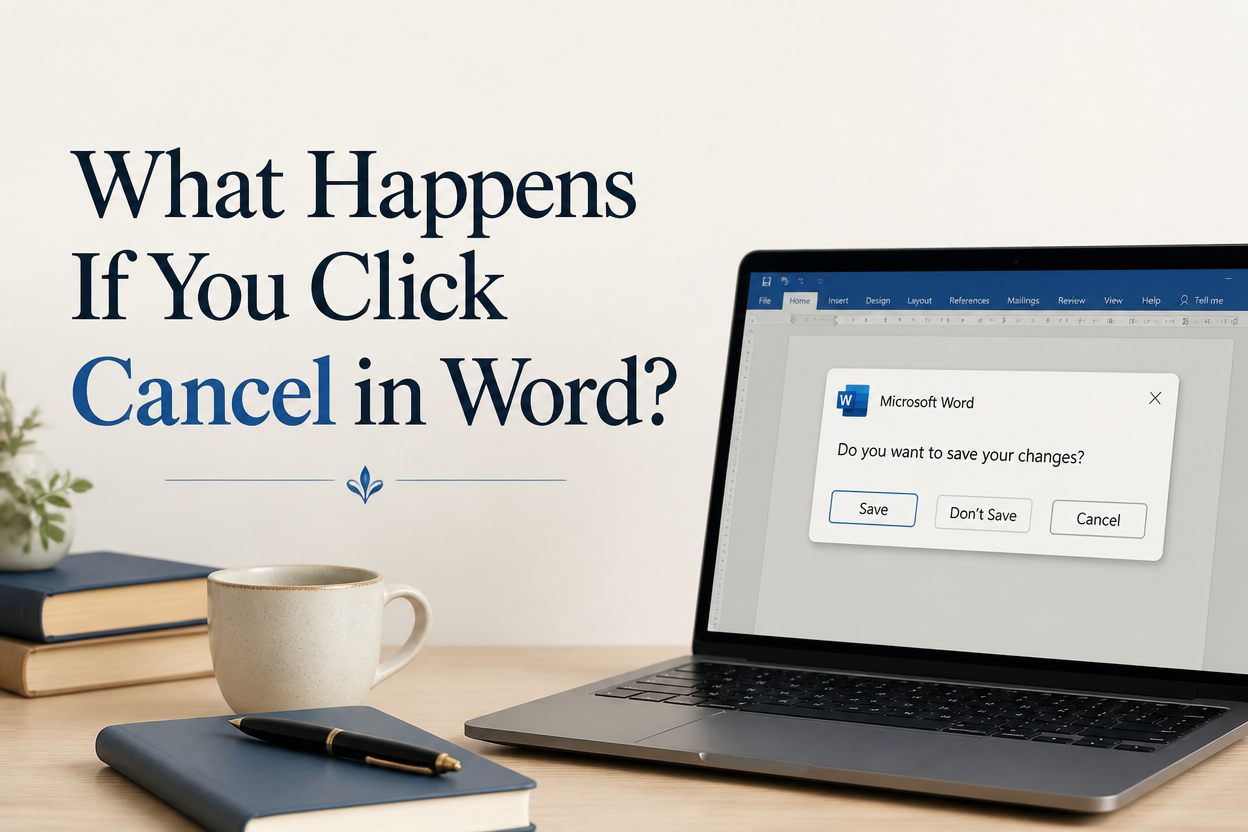
A common question among writers is what happens if you click Cancel in Word when a chapter has unsaved edits on the screen. In the usual save prompt, Cancel stops Word from closing the document and returns you to the manuscript with your latest changes still in the editing window. Your draft remains available for you to review, save, or keep revising.
The danger comes from treating every Cancel button as though it performs the same job. Word uses Cancel in several places, including the save prompt, the Save As window, the print dialog, the file-opening process, and recovery screens. Each button stops the current operation, so the result depends on the window you see.
For a manuscript, the practical rule is simple. Cancel usually preserves the current session. What it rarely does is create a backup. Save your work as soon as you return to the document, then create a second copy before you make another major change.
Table of Contents
What Cancel Does During A Save Prompt
When you close a Word document after making edits, Word may ask whether you want to save changes. The choices usually read Save, Don’t Save, and Cancel. Cancel stops the closing process. Word keeps the document open, and your unsaved edits remain visible in the working copy.
That behavior gives you time to catch a mistake. For example, you might click the X right after revising a chapter, or open an older draft that still contains material you need. Cancel returns you to the document, where you can review the text before deciding on the next step.
Unsaved Edits Stay In The Open Document
Cancel does not send your recent writing to the Recycle Bin. It also does not reverse your edits. If you changed a scene, deleted a paragraph, or accepted tracked revisions, those changes remain in the open document after you click Cancel.
That temporary protection lasts only as long as Word and the document session remain available. A power failure, an application crash, a forced restart, or an accidental second close can remove edits that exist only in memory. Microsoft explains the distinction between saving a document and relying on recovery features in its Word document recovery guidance.
Don’t Save Discards The Session Changes
Don’t Save completes the close command and throws away changes made since the last save. If you drafted 800 words after your previous save, those words disappear from the open document when you choose Don’t Save. Word may retain a recovery copy. This recovery copy is a safety net with limits.
I treat Don’t Save as a deliberate editorial decision. I use it after launching the wrong file, building a throwaway version, or applying changes that I have already rejected. I don’t use it to escape a confusing prompt. Cancel gives me time to inspect the manuscript.
Save Commits The Current Version
Save writes the current edits to the document file. The version on disk is protected as a result, and the previous saved state in that same file gets replaced. If you want a clean fallback, use Save As first and give the copy a useful name such as Novel_Chapter_12_2025-03-08.docx.
File names with dates and chapter numbers are dull and extremely useful. They give you a visible revision trail when your plot changes direction or an editor asks for an earlier version.

What Cancel Does In Save As
Save As creates a new file or changes the format, location, or name of the current document. Clicking Cancel in that window stops the Save As command and returns you to the manuscript. Word keeps the document open with your current edits and never creates the new copy you had started to define.
For example, suppose you are editing Novel_Master.docx and choose Save As to create Novel_Editor_Copy.docx. You browse to the wrong folder, click Cancel, and return to the original document. Your manuscript remains open. The editor copy does not exist because the save command never finished.
Format Changes Need A Separate Decision
Save As often appears when you convert a Word file to PDF, Rich Text Format, or an older .doc format. Cancel abandons that conversion. Word leaves the open document unconverted and the source file’s format untouched.
For a submission, I save the editable manuscript first, then create the PDF as a separate file. That order gives me a stable source document if the PDF has a font substitution, page break error, or missing front-matter element.
Location Changes Need A Folder Check
Cancel also abandons a new storage location. Writers who work across OneDrive, Dropbox, a local hard drive, and a publisher’s upload folder can lose track of which file they edited. Word may show the same title in several places, so the title alone cannot identify the current manuscript.
After canceling Save As, check the document’s title bar or use File and Info to confirm the file path. Then save the active copy deliberately. Microsoft describes file locations, save choices, and cloud storage behavior in its Word saving instructions.
What Cancel Does In Other Word Windows
The same label can stop an entirely different process. Before you click, read the window title and the other buttons around Cancel. The command you started tells you what Word is about to abandon.
Print Dialogs
Cancel in the print dialog stops the print job and returns you to Word. Your manuscript remains open, and the document content stays unchanged. A printer that has already received some pages may continue processing them, so canceling in Word cannot always stop paper already in the printer queue.
For a print-ready book, I check the page range, paper size, margins, and printer selection before confirming. If you only need a PDF proof, use Word’s export or PDF save option and check the resulting file page by page.
Opening And Closing Processes
Cancelling during a file-opening process tells Word to stop opening that file. If Word is loading a large manuscript, a document stored on a slow network drive, or a file with linked content, the document may take a moment to respond. Wait for the operation to finish or close Word through the operating system only when the application has stopped responding.
Cancelling during a close operation usually returns you to the open document. If Word displays a second warning about a file format, read it before choosing. A format warning can affect comments, tracked changes, layout, or embedded fonts.
Find, Replace, And Recovery Windows
Cancel in Find and Replace closes the search box or abandons the current replace sequence. It does not erase your manuscript. Cancel in a recovery screen closes the recovery choice and can leave a recovered copy unselected.
Recovery screens deserve care after a crash. Compare the recovered document with your last saved file. Check the final page you edited, the word count, comments, and tracked changes. A recovered file may contain recent work and may equally contain a partial operation or an earlier autosaved state.
How To Protect A Manuscript After Canceling
Clicking Cancel is often the right choice when you feel uncertain. The protection is only useful when you follow it with a deliberate save routine.
Save Before You Investigate
Once you return to the manuscript, press Ctrl+S on Windows or Command+S on a Mac. Watch for the save indicator to finish. Then inspect the title bar for an asterisk or other unsaved-change marker, depending on your Word version.
Cloud storage can add another layer of delay. OneDrive may still be syncing after Word finishes saving, so give the file time to upload before shutting down your computer. Open the folder and confirm that the modified time changed.
Create Versioned Copies
For a book-length project, I keep a working file and dated milestone copies. I create a new copy before sending a manuscript to beta readers, accepting a large batch of tracked changes, changing the chapter order, or applying a formatting template.
A simple naming pattern works well:
River_Of_Ashes_Working.docxRiver_Of_Ashes_After_Line_Edit.docxRiver_Of_Ashes_Proof_2025-03-08.docx
Store at least one copy in a separate location. A second folder on the same failing drive offers little protection. A cloud copy, external drive, or email attachment to yourself creates another recovery route.
Use Recovery Tools With Realistic Expectations
Word’s AutoRecover feature can restore work after a crash without replacing a save. AutoRecover intervals, file permissions, storage location, and application failures affect what Word can recover. Microsoft’s Office recovery documentation explains why recovered files may differ from the last saved version.
Check Word’s AutoRecover settings under the Save section of Preferences or Options. Record the folder location somewhere you can find later. For a serious book project, keep your own dated copies as well.
What To Do When You Click The Wrong Button
Authors sometimes choose Don’t Save when they meant Cancel. Move slowly before trying a recovery method. Continuing to edit a different copy can overwrite the evidence you need.
First, reopen the original file and inspect the final pages you changed. Then check File and Info for version history if the document lives in OneDrive or SharePoint. A prior version may contain the missing scene or revision. If Word shows a Document Recovery pane after a crash, compare each recovered file by timestamp and content.
Next, search your computer for temporary Word files and recent documents. Word’s recovery folders vary by operating system and version, so use Microsoft’s recovery instructions for your installation. Search by the manuscript title, the .asd extension, and recent modification dates.
AutoSave can help with files stored in supported Microsoft 365 cloud locations. It cannot rescue every change, and it may update a shared file while you are still drafting. For that reason, I keep milestone copies before major revisions and before sharing a manuscript with an editor.
If the missing text matters, check your writing history. You may have pasted an earlier passage into an email, Scrivener project, Google Doc, notes app, or submission form. Adazing’s writing tools can help you rebuild a scene’s structure or generate fresh wording when recovery fails. No generator can reproduce the exact lost paragraph unless you saved a copy somewhere.
After you recover the best version, save it under a new name. Preserve the damaged or older file until you have compared the chapter, comments, footnotes, page breaks, and front matter.
FAQs for What Happens If You Click Cancel in Word?
Does Cancel Delete My Unsaved Word Document?
Cancel usually keeps the document open and leaves your unsaved edits in the current session. It does not save those edits to disk, so save the file as soon as you return to the manuscript. A crash or forced shutdown can still remove changes that exist only in memory.
What Happens If I Click Cancel Instead Of Don’t Save?
Cancel returns you to the open document. Don’t Save closes the document and discards changes made after the last save. Choose Cancel when you need to inspect the manuscript, save a copy, or decide which version belongs in your book files.
Can I Recover a Word File After Clicking Don’t Save?
Recovery may be possible through AutoRecover, cloud version history, temporary files, or another copy you created. Results depend on Word’s settings and the time of the last recovery snapshot. Reopen the file, check the Document Recovery pane, inspect version history, and search for recent .asd files before editing anything further.
Keep Cancel As A Pause Button
Clicking Cancel in Word usually pauses the command you started. In a save prompt, it keeps you inside the manuscript with your current edits visible. In Save As, printing, or file-opening windows, it abandons that separate operation.
Use Cancel when you need a moment to verify the file, then save deliberately and create a dated copy before major book work. That habit protects your chapters far better than hoping Word’s recovery system remembers every sentence.
