
The difference between a page that looks typeset and one that looks improvised often comes down to how you set tab stops in Word. A few well-placed stops can align a contents page, a copyright page, a cast list, or a workbook exercise with the calm precision readers expect from a finished book. Positioning text with repeated spaces sacrifices that precision and leaves you with fragile layouts that shift the moment you change a font, adjust the margins, or export the file to PDF.
Because those layouts break so easily, learn tab stops before you spend hours repairing alignment one line at a time. Word includes everything this task requires, so the work comes down to telling the document where each piece of information belongs, how it should align, and whether a leader line should connect one item to the next.
Table of Contents
Why Tab Stops Matter In A Book Manuscript
Each of those choices lives in a tab stop, a fixed horizontal destination you set for Word. When you press Tab, the cursor jumps to the next stop defined on that paragraph’s ruler. Word does place default stops at regular intervals. Those defaults rarely match how a printed book is organized, so most pages need custom stops.
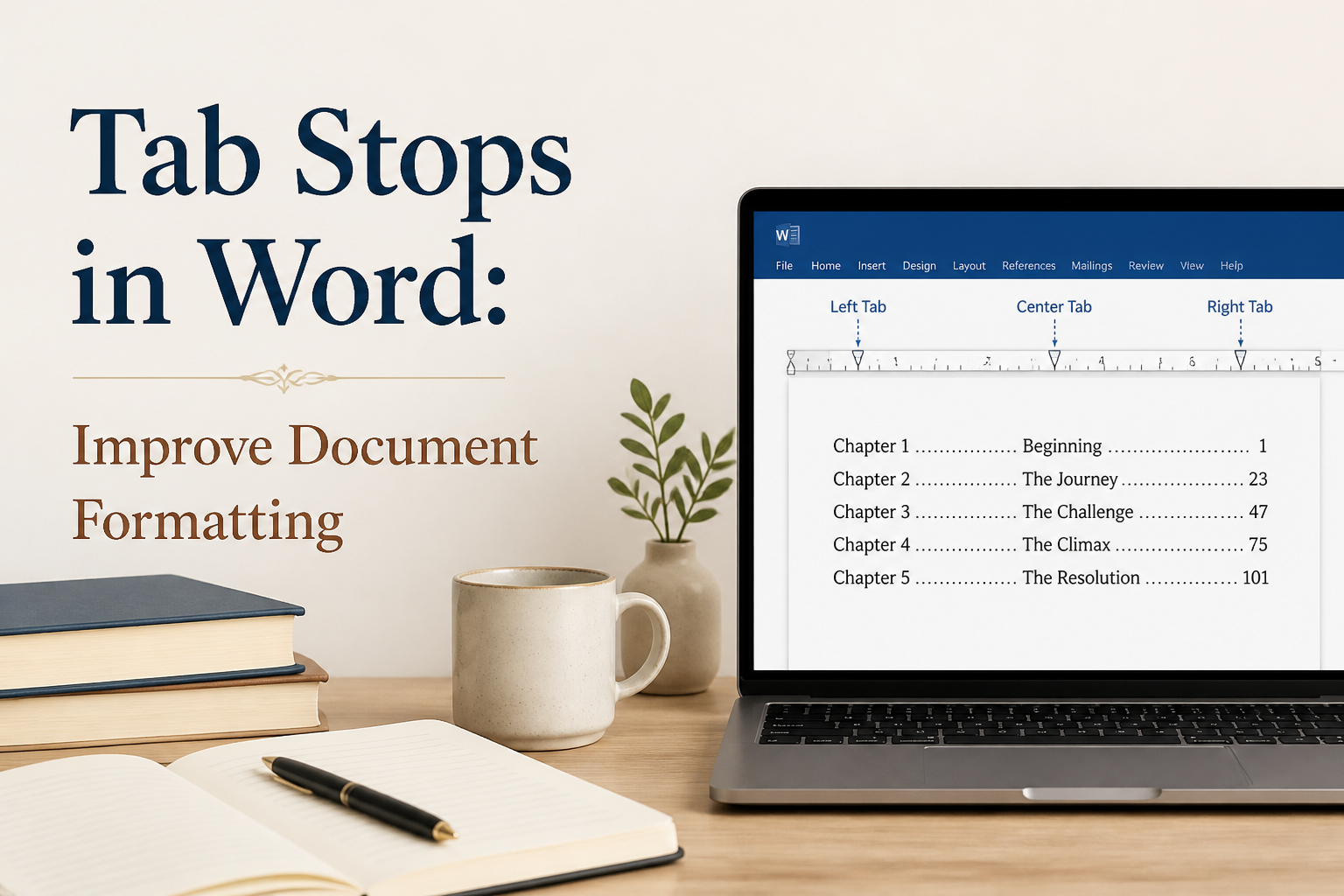
Consider a table of contents, where the chapter title begins at the left margin, the page number sits against the right margin, and a row of dots guides the eye between them. Pressing the spacebar until the numbers look aligned may hold up for one line. That illusion collapses as soon as a title contains a longer word or the typeface changes. A right-aligned tab stop with a dot leader avoids the problem by giving every page number the same endpoint.
That fixed endpoint helps well beyond the contents page. A front matter page can line up contributor names with their roles, and a poetry collection can pair poem titles with page references. In a nonfiction workbook, each prompt can sit beside its own response line. Each time, alignment becomes a document rule rather than a visual guess.
Microsoft’s support page on setting and clearing tab stops explains where those rules live. From the Home tab, select the Paragraph dialog launcher, then select Tabs to choose a position, an alignment such as left, center, right, or decimal, and an optional leader. The same page points to the ruler as a quicker way to place and remove stops. I set custom stops this way whenever a paragraph holds information that must line up across several rows.

Tab Stop Types For Authors
Word offers several tab alignments, each with its own place in book matter. Before you click the ruler, choose the alignment you need from the tab selector, the small symbol at the far left of the ruler that cycles through each option as you click it.
Left And Center Tab Stops
The first option in that cycle, the left tab stop, anchors the beginning of your text at a chosen position. That anchor suits a cast list that pairs character names with short descriptions, and glossaries or sets of writing prompts benefit from the same fixed starting point. For example, if you set the stop at 1.5 inches and press Tab after each name, every description starts at the same spot regardless of how long the names run.
Where a left stop fixes the start of a line, a center tab stop fixes its midpoint on the ruler. I rely on that symmetry for short labels, running elements, and simple title page layouts. Text that varies widely in length makes center stops look awkward, so save them for compact items that benefit from visual balance.
Right And Decimal Tab Stops
When the edge matters more than the middle, a right tab stop places the end of the text at the chosen position. On a table of contents, I reach for this setting because every page number can share the same right edge. Dates, workbook prices, and word count tallies benefit from that same tidy margin.
Figures with decimal places need a different anchor, and a decimal tab stop aligns them around the decimal point itself. In a budget appendix, a royalty worksheet, or a nonfiction table, that alignment makes columns of numbers far easier to scan. Whole numbers and decimal values settle into one consistent column, even when the digits before the decimal point vary.
Leader Tabs For Contents Pages
A leader fills the space between the text and the tab stop with dots, dashes, or a continuous line. Contents pages usually call for dots, so pair a right tab stop with a dotted leader. With the stop and leader in place, type the chapter title, press Tab once, and add the page number. Word then fills the gap with the leader you chose.
That gap needs only one tab character. Many writers press Tab several times because the first attempt looks too short, and each extra press adds another tab character and throws the spacing off. To set the entry up correctly, select the paragraph and open the Tabs dialog. From there, enter the position, select Right under Alignment, pick the dotted leader, and click Set. Clear any accidental stops before you type the remaining entries.
Setting Custom Tabs In Word
Setting those stops up front takes far less time than repairing a page built from spaces later. For that reason, I add custom tabs before typing any list and then apply the same paragraph format to every row.
Using The Ruler
If the ruler is hidden, turn it on by checking Ruler on the View tab. Next, select the paragraphs you want to control, choose an alignment from the tab selector at the ruler’s left edge, and click the horizontal ruler where the stop should sit. A tab marker then appears where you clicked.
Where that marker belongs depends on the page size and how wide the text area runs. On a contents page with one-inch margins, I might place the right tab at 6.5 inches. Because your own margins and trim size set the correct position, read the ruler rather than copying a number from someone else’s template. Once the stop is in place, type a heading, press Tab once, and enter the page number. Each remaining entry follows the same sequence.
If a marker lands in the wrong spot, drag it along the ruler to adjust it, or drag it off the ruler to remove it. Dragging suits quick visual work. For positions that must match exactly, the Tabs dialog offers finer control.
Using The Tabs Dialog
To reach that dialog, select the relevant paragraphs, open the Paragraph dialog, and click Tabs. In the box that opens, enter a tab stop position, select the alignment, choose a leader, and click Set. Each additional stop needs its own pass through those steps. Word lists every active stop in the dialog, so you can confirm the exact positions rather than estimating from the page.
That list also reveals stops you never set. The Clear All button removes those custom stops from the selected paragraphs, and I reach for it whenever a manuscript inherits strange formatting from a copied webpage or an old template. Once the stops are gone, you have a clean starting point and can add only the positions the page requires.
After you rebuild a paragraph that way, save it as a style if you plan to reuse it. For example, a Contents Entry style can hold the font, spacing, indentation, and tab settings together. Apply that style to every contents entry, and if the page width changes later, you can edit the style once rather than adjusting every line.
Book Pages That Benefit From Tab Stops
Tab stops belong wherever readers compare items across a page. Ordinary prose rarely needs them, since a narrative paragraph should flow between Word’s margins and take its first-line indents and spacing from paragraph formatting.
Contents And Reference Pages
Lists that readers scan across a page work differently, and a table of contents shows that difference most clearly. Set a left tab for the title and a right tab with a dotted leader for the page number, and keep each title and its page number in one paragraph, separated by a single Tab press. That structure holds steady when a chapter title wraps or a page number changes during editing.
The same arrangement can serve indexes, bibliographies, and reading lists. In a bibliography with author names on the left and publication years on the right, a right tab keeps every year aligned. Longer entries often suit hanging indents better, so save tabs for layouts where the visual relationship depends on a shared horizontal endpoint.
Front Matter And Back Matter
Several other book pages share that need for a common endpoint. For example, a contributors page can use one left stop for names and a second for roles or biographies. Permissions pages benefit in much the same way when each work title lines up with its rights holder. Set ingredient amounts in a recipe book at a decimal stop, and the measurements fall into a clean column.
Book designers often build these pages with tables, styles, or a combination of both. Tables suit entries that need their own cell, background, border, or vertical control. On the other hand, tab stops keep a page light and text-driven. When I have to choose, I go with the simpler structure as long as its alignment survives every round of revisions.
Workbooks And Guided Journals
Workbooks put that choice to a tougher test. Their pages often call for response lines, numbered prompts, and fields for dates or names. A tab with an underline leader can create a single writing line. For several lines in a row, a paragraph border or a table cell may produce a cleaner result. Whatever method you use, test the printed page, because a line that looks acceptable on screen can turn too faint after export or printing.
Numbered prompts call for a slightly different setup. In a writing exercise, place the prompt number at a left tab and the prompt text at a second left stop, then leave the gap between exercises to paragraph spacing. With that arrangement, the number column stays steady even when a prompt runs across two lines.
Common Tab Problems And Reliable Fixes
Most tab trouble comes from mixed formatting, where a single paragraph carries default stops, custom stops, spaces, manual line breaks, and settings copied from another document. Word obeys every one of those instructions, even when the resulting page looks as though it has developed a personal grudge.
Spaces And Tabs Mixed
To see what Word is following, click Show/Hide ¶ on the Home tab. Spaces, paragraph marks, and tab arrows then appear on the page, so you can delete the spaces used for alignment and insert one tab character between each content group. Every tab shows up as an arrow, confirming that you are working with a tab rather than a string of spaces.
Fixing spaces by hand works for a short page. Longer documents with spacing problems scattered across many pages call for Find and Replace instead. Search for multiple spaces, inspect the matches, and replace them carefully. Because automated replacement can damage intentional spacing inside dialogue or poetry, work on a copy and review every affected page.
Tabs That Shift After Editing
Spaces are only one cause of misalignment. A tab can also appear to move when the paragraph’s indentation or the page’s text width has changed. Before you drag the tab marker, check the left and right indents on the ruler, and compare the paragraph style with the surrounding entries to confirm their settings match.
Copying content from another source creates a similar problem, since formatting brought over from Google Docs, Scrivener, a website, or another Word file can carry hidden stops along with the words. When that source formatting has no value, paste as plain text and apply your own style. The habit pays off again once a manuscript goes to a formatter, because clean paragraph styles and consistent tabs make the file easier to inspect.
Tabs That Disappear In PDF
Before you deliver the manuscript, export a test PDF and view the contents page at normal reading size and at the reduced size used for a proof. Look closely for wrapped titles, page numbers that drift beyond the margin, leaders that stop early, and lines that break across pages.
Many of those problems trace back to a text area too narrow for the longest entry. To correct the layout, shorten the entry, adjust the font size within the style, widen the text area within the design limits, or let the title wrap above the page number. Adding spaces to force a line into place only hides the problem. The file needs a structural fix.
A Practical Tab Workflow For Your Book
Every tab layout begins with a question about what the page has to do. The answer might be a shared left edge, a shared right edge, a decimal column, or a leader line, and that answer points you to the right tab type.
With the tab type settled, select all related paragraphs and clear any inherited stops. Add the custom positions through the Tabs dialog and save the paragraph as a style so the format can recur. When you enter the content, press Tab once between each column and leave manual spaces out of the alignment entirely.
Once the page looks correct, test it against the longest title, the largest page number, and a line that wraps. Those three tests expose most layout failures, so keep adjusting the style or tab position until the page passes all of them.
Books with heavy design call for one more safeguard. In those cases, I recommend keeping a clean manuscript file separate from the print layout file. A reading manuscript may need only simple indents and page breaks. In contrast, a print-ready file may call for precise front matter, running heads, tables, and decorative elements. Tabs can serve both files as long as each has a clear purpose and a controlled style system.
Adazing’s writing and publishing tools can help you develop the manuscript and the material around it. Before you submit files to a formatter or upload a proof, give Word’s formatting controls the same careful attention. A strong book package brings together clean content, readable pages, and production files that behave predictably.
FAQs for Tab Stops in Word: Improve Document Formatting
How Do I Add a Tab Stop in Word?
Select the paragraph or paragraphs, choose a tab alignment from the selector on the ruler, and click the ruler where you want the stop. For exact measurements or leader lines, open the Paragraph dialog and click Tabs. From there, enter the position, select the alignment and leader, and click Set.
Why Do My Tab Stops Keep Moving?
Moving stops usually trace back to the paragraph’s left and right indents, inherited formatting, or page margins, so check those first. Copied paragraphs deserve extra attention, since they may carry custom stops that differ from the surrounding text. With formatting marks turned on, you can spot those leftover stops, remove them, and give every entry the same paragraph style.
Should I Use Tabs or a Table for a Table of Contents?
For a simple contents page with chapter titles, leaders, and page numbers, tabs do the job well. In contrast, a table gives you more control over cells, borders, and complex layouts. I recommend tabs when each entry fits on one clean line of text and a table when the design needs separate visual regions.
Clean Alignment Starts With One Reliable Rule
Whenever several lines need to share a horizontal position, reach for tab stops. The routine stays the same each time: define the stop, apply it through a paragraph style, enter one tab character between content groups, and test the page after export. That small discipline keeps your manuscript stable through revisions and gives your finished book the orderly page design readers trust.
