
Formatting a manuscript starts with a small setting that shapes everything after it: what are margins in Word, and how much space should they take? Those blank edges control how your pages read, print, and bind. Margins create breathing room around your text, protect words from disappearing into a book’s spine, and give your finished pages the proportions readers expect.
For an author, margins belong to the book’s design, not to a list of settings you choose once and forget. A novel formatted for a 6 x 9 inch paperback needs different page handling from a picture book, a poetry collection, or a manuscript headed to an editor. The right settings depend on your trim size, page count, binding method, and publishing platform.
I see writers spend hours fixing line spacing and chapter headings after choosing margins that make the entire book feel cramped. Start with the page and how the finished book will be handled. Then set your margins before you polish the interior.
Table of Contents
Margins And The Printed Page
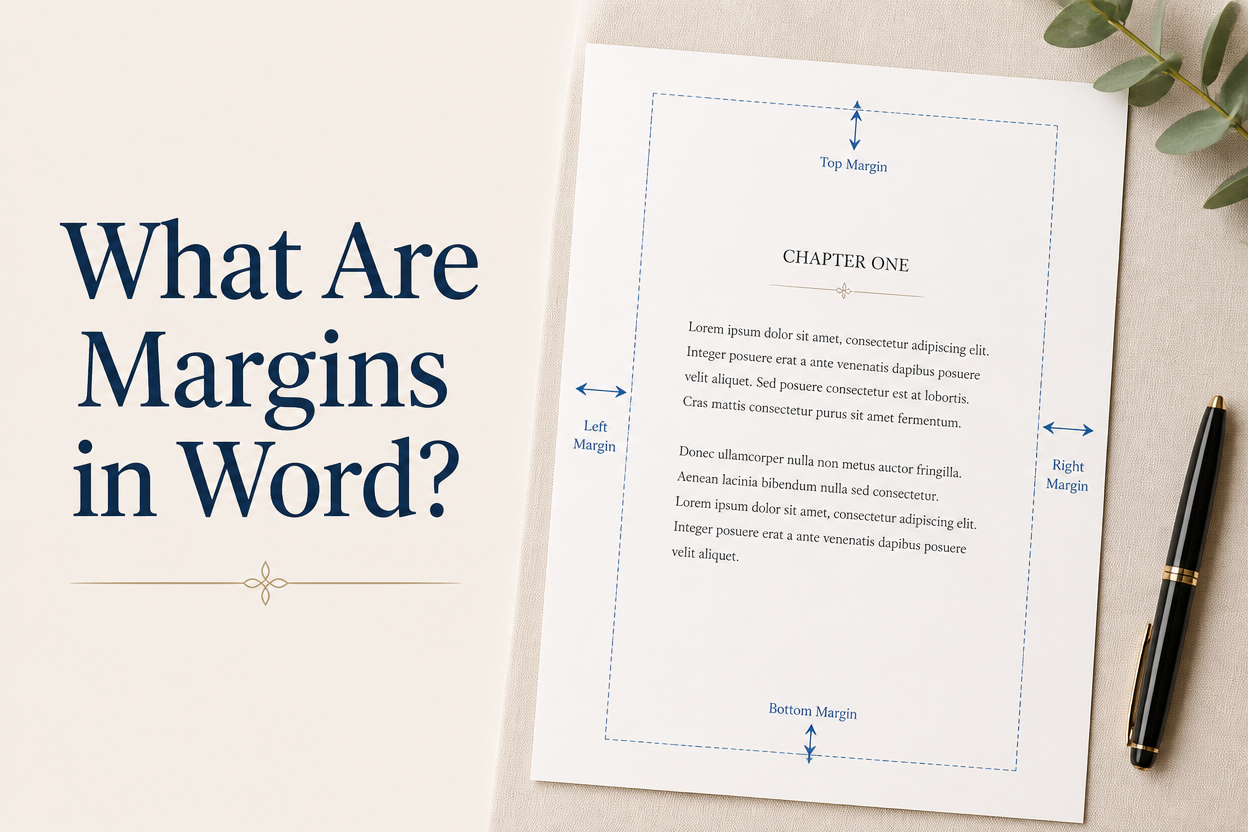
A margin is the space between your text and the page’s edge. Microsoft Word usually labels these spaces as top, bottom, left, and right margins. Each one shapes the reading experience differently.
The top margin gives your running header room. The bottom margin protects page numbers from the trim edge, and the outside margin keeps text clear of the page edge. The inside margin, sometimes called the gutter, gives the binding room to curve without swallowing words.
On a single page, the difference may look minor. Across a 300-page paperback, a narrow inside margin can make the book uncomfortable to hold and difficult to read. Your reader should never have to force the pages open or squint toward the spine.
Page Edges And Reading Comfort
Margins create a visual frame around your prose. A page with almost no white space feels crowded even when the font size is reasonable. Very wide margins produce the opposite problem, making a page feel thin and padding the page count without improving the design.
For a typical trade paperback, I often begin with a 0.75-inch outside margin and a larger inside margin. The exact measurement depends on the printer and the book’s length. Take those figures as a starting point, then check the publishing platform’s current specifications.
Trim Size And Book Format
Margins create a visual frame around your prose. A page with almost no white space feels crowded even when the font size is reasonable. Very wide margins produce the opposite problem, making a page feel thin and padding the page count without improving the design.
For a typical trade paperback, I often begin with a 0.75-inch outside margin and a larger inside margin. The exact measurement depends on the printer and the book’s length. Take those figures as a starting point, then check the publishing platform’s current specifications.
Standard Word Margin Settings
Word includes several preset margin options. Find them by opening the Layout tab, selecting Margins, and choosing a preset such as Normal, Narrow, Moderate, or Wide. You can also select Custom Margins and enter your own measurements.
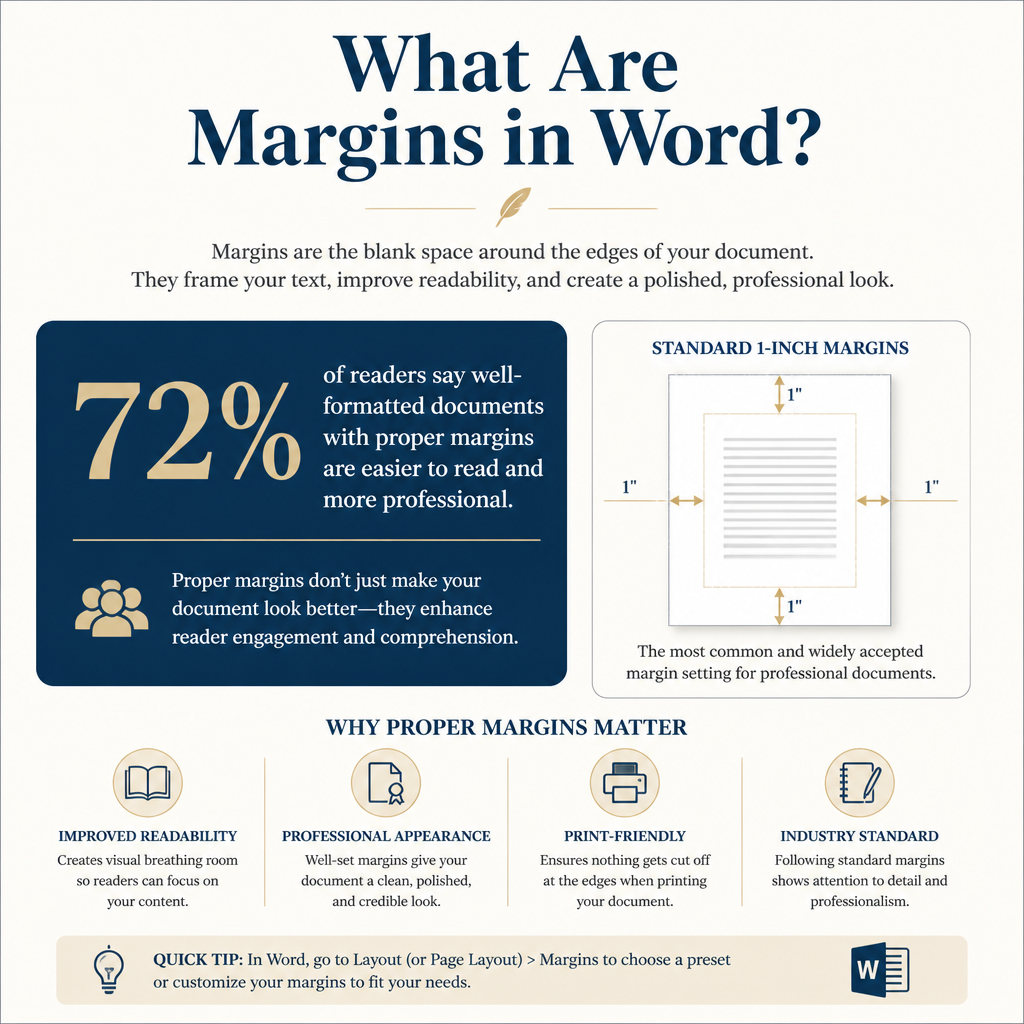
The Normal preset commonly uses one-inch margins on all sides. That setting works well for many manuscripts sent to agents, editors, and writing instructors. It gives reviewers room to annotate pages and creates a familiar submission format.
Those same one-inch margins rarely give you the finished interior of a print book. Book interiors often need different inside and outside measurements, different treatment for facing pages, and room for headers or folios. Use the Normal preset for a working manuscript when appropriate. Switch to Custom Margins once you prepare the book for publication.
Manuscript Margins For Editors
Editors and agents usually care more about legibility and consistency than about your eventual page design. A common manuscript format uses one-inch margins, a readable 12-point font, and double spacing. Submission requirements vary, so follow the request from the agent, contest, editor, or publisher receiving your pages.
Wide margins give an editor space for comments. Double spacing leaves room for line edits. Both settings support the review process, so they stay in the manuscript stage rather than the final interior unless your publisher specifies otherwise.
Book Interior Margins In Word
For a print interior, open Layout, select Margins, choose Custom Margins, and look for the Multiple Pages setting. Select Mirror Margins when your book will have facing pages. Word then treats the inside and outside edges as paired positions across the spread.
Enter an inside margin larger than the outside margin. The binding consumes space on the inside edge, and the reader needs a clear path through the text. Set the top and bottom margins with your running heads and page numbers in mind. Word’s preview will help you see whether the page feels balanced.
Save the document after setting these values, then inspect several pages. A single page can look fine in isolation. Move to a two-page spread to see whether the gutter feels generous, whether the text block sits too high, and whether the folios have enough room.
Mirror Margins And Gutter Space
Mirror margins matter when your book uses facing pages. In a bound book, the left page and right page have different inside edges. Word’s Mirror Margins setting accounts for that arrangement by placing the larger margin toward the binding on each page.
Gutter space refers to extra room added near the binding. Word may present a Gutter field alongside the margin controls. Whether you use that field or enter a larger inside margin depends on your document setup and printer instructions. Avoid adding extra space twice, because an oversized gutter can make your text block look lopsided.
Paperback And Hardcover Considerations
Perfect-bound paperbacks usually need less binding allowance than thick hardcover books. The required space still depends on page count and printer specifications. A 500-page paperback has a deeper text block near the spine than a 120-page novella. Your printer’s template or calculator should guide the final inside margin.
Books with sewn or case bindings have their own production requirements. A professional printer can tell you how much space the binding needs. Follow those specifications before exporting a PDF, because a margin problem discovered after printing can require a full interior revision.
Page Count And Inner Margins
Page count affects the inside edge because thicker books open differently and create a deeper curve near the spine. KDP publishes minimum measurements based on page count and whether the book includes bleed. Check the current KDP requirements for trim size, bleed, and page edges before finalizing your file.
IngramSpark also provides printer specifications for interior files, including margin and bleed guidance. Its file creation guide helps you match the page design to the selected book size. These requirements can change, so check the current documentation for whichever platform you choose.
Margins For Different Book Types
Every book benefits from a margin plan that fits its content. A dense business book needs room for sustained reading. Poetry collections often use shorter lines and more open space. Captions, recipes, and photographs give a cookbook its own set of demands. One universal setting rarely produces more than a passable result.
Novels And Short Story Collections
Novels usually work well with a restrained text block and generous enough inner margins for comfortable reading. Many trade novels use a 5 x 8, 5.25 x 8, or 6 x 9 inch trim size. The typeface, point size, line spacing, and paragraph indent all interact with the margins, so review them together.
Set a first-line indent for paragraphs after the opening paragraph of a chapter or section. Avoid using tabs to create those indents. A paragraph setting keeps the formatting stable when you revise text or move the file into another program.
Poetry And Literary Collections
Poetry often needs wider outside margins because line breaks carry meaning and short lines can look stranded near the edge. A poet may also need special page breaks, centered poems, or intentional blank space. Test the longest line in the collection before you settle on a measurement.
Short prose collections need a similar review. Stories with different lengths can create uneven page rhythm, especially when each piece begins on a new page. Use section breaks and inspect the book as a sequence of spreads rather than judging every page separately.
Workbooks And Illustrated Books
Workbooks need writing room. A half-inch margin may leave too little space for a reader to answer prompts by hand. Illustrated books need room for captions, images, and possible bleed beyond the trim line. Interiors of that kind often require a custom layout rather than a simple Word manuscript.
For children’s books, cookbooks, and heavily illustrated nonfiction, I recommend working from the printer’s template whenever one exists. Design the text and images inside the safe area, then keep important details away from trim and binding edges.
Setting And Checking Margins In Word
Open a copy of your manuscript and set the final trim size under Layout and Size. Select Custom Margins, choose Mirror Margins for a bound book, and enter the measurements your printer requires. Apply the settings to the whole document unless a specific section requires a different layout.
Use section breaks when front matter, body chapters, appendices, or landscape pages need different treatment. A section break gives you control over headers, footers, page numbering, and page orientation. Strings of empty paragraphs create fragile formatting that can collapse after one revision.
Headers, Footers, And Folios
Page numbers belong inside the page’s visual frame. Place them far enough from the trim edge to remain safe after cutting. Running headers can identify the author, title, part, or chapter. Many novels leave them out to keep the page quiet.
In Word, open the Header and Footer tools to set the distance from the edge. Check Different First Page for chapter openings if you want a clean first page. Use Different Odd and Even Pages when your design calls for different running heads on left and right pages.
Print Tests And PDF Checks
Print two facing pages on ordinary paper at the final trim ratio. You can print on Letter paper and trim the sheet, or place two reduced pages on one sheet to inspect the spread. Hold the pages as a reader would. Look for cramped text near the spine, weak page numbers, and an uneven text block.
Export a PDF to your printer’s stated settings. Open the PDF and check chapter openings, blank pages, page numbers, headers, tables, and images. Word’s editing view can hide problems that appear immediately in the exported file.
Book formatting tools can help with repeated styles and layout tasks. Judgment still belongs to you. Adazing offers tools for authors across writing, publishing, and book marketing, and I treat formatting as part of the reader’s experience, not as a final clerical chore.
Common Margin Problems
The most common mistake I see is using one-inch margins for every publishing task. That setting can work for a submission manuscript. It can produce a weak print interior when the book needs mirror margins, gutter space, or a different trim size.
Another frequent problem comes from changing margins after the book has been typeset. A small adjustment can shift chapter openings, add or remove pages, move illustrations, and reposition widows and orphans. Set the page geometry early, then revise inside that framework.
Text Too Close To The Spine
Text near the spine creates physical discomfort and a poor reading experience. Increase the inside margin, then review the page count and spread. If the book becomes too long, adjust type size or line spacing with care. A smaller font can damage readability more than a modest increase in page count.
Excessive White Space
Large margins can make a short book look padded. Readers may interpret an underfilled page as a formatting mistake, especially when the same space appears throughout the interior. Compare your pages with successful books in your genre and trim size, then decide whether the open design supports the material.
Margins That Shift Across Sections
Unexpected shifts usually come from section breaks, pasted content, or different page setup settings. Turn on Word’s formatting marks to see section breaks and paragraph marks. Select a problem page and inspect its section settings before changing the whole document.
FAQs for What Are Margins in Word?
What Are The Standard Margins In Word?
Word’s common Normal setting uses one-inch margins on every side. This works well for many drafts and submission manuscripts. A published book often needs custom measurements based on trim size, binding, page count, headers, and footers.
How Do I Set Book Margins In Word?
Open Layout, select Margins, choose Custom Margins, and enter your measurements. Select Mirror Margins for a bound book, then set the inside margin according to your printer’s specifications. Review a two-page spread and export a PDF before approving the interior.
What Margin Size Should A Paperback Book Use?
No single measurement suits every paperback. A common starting point is a larger inside margin with a smaller outside margin. The correct values still depend on trim size, page count, and printer rules. Check current KDP or IngramSpark specifications, then print a sample at the final size.
Build Margins Around The Reading Experience
Margins give your book room to breathe, protect the text near the binding, and shape the page readers will hold for hours. Set them from the final trim size and binding method, then check the result in a printed spread.
I recommend treating margins as part of your book’s typography. Choose them early, test them on paper, and revise the entire page design when the physical result feels cramped or wasteful. Your reader may never mention the margins, and that silence is a good sign. They will find the book comfortable to read!
