
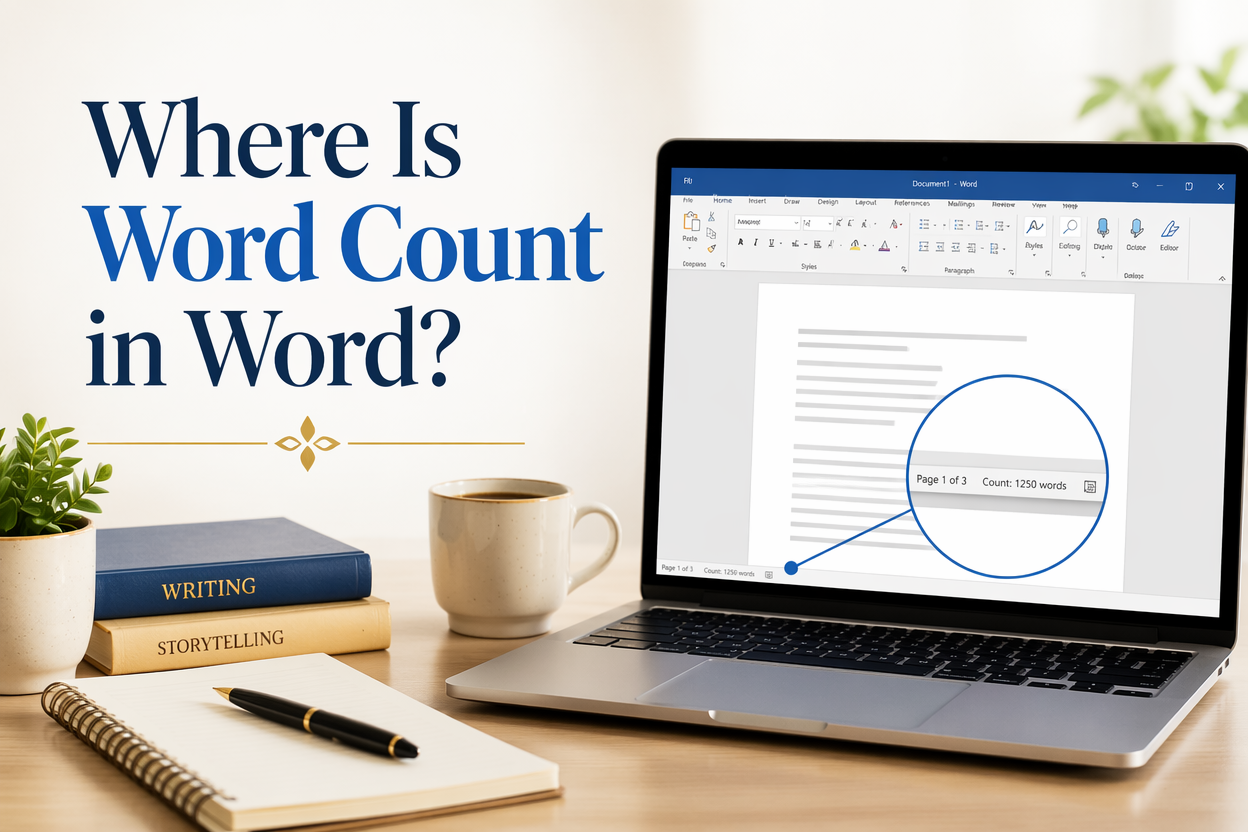
Where is word count in Word? It is hiding in plain sight, and if you write for a living, it is worth knowing where Microsoft tucks it because your deadlines, your contracts, and your editing budget are all tied to that number. The fastest spot is the status bar at the bottom of the document, but that number is only the start of what Word can tell you.
If you are drafting a novel, polishing a nonfiction manuscript, or packaging a lead magnet, you need three different answers: total words, words in a selected section, and words that exclude footnotes or text boxes. Word can do all three, but you have to look in the right places and set it up once so it stays useful.
I am going to show you where the count lives, how to get a trustworthy number, and how to use it like a working author. Word count is not trivia. It is your pace car.
Table of Contents
The Fastest Place to Find Word Count
The status bar is the quickest way to see your word count. Look at the bottom of the Word window. You will usually see something like “Words: 42,381” sitting near the left side.
If you do not see it, Word is not broken. Your status bar is just customized.
Turning Word Count On in the Status Bar
Right-click anywhere on the status bar at the bottom of Word. A menu pops up with toggles. Click “Word Count” to enable it. Your word count will appear immediately.
This one change pays for itself the next time you try to hit 2,000 words before bed, and you do not want to open a dialog box every five minutes.
Seeing Word Count for a Selection
Select a chunk of text and glance at the status bar. Word will show both counts, usually in the form “Words: 513/42,381.” The first number is the selection. The second is the full document.
This is the feature I use when I am tightening a chapter to fit a print signature, or when I want my opening to land around a certain length before an inciting incident. You can measure the scene, not the whole book.
When the Status Bar Number Misleads You
The status bar count is reliable for plain drafting, but it can confuse you when your document has lots of text boxes, shapes, footnotes, endnotes, or tracked changes. If your manuscript has any of those, I want you to confirm the number in the Word Count dialog box before you send pages to an editor, formatter, agent, or client.

The Word Count Dialog Box That Gives the Real Detail
The Word Count dialog box is the official readout. It tells you what Word considers words, characters, paragraphs, and lines, and it gives you one of the most important checkboxes in the entire program.
Where to Find the Word Count Dialog Box
You have three easy paths.
- Click the word count on the status bar. Word opens the dialog box.
- Go to the Review tab and click “Word Count” in the Proofing area.
- On Windows, you can also press Ctrl + Shift + G in many versions of Word. Keyboard shortcuts vary by build, so treat this as a bonus, not a promise.
The Checkbox Authors Miss: Include Textboxes, Footnotes, And Endnotes
Inside the Word Count dialog box, you will see a checkbox labeled “Include textboxes, footnotes and endnotes” in many versions of Word. This choice changes your number.
If you write nonfiction with heavy footnotes, that box can shift your count by thousands of words. If you write fiction and you use text boxes for sidebars, epigraphs, or design elements, it can still matter. Decide what number you need, then be consistent.
When you are working with an editor, ask which count they price from. Many freelancers quote per word based on the body text of the manuscript. Some count footnotes. Some do not. A single unchecked box can create a tense email later.
How Word Defines a Word
Word counts words by spaces and punctuation rules that are mostly intuitive, but edge cases exist. Hyphenated terms can count differently depending on formatting and language settings. That is why contracts and editorial quotes often specify something like “per Word word count” rather than a theoretical count.
If you need the closest thing to a standard, use Word’s dialog box number and keep your document in .docx format. Microsoft documents its behavior and features in its help pages, and that is the definition most professionals quietly accept because it is reproducible across machines. You can see Microsoft describe the feature in their documentation on showing the word count in Word.
Word Count That Matches Publishing Reality
Counting words is easy. Counting the words that matter for publishing decisions is the part that trips writers. Genre expectations, platform limits, and production costs do not care about your intent. They care about length.
Manuscript Word Count Versus Book Page Count
A Word document page is not a book page. Your 300-page manuscript in 12-point Times New Roman, double spaced, turns into a very different page count once it is typeset for print. That is why serious publishing conversations start with words, then translate words to estimated print pages at the formatting stage.
If you are budgeting print costs, word count is still the better early signal. Print page count affects spine width and printing costs, which in turn affect your list price and royalty. KDP, for example, bases printing costs on page count, not word count, but page count is downstream from how much text you wrote and how it is formatted. Amazon explains this in its help documentation on printing costs and royalty calculations.
If you want an early planning shortcut, I use rough averages. A typical 5×8 or 6×9 paperback, set in a readable novel font, often lands somewhere around 250 to 350 words per page once typeset, but that range varies with trim size, margins, font, and chapter styling. Treat it like a napkin estimate, then confirm once you have a formatted proof.
Platform Limits and Submission Requirements
Some markets care about word count in hard ways. Many magazines pay by the word. Agents and editors in traditional publishing often want an approximate word count in a query. Even when you publish independently, you still face expectations. For example, romance readers notice when a “novel” is 35,000 words. Epic fantasy readers notice when it is 70,000. Length is part of the promise you are making.
For practical guardrails, I like to point writers to benchmarks from industry trackers. For example, Reedsy gives a solid range chart for common genres and age categories in their resource on typical novel word counts. You do not have to obey those numbers, but you should know when you are breaking them, because you will pay for it in reviews, ad performance, or read-through.
Editing and Proofing Budgets Live and Die by Word Count
Editors price by word or by project, and their per-project pricing is still anchored to an expected length. When you request a quote, give the dialog-box word count and state whether it includes footnotes and endnotes. This one sentence saves time: “Word Count: 92,410 in Word, excluding footnotes.”
If you are on a tight budget, word count is also the fastest way to manage scope. Cutting 10,000 words can shave real money off a developmental edit. That cut hurts, but it hurts less than skipping the edit and shipping a messy book that tanks your read-through.
Common Word Count Problems and How I Fix Them
Most word count confusion comes from Word behaving correctly while you assume it is counting something else. The fix is usually a settings check or a workflow tweak.
Tracked Changes and Comments
Word count can shift when you have tracked changes. Deletions, insertions, and moves complicate what you mean by “total words.” If you are sending a clean manuscript to a formatter or uploading for production, accept or reject changes first, then check the word count again.
Comments typically do not count as body text, but I still do not trust a manuscript full of markup. My rule is simple. If it is not ready to publish, the word count is still provisional.
Headers, Footers, and Front Matter
Your title page, copyright page, dedication, and acknowledgments all add words, and Word may or may not count some of those elements the way you expect. If you are trying to hit a target length for a retailer description, a query, or an editor quote, count the manuscript body unless the recipient asks for total book text.
For nonfiction, front matter and back matter can be part of the reader’s perceived value. For fiction, front matter is often minimal. The point is not what is morally correct. The point is that you should measure the same thing every time so you can compare drafts without lying to yourself.
Text Boxes, Shapes, and Imported PDFs
Text in shapes and text boxes can slip through the cracks. That is why the “include text boxes” checkbox matters. Another trap is text you copy out of a PDF. It can introduce odd spacing that causes Word to split or merge words in surprising ways.
If you suspect that happened, run a quick cleanup. Turn on Show/Hide paragraph marks and spaces, fix double spaces, and look for nonbreaking spaces. Then recheck the dialog box word count. This manual pass is boring, but it is faster than discovering the issue after a print proof arrives.
A Practical Word Count Workflow for Working Authors
Checking word count once in a while is fine for hobby writing. If you are trying to publish consistently, word count needs a routine so it stops being an emotional weather report and starts being a progress-tracking tool.
Daily Drafting Targets That Do Not Break You
I like word goals tied to time and consistency, not heroic sprints. If you can draft 500 words a day, that is 15,000 a month. If you can hold 1,000 a day, that is a novel draft in three months. Your actual pace depends on your life and your process, but the math tells you what your schedule can support.
Use the status bar during drafting, then check the dialog box at the end of the day or end of the week. Your daily goal lives in the status bar. Your official number lives in the dialog box.
Milestones That Track a Real Manuscript
When I plan a book, I set three length milestones: first-draft target, revised-draft target, and final-production target. Drafts tend to bloat. Revisions tend to cut. Line edits often add a little back. If you only track one number, you will overreact to normal draft behavior.
If you are outlining, you can also track word count by chapter. Select each chapter, note the count, and compare it to your intended pacing. This habit catches the 18,000-word middle chapter that should have been three scenes.
When Word Is the Wrong Tool for Counting
Word is excellent for manuscript preparation and collaboration, and that is why so many editors still ask for .docx. For drafting, plenty of authors prefer Scrivener, Google Docs, or dedicated drafting tools because they handle notes, versions, and planning better.
If you draft outside Word and only export to .docx later, you still need a Word count you can trust at handoff time. At Adazing, I build tools for writers because I know the friction points are rarely creative. They are logistical. Use whatever drafting environment keeps you writing, then use Word’s dialog box count for the professional checkpoint before you pay for editing, formatting, or a cover design that has to match your spine width.
FAQs for Where Is Word Count in Word?
How do I find word count in Word on Mac?
In Word for Mac, the word count usually appears on the status bar at the bottom. If you do not see it, go to Tools, then Word Count for the full dialog box. You can also click the count in the status bar when visible to open the details.
Why does my word count change when I select text?
Word shows two numbers when you select text. The first is the selection count, and the second is the full document count. This is normal and useful for measuring a scene, a chapter, or a section you are revising.
Does Word count footnotes and endnotes?
Word can count them, but it depends on your setting. Open the Word Count dialog box and look for the checkbox to include text boxes, footnotes, and endnotes. If you need a number for an editor quote or a contract, state whether your count includes those elements.
A Word Count Habit That Pays Off
Your word count is a production metric, and treating it that way makes your writing life calmer. Put word count on the status bar, confirm the real number in the dialog box when money or deadlines are involved, and be explicit about what you are counting when you talk to editors and formatters. You will spend less time second-guessing Word and more time writing the next chapter.
